BeyondERP.Newsletter
Menu

Setup page · Warehouse management

Packing profiles

A list page where you set up the packing profiles that workers select, or that are set by default, when they start a packing operation.

Used by
Field Service Integration User, Production supervisor, Process engineer and 3 more roles
Business process
Manage warehouse operations
Menu item
WHSPackProfile
Main table
WHSPackProfile
Data entity
WHSWarehousePackingProfileEntity
Setup steps
1 on this page
Show what matters for
PAGE GUIDEWhat the page does and how to use it8 sections. Choose a role to highlight what matters to you.
Everyone

1What it is and why

What it isA list page where you set up the packing profiles that workers select, or that are set by default, when they start a packing operation.
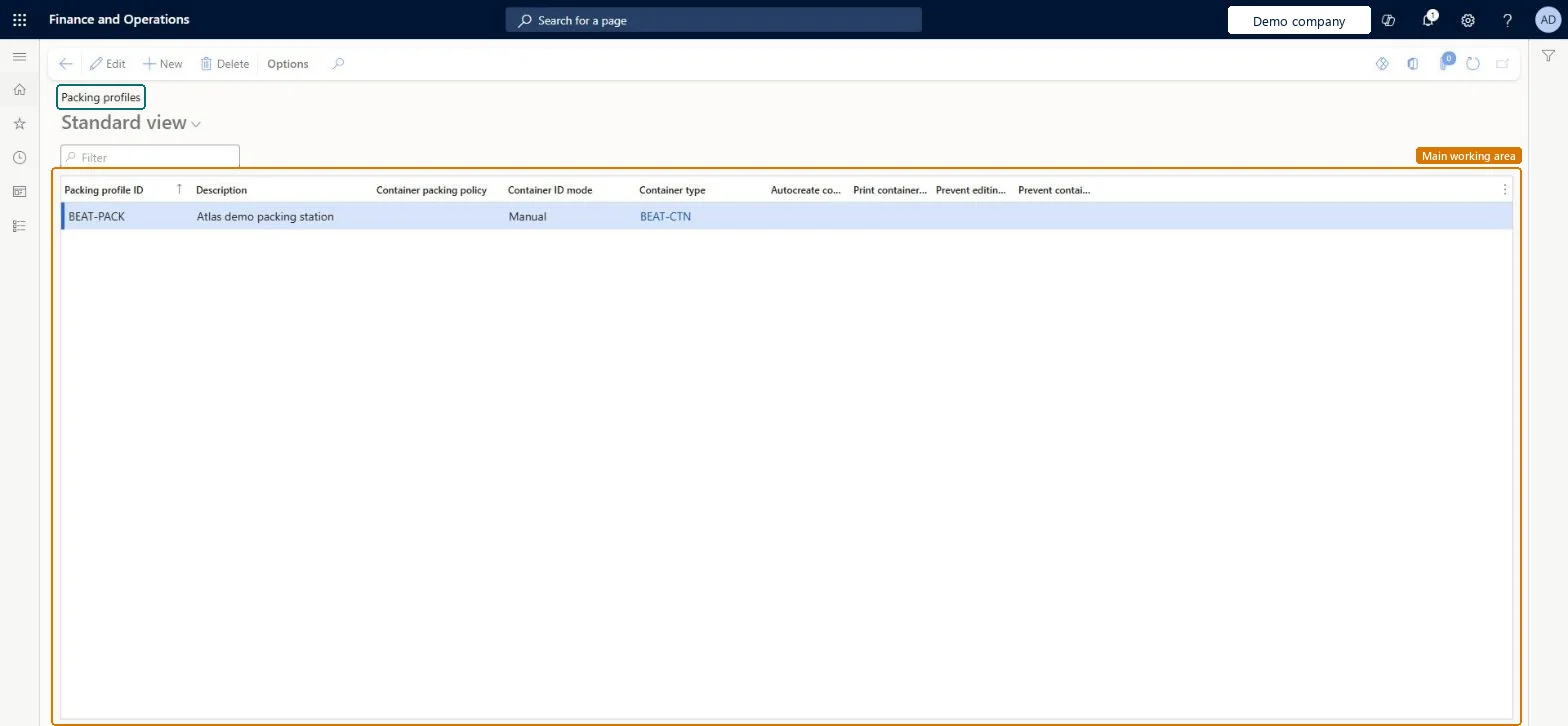
What you do hereUse this page to define, for each packing profile, the container packing policy, how container IDs are created, the default container type and whether container labels are printed automatically.
Packing profiles page in Dynamics 365
The page in Dynamics 365. page title tab to open what to set or check
Functional consultant · Solution architect

2Where it fits

Business processManage warehouse operations
Menu pathWarehouse management › Setup › Packing › Packing profiles
Set up firstContainer packing policies Microsoft Learn Container types Microsoft Learn
Used next byWorker Microsoft Learn
End user · Functional consultant

3How to do it

About the examples: Examples and screenshots in this guide use BEAT, a demo company in a Dynamics 365 test environment. Use your own company's codes and values instead of copying them.

Setup steps on this page

Set up Packing profiles

Use this page to define, for each packing profile, the container packing policy, how container IDs are created, the default container type and whether container labels are printed automatically.

Steps from Microsoft

  1. Go to Warehouse management > Setup > Packing > Packing profiles.
  2. Either select an existing profile or select New on the Action Pane to create a new one.
  3. Enter a Packing profile ID and a Description.
  4. Select the Container packing policy that applies to the profile.
  5. Set the Container ID mode and select the Container type that is used by default when a new container is created.
  6. Select the options for automatic container creation, label printing and the container restrictions that you need.

Source: Microsoft Learn

Fields on the page

FieldWhat it meansTable column
Container packing policyThe packing policy that applies to the profile.Microsoft Learn CloseContainerProfileId
Container ID modeWhether a container ID is generated automatically when a container is created, or created manually.Microsoft Learn LPAssignment
Container typeThe container type that is used by default when a new container is created.Microsoft Learn DefaultContainerType
Autocreate container at container closeCreates a new container automatically when the previous one is closed and lines remain in the shipment.Microsoft Learn AutoContainerOnClose
Print container label at container creationPrints a container label automatically when a new container is created.Microsoft Learn PrintContainerLabel
Prevent editing container IDStops automatically assigned container IDs from being edited.Microsoft Learn
Prevent container creation without items to packStops containers from being created when there are no items to pack for the shipment and packing location.Microsoft Learn PreventContainerCreateWithoutItemToPack

Test checklist

  1. Assign the packing profile to a worker on Warehouse management > Setup > Worker.
  2. Open Packing and containerization > Pack, select the packing station and the profile.
  3. Select New container and check the default container type and container ID mode are applied.
  4. If Autocreate container at container close is selected, close a container while lines remain and check a new container is created.

Source: Microsoft Learn

Functional consultant

4Setup decisions

Setup stepRecommended value and whyDecision, common mistake and test
Set up Packing profilesContainer ID mode Auto with a default Container type on every profile used in the mobile app's Pack all remaining flowPacking profiles are required for packing. For the mobile policy option Create container automatically to work, the worker's packing profile must have a Container type and Container ID mode set to Auto.Linking a container packing policy to the profile and then trying to set a different policy on the worker. If the worker's profile has a container packing policy, the worker's Container packing policy field can't be changed.
Solution architect

5Design impact

Shared or per companyPer company: each legal entity has its own records. Microsoft data model
Can it be undoneReversible: Packing profile settings can be changed at any time and apply the next time a worker starts packing with the profile. Microsoft Learn
Technical architect

6Technical

Menu itemWHSPackProfile Checked in Dynamics 365
FormWHSPackProfile Checked in Dynamics 365
TableWHSPackProfileShown as “PACKING PROFILES” in Record infoKey field: PackProfileIdChecked in Dynamics 365
Data entitiesWHSWarehousePackingProfileEntityWarehouse packing profiles Microsoft data model
Who can open itPrivilegesMaintain packing profiles WHSPackProfileMaintainView packing profiles WHSPackProfileViewDutiesInquire into warehouse operation master WMSWarehouseOperationMasterInquireMaintain warehouse operation master WMSWarehouseOperationMasterMaintain
6 security rolesField Service Integration User FieldServiceIntegrationUserProduction supervisor ProdProductionSupervisorProcess engineer RouteProcessEngineerProcess engineering manager RouteProcessEngineeringManagerWarehouse planner WHSWarehousePlannerWarehouse manager WMSWarehouseManager
Checked in Dynamics 365
Roles to set it up and use itTo set it up or change itWarehouse manager WMSWarehouseManagerProcess engineer RouteProcessEngineerTo use itWarehouse planner WHSWarehousePlannerProduction supervisor ProdProductionSupervisorProcess engineering manager RouteProcessEngineeringManagerField Service Integration User FieldServiceIntegrationUserGive people one of these roles. On this system, 6 roles can open this page.Checked in Dynamics 365
Developer

7Developer

Open it by URLhttps://<your-environment>/?mi=WHSPackProfile
Integrate withWHSWarehousePackingProfileEntity data entity Microsoft data model
Data migrationWHSWarehousePackingProfileEntity (Warehouse packing profiles): loaded for each company, in Microsoft's default template 400 - Warehouse management.Load order: Microsoft's default template 400 - Warehouse management loads Warehouse packing profiles at execution unit 1, level 400, sequence 20. Lower levels load first, and entities at the same level load in sequence order.Load first: Container types V2, Container packing policies, the default templates at lower levels (System setup to Quality management)Microsoft Learn
Table definitionWHSPackProfile columns and relations Microsoft data model
Everyone

8Sources