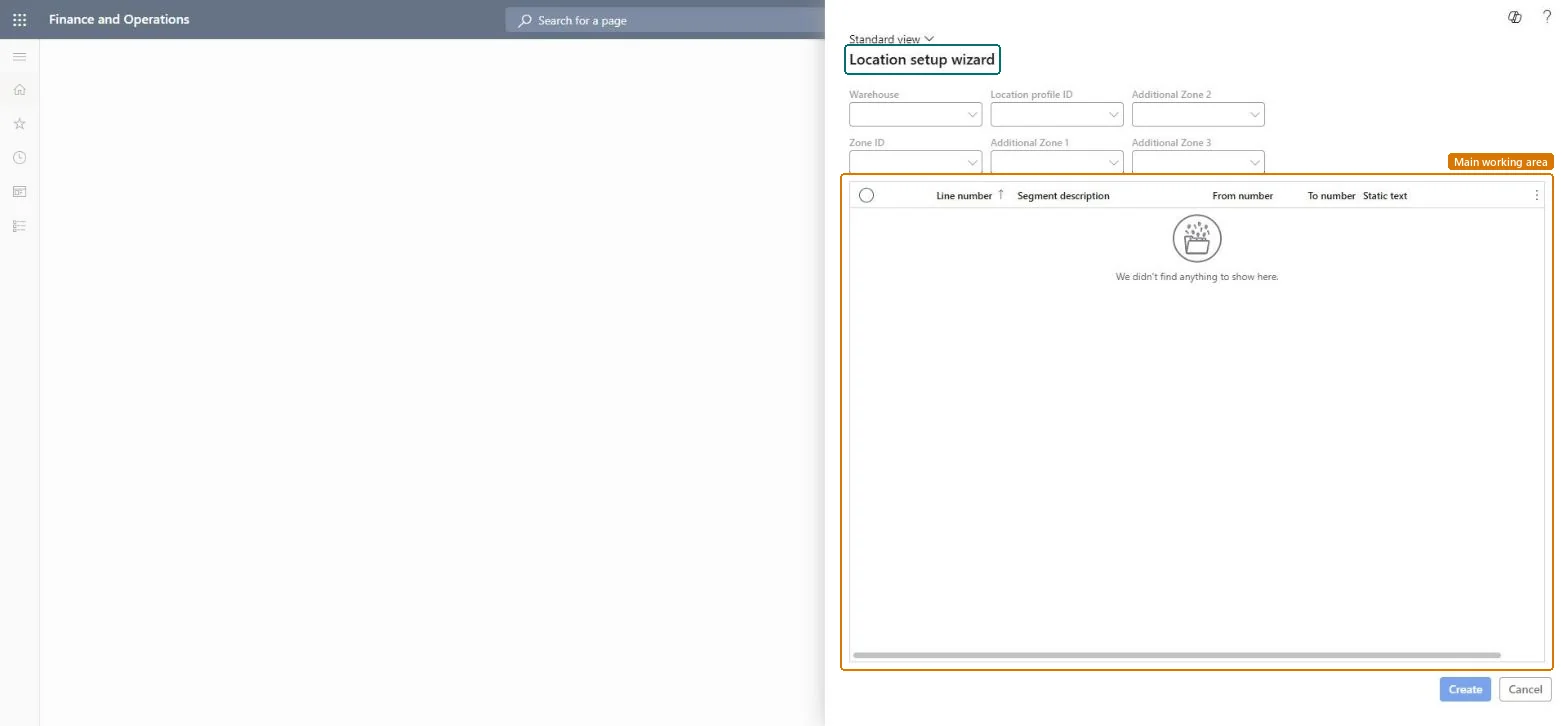
About the examples: Examples and screenshots in this guide use BEAT, a demo company in a Dynamics 365 test environment. Use your own company's codes and values instead of copying them.
Setup steps on this page
Set up Location setup wizard
Use this wizard to create many locations in a warehouse at once instead of entering them one by one.
Steps from Microsoft
Go to Warehouse management > Setup > Warehouse > Location setup wizard.
In the Warehouse field, select the warehouse.
In the Zone ID field, select the zone.
In the Location profile ID field, select the location profile.
For each segment line of the location format, enter a From number and a To number.
Set From number and To number per segment for the real aisles, racks, shelves and bins only, with the correct zone and location profileThe wizard creates a location for every combination of segment values, so four segments of 1 to 3 give 81 locations.
Wide ranges on every segment, which multiply into locations that don't exist physically.
Solution architect
5Design impact
Can it be undone
Hard to reverse: There is no undo of a wizard run; every combination is created as a location and must be cleaned up on Locations. Microsoft Learn
Technical architect
6Technical
Menu item
WHSLocationBuildChecked in Dynamics 365
Form
WHSLocationBuildChecked in Dynamics 365
Roles to set it up and use it
To set it up or change itWarehouse manager WMSWarehouseManagerProcess engineer RouteProcessEngineerTo use itWarehouse planner WHSWarehousePlannerProduction supervisor ProdProductionSupervisorProcess engineering manager RouteProcessEngineeringManagerField Service Integration User FieldServiceIntegrationUserGive people one of these roles. On this system, 6 roles can open this page.Checked in Dynamics 365