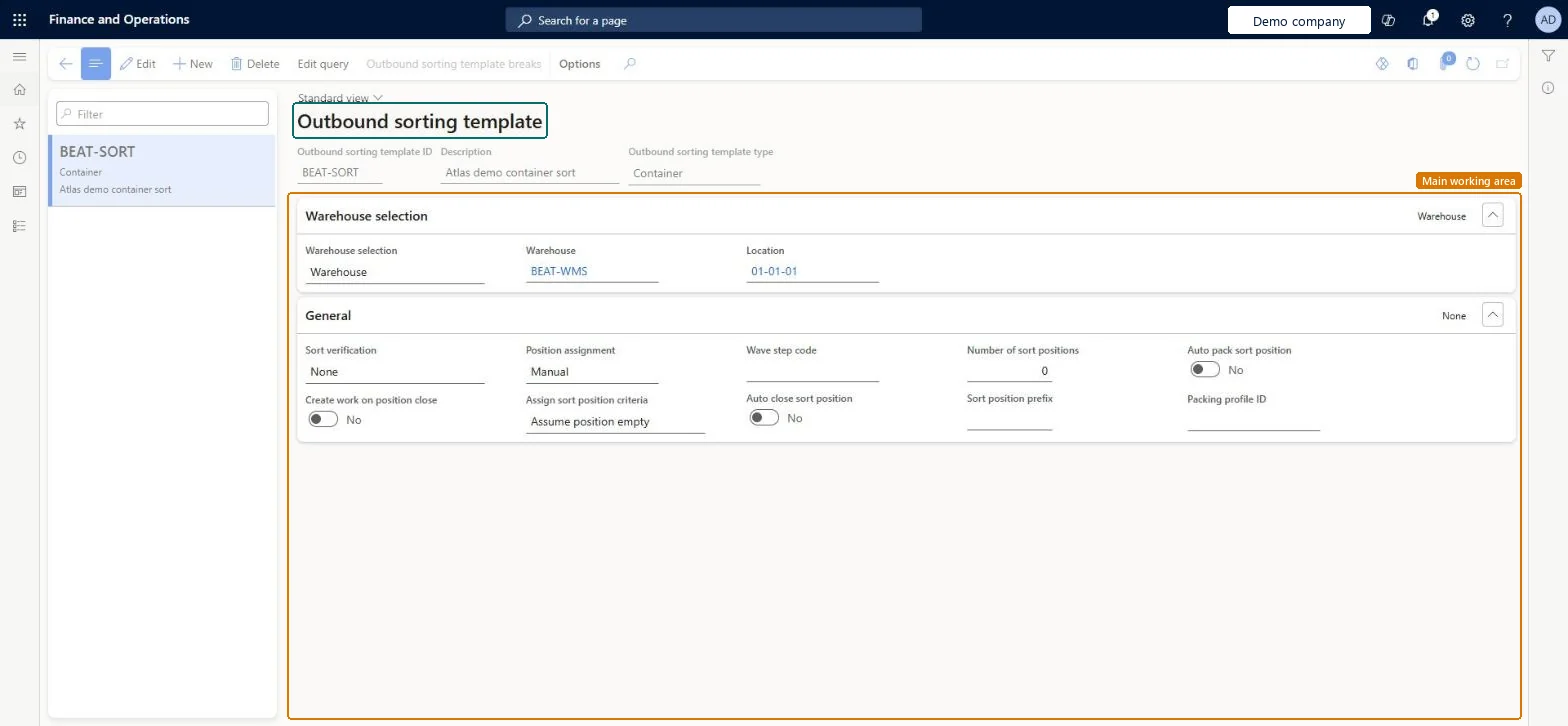
A setup page where you define outbound sorting templates, which control whether sort positions are created, which criteria are used and how sorting is verified.
Field Service Integration User, Production supervisor, Process engineer and 3 more roles
Business process
Manage warehouse operations
Menu item
WHSOutboundSortTemplate
Main table
WHSOutboundSortTemplate
Data entity
WHSOutboundSortingTemplateV2Entity
Setup steps
1 on this page
Show what matters for
PAGE GUIDEWhat the page does and how to use it8 sections. Choose a role to highlight what matters to you.
Everyone
1What it is and why
What it is
A setup page where you define outbound sorting templates, which control whether sort positions are created, which criteria are used and how sorting is verified.
What you do here
Use this page to set up how picked inventory or packed containers are sorted into sort positions before shipping, including position assignment, the number of positions and whether work is created when a position closes.
Example
For example, you can sort packed containers onto pallets after the packing station, depending on the shipping carrier service.
The page in Dynamics 365. page title tab to open what to set or check
About the examples: Examples and screenshots in this guide use BEAT, a demo company in a Dynamics 365 test environment. Use your own company's codes and values instead of copying them.
Setup steps on this page
Set up Outbound sorting template
Use this page to set up how picked inventory or packed containers are sorted into sort positions before shipping, including position assignment, the number of positions and whether work is created when a position closes.
Steps from Microsoft
Go to Warehouse management > Setup > Packing > Outbound sorting template.
On the Action Pane, select New to create a sorting template.
In the header, enter the Outbound sorting template ID, a Description and the Outbound sorting template type.
On the Warehouse selection FastTab, choose whether the template applies to all warehouses, a warehouse group or one warehouse.
On the General FastTab, set fields such as Sort verification, Position assignment and Create work on position close.
Select Save, then select Edit query to define the criteria that the template uses.
The verification that is required during sorting.Microsoft Learn
SortVerification
Create work on position close
When set to Yes, closing a position creates work to move the inventory to the final shipping location.Microsoft Learn
CreateWorkOnPositionClose
Position assignment
Whether the worker chooses the sort position manually or the system guides the inventory to a position automatically.Microsoft Learn
SortPositionAssignment
Auto close sort position
Closes a sort position automatically once all work that comes to it is complete.Microsoft Learn
AutoCloseSortPosition
Number of sort positions
The maximum number of sort positions that the system creates.Microsoft Learn
NumberOfSortPositions
Sort position prefix
The prefix that the system adds before the position number.Microsoft Learn
SortPositionPrefix
Auto pack sort position
Packs the inventory on a sort position into a container when the position is closed.Microsoft Learn
AutoPackSortPosition
Packing profile ID
The packing profile used when the sort position is packed into a container.Microsoft Learn
PackProfileId
Test checklist
Set Sorting location type in Warehouse management parameters and create a sort location.
Use a container packing policy with Container release policy Assign container to outbound sorting position and pack two shipments with different carrier services.
On the mobile Pallet build menu item, sort each container and check containers with the same carrier service go to the same position.
Close a position and check Sorted inventory picking work is created (when Create work on position close is Yes).
Position assignment Automatic, with Outbound sorting template breaks on the field you build pallets by (for example Carrier service); Sort verification Position scanWith Automatic, the system guides inventory to a position based on the template breaks; with Manual the worker must always choose the position. Learn's pallet-building scenario uses Automatic, a carrier service break and Position scan.
Reversible: The template can be changed at any time and affects sorting done afterwards. Sort positions that are already open keep their criteria until they are closed. Microsoft Learn
Technical architect
6Technical
Menu item
WHSOutboundSortTemplateChecked in Dynamics 365
Form
WHSOutboundSortTemplateChecked in Dynamics 365
Table
WHSOutboundSortTemplateShown as “OUTBOUND SORTING TEMPLATE TABLE” in Record infoChecked in Dynamics 365
Data entities
WHSOutboundSortingTemplateV2EntityOutbound sorting templates V2 Microsoft data model
Who can open it
PrivilegesMaintain outbound sorting templates WHSOutboundSortTemplateMaintainView outbound sorting templates WHSOutboundSortTemplateViewDutiesInquire into warehouse operation master WMSWarehouseOperationMasterInquireMaintain warehouse operation master WMSWarehouseOperationMasterMaintain6 security rolesField Service Integration User FieldServiceIntegrationUserProduction supervisor ProdProductionSupervisorProcess engineer RouteProcessEngineerProcess engineering manager RouteProcessEngineeringManagerWarehouse planner WHSWarehousePlannerWarehouse manager WMSWarehouseManagerChecked in Dynamics 365
Roles to set it up and use it
To set it up or change itWarehouse manager WMSWarehouseManagerProcess engineer RouteProcessEngineerTo use itWarehouse planner WHSWarehousePlannerProduction supervisor ProdProductionSupervisorProcess engineering manager RouteProcessEngineeringManagerField Service Integration User FieldServiceIntegrationUserGive people one of these roles. On this system, 6 roles can open this page.Checked in Dynamics 365
Actions on the page
(Action Pane without tabs): Edit query, Outbound sorting template breaksChecked in Dynamics 365