BeyondERP.Newsletter
Menu

Setup page · Warehouse management

Mobile device brands

A setup page where you manage the device brands, and the models of each brand, that can be used with mobile device user settings.

Used by
Warehouse planner, Warehouse manager
Business process
Manage warehouse operations
Menu item
WHSMobileAppDeviceBrand
Main table
WHSMobileAppDeviceBrandTable
Setup steps
1 on this page
Show what matters for
PAGE GUIDEWhat the page does and how to use it8 sections. Choose a role to highlight what matters to you.
Everyone

1What it is and why

What it isA setup page where you manage the device brands, and the models of each brand, that can be used with mobile device user settings.
What you do hereUse this page to review the brands and models of the devices that workers use, and to add descriptions that help tell similar models apart.
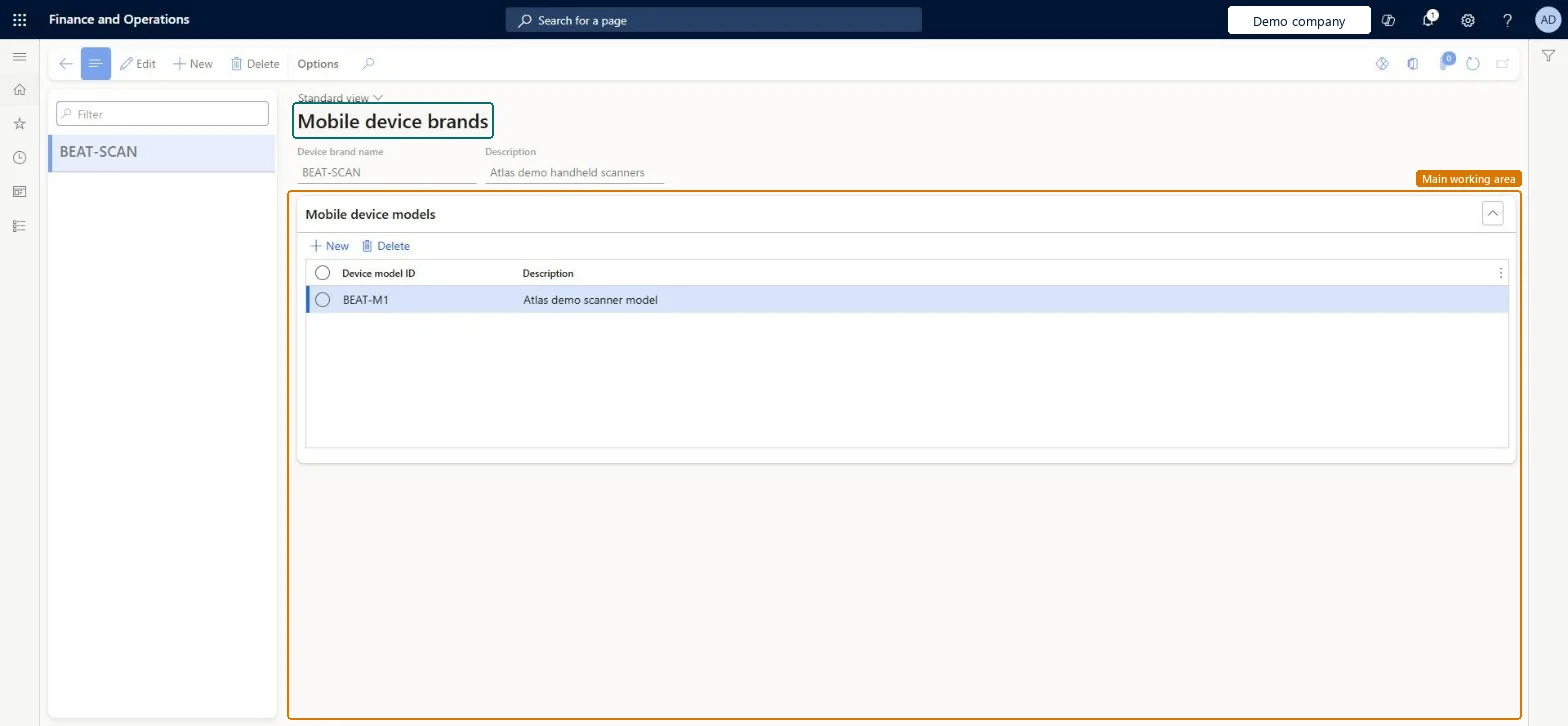
Mobile device brands page in Dynamics 365
The page in Dynamics 365. page title tab to open what to set or check
Functional consultant · Solution architect

2Where it fits

Business processManage warehouse operations
Menu pathWarehouse management › Setup › Mobile device › Mobile device brands
Used next byMobile device user settings Microsoft Learn
End user · Functional consultant

3How to do it

About the examples: Examples and screenshots in this guide use BEAT, a demo company in a Dynamics 365 test environment. Use your own company's codes and values instead of copying them.

Setup steps on this page

Set up Mobile device brands

Use this page to review the brands and models of the devices that workers use, and to add descriptions that help tell similar models apart.

Steps from Microsoft

  1. Go to Warehouse management > Setup > Mobile device > Mobile device brands.
  2. In the list pane, select a brand to open its record, or select New to create a brand.
  3. In the header, enter the Device brand name and a Description.
  4. On the Mobile device models FastTab, select New to add a row, then enter the Device model ID and a Description.
  5. Select a row and select Delete to remove a model.

Source: Microsoft Learn

Fields on the page

FieldWhat it meansTable column
Device brand nameThe brand name of the device.Microsoft Learn DeviceBrandId
Device model IDThe model of the device. The models of the selected brand are listed on the Mobile device models FastTab.Microsoft Learn DeviceModelId
DescriptionA description that helps distinguish similar brand names.Microsoft Learn

Test checklist

  1. Sign in to the mobile app on a new device and change one user setting.
  2. Open Mobile device brands and check that the device brand and model were added.
  3. Add a description to the model.
  4. Check that the model can be selected on Mobile device user settings.

Source: Microsoft Learn

Functional consultant

4Setup decisions

Setup stepRecommended value and whyDecision, common mistake and test
Set up Mobile device brandsLet the app create brands and models, then add descriptions that tell similar or cryptic model IDs apartThe app submits the local brand name and model ID the first time a worker edits settings on a device, so most records are generated automatically.Keying in brands and models by hand with names that don't match what the device reports, so device-level settings profiles never match.
Solution architect

5Design impact

Can it be undoneReversible: You can add, edit or remove brands and models at any time. They are only used to match settings profiles. Microsoft Learn
Technical architect

6Technical

Menu itemWHSMobileAppDeviceBrand Checked in Dynamics 365
FormWHSMobileAppDeviceBrand Checked in Dynamics 365
TableWHSMobileAppDeviceBrandTableShown as “MOBILE DEVICE BRANDS” in Record infoKey field: DeviceBrandIdChecked in Dynamics 365
Who can open itPrivilegesMaintain work user display settings WHSWorkUserDisplaySettingsMaintainView work user displays settings WHSWorkUserDisplaySettingsViewDutiesInquire into warehouse planning master data WHSWarehousePlanningMasterInquireRecord warehouse planning masters WHSWarehousePlanningMasterMaintain
2 security rolesWarehouse planner WHSWarehousePlannerWarehouse manager WMSWarehouseManager
Checked in Dynamics 365
Roles to set it up and use itTo set it up or change itWarehouse manager WMSWarehouseManagerWarehouse planner WHSWarehousePlannerGive people one of these roles. On this system, 2 roles can open this page.Checked in Dynamics 365
Developer

7Developer

Open it by URLhttps://<your-environment>/?mi=WHSMobileAppDeviceBrand
Everyone

8Sources