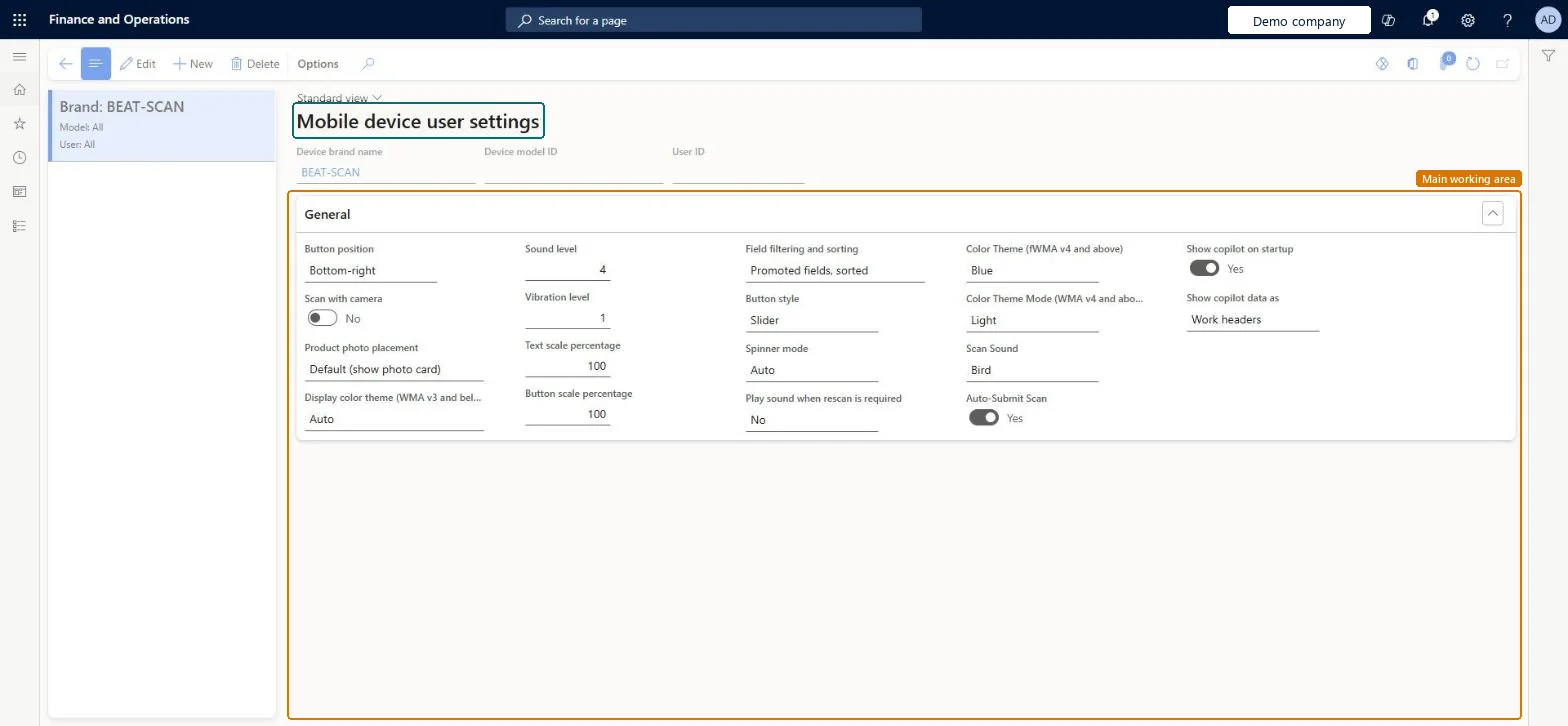
A setup page where you manage the Warehouse Management mobile app settings profiles that apply to a device brand, a device model, a user, or all of them.
PAGE GUIDEWhat the page does and how to use it8 sections. Choose a role to highlight what matters to you.
Everyone
1What it is and why
What it is
A setup page where you manage the Warehouse Management mobile app settings profiles that apply to a device brand, a device model, a user, or all of them.
What you do here
Use this page to define how the app looks and behaves for workers, for example button position, scan with camera, sound level and text scale, at whatever level of detail you need.
The page in Dynamics 365. page title tab to open what to set or check
About the examples: Examples and screenshots in this guide use BEAT, a demo company in a Dynamics 365 test environment. Use your own company's codes and values instead of copying them.
Setup steps on this page
Set up Mobile device user settings
Use this page to define how the app looks and behaves for workers, for example button position, scan with camera, sound level and text scale, at whatever level of detail you need.
Steps from Microsoft
Go to Warehouse management > Setup > Mobile device > Mobile device user settings.
Select an existing profile in the list pane, or select New to create one.
In the header, set the Device brand name, Device model ID and User ID that the profile applies to.
On the General FastTab, set the user settings values that you want to apply.
One general profile with Device brand name, Device model ID and User ID blank, plus more specific profiles only for brands, models or users that need different settingsThe app applies the most specific profile that matches the brand, model and user, so a blank general profile is the fallback for every device.
Treating profiles as fixed. When a worker changes local settings in the app, the matching profile is updated, or a new one is created if none matches.
Solution architect
5Design impact
Can it be undone
Reversible: Profiles can be edited or removed at any time. Worker changes in the app overwrite the matching profile. Microsoft Learn
If you change it later
When a worker changes their own settings in the app, the matching profile stored here is updated, so a profile can change after you set it. Microsoft Learn
Technical architect
6Technical
Menu item
WHSMobileAppUserDisplaySettingsChecked in Dynamics 365
Form
WHSMobileAppUserDisplaySettingsChecked in Dynamics 365
Table
WHSMobileAppUserDisplaySettingsShown as “MOBILE DEVICE USER SETTINGS” in Record infoKey field: DeviceBrand, DeviceModel, UserIdChecked in Dynamics 365
Who can open it
PrivilegesMaintain work user display settings WHSWorkUserDisplaySettingsMaintainView work user displays settings WHSWorkUserDisplaySettingsViewDutiesInquire into warehouse planning master data WHSWarehousePlanningMasterInquireRecord warehouse planning masters WHSWarehousePlanningMasterMaintain2 security rolesWarehouse planner WHSWarehousePlannerWarehouse manager WMSWarehouseManagerChecked in Dynamics 365
Roles to set it up and use it
To set it up or change itWarehouse manager WMSWarehouseManagerWarehouse planner WHSWarehousePlannerGive people one of these roles. On this system, 2 roles can open this page.Checked in Dynamics 365