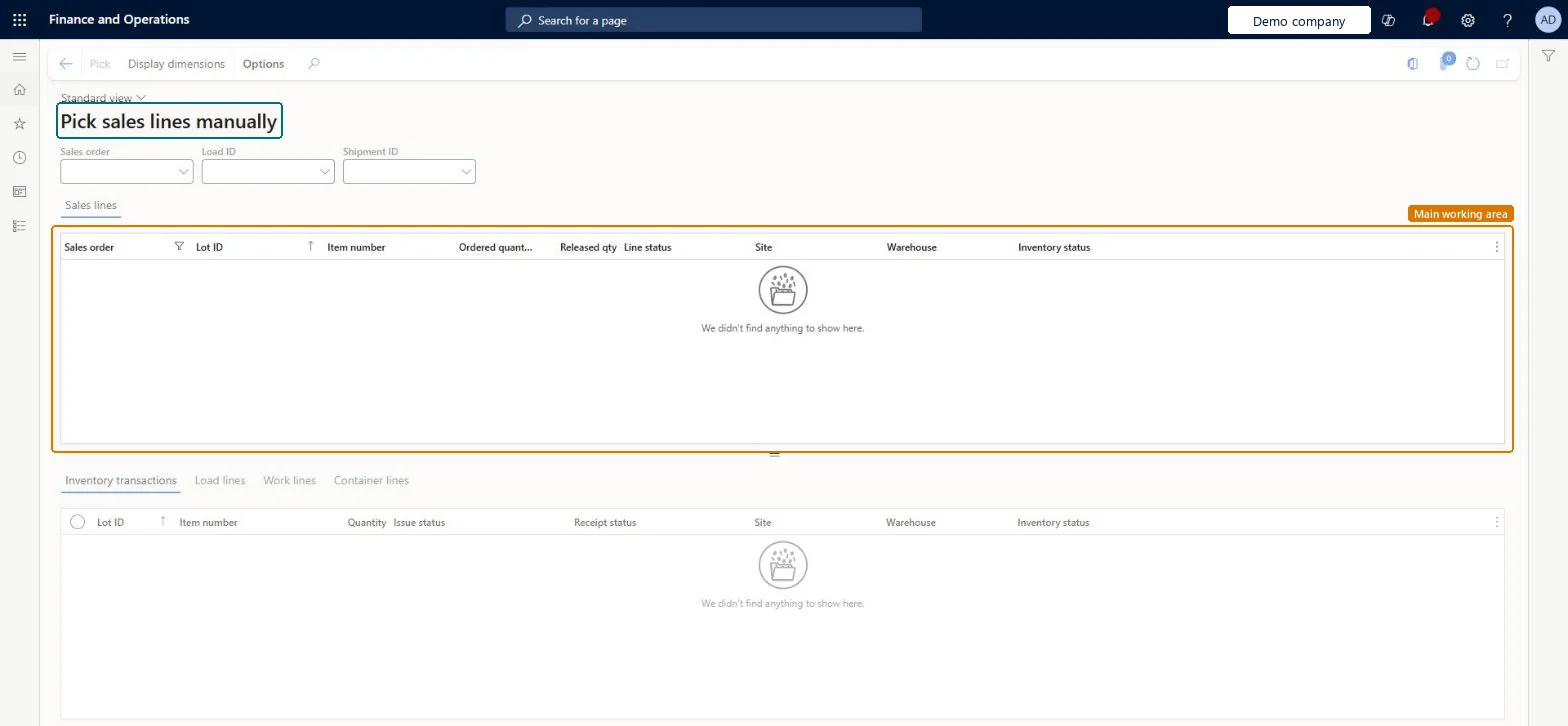
A page where an administrator manually picks or unpicks the inventory transactions of sales order lines while warehouse processes are already in progress.
PAGE GUIDEWhat the page does and how to use it7 sections. Choose a role to highlight what matters to you.
Everyone
1What it is and why
What it is
A page where an administrator manually picks or unpicks the inventory transactions of sales order lines while warehouse processes are already in progress.
What you do here
Use this page to fix problems caused by corrupted sales order data when the warehouse processes cannot finish in the usual way.
Example
For example, when the system cannot finish processing warehouse work in the usual way and a sales order line must be picked or unpicked by hand.
The page in Dynamics 365. page title tab to open what to set or check
About the examples: Examples and screenshots in this guide use BEAT, a demo company in a Dynamics 365 test environment. Use your own company's codes and values instead of copying them.
When to run it
When to run it
When corrupted sales order data stops the warehouse processes for a sales order line from finishing in the usual way.
How often
On demand, only as an exception-handling step. By default only system administrators can use it.
What the output shows
The sales order line's inventory transactions are picked or unpicked at the location and license plate you entered. A transaction that stays in the wrong state usually means the related work or load line still has to be canceled or corrected.
Go to Warehouse management > Periodic tasks > Clean up > Pick sales lines manually.
Use the Sales order, Load ID and Shipment ID filters to find the sales order line, then select it in the upper grid.
Review the Inventory transactions, Load lines, Work lines and Container lines tabs. If the line is linked to warehouse work, try the standard Cancel work first.
Select Pick to open the line on the Pick page, select the transaction and select Add picking line, then set the location and license plate the item is picked or unpicked from.
Select Confirm pick all, then open the sales order line transactions and check that the picked quantity is what you expect.
Partly: You can reverse a manual pick by unpicking the same quantity on the Pick page. Note the original transactions before you confirm. Microsoft Learn
If you change it later
Changes the pick status of sales order line inventory transactions while warehouse processes are in progress. Microsoft Learn
Technical architect
5Technical
Menu item
WHSManualSalesLinePickingChecked in Dynamics 365
Form
WHSManualSalesLinePickingChecked in Dynamics 365
Table
SalesLineShown as “ORDER LINES” in Record infoKey field: InventTransIdChecked in Dynamics 365