BeyondERP.Newsletter
Menu

Job page · Warehouse management

Correct load lines manually

A page where you correct the work created, picked and planned cross docking quantities on load lines and review the related inventory transactions.

Business process
Load goods for shipping
Menu item
WHSLoadLineManualCorrection
Main table
WHSLoadLine
Show what matters for
PAGE GUIDEWhat the page does and how to use it7 sections. Choose a role to highlight what matters to you.
Everyone

1What it is and why

What it isA page where you correct the work created, picked and planned cross docking quantities on load lines and review the related inventory transactions.
What you do hereUse this page to fix load line quantities by hand when the system cannot finish processing the warehouse work in the usual way.
ExampleFor example, when the system cannot finish processing warehouse work in the usual way and a load line quantity must be fixed by hand.
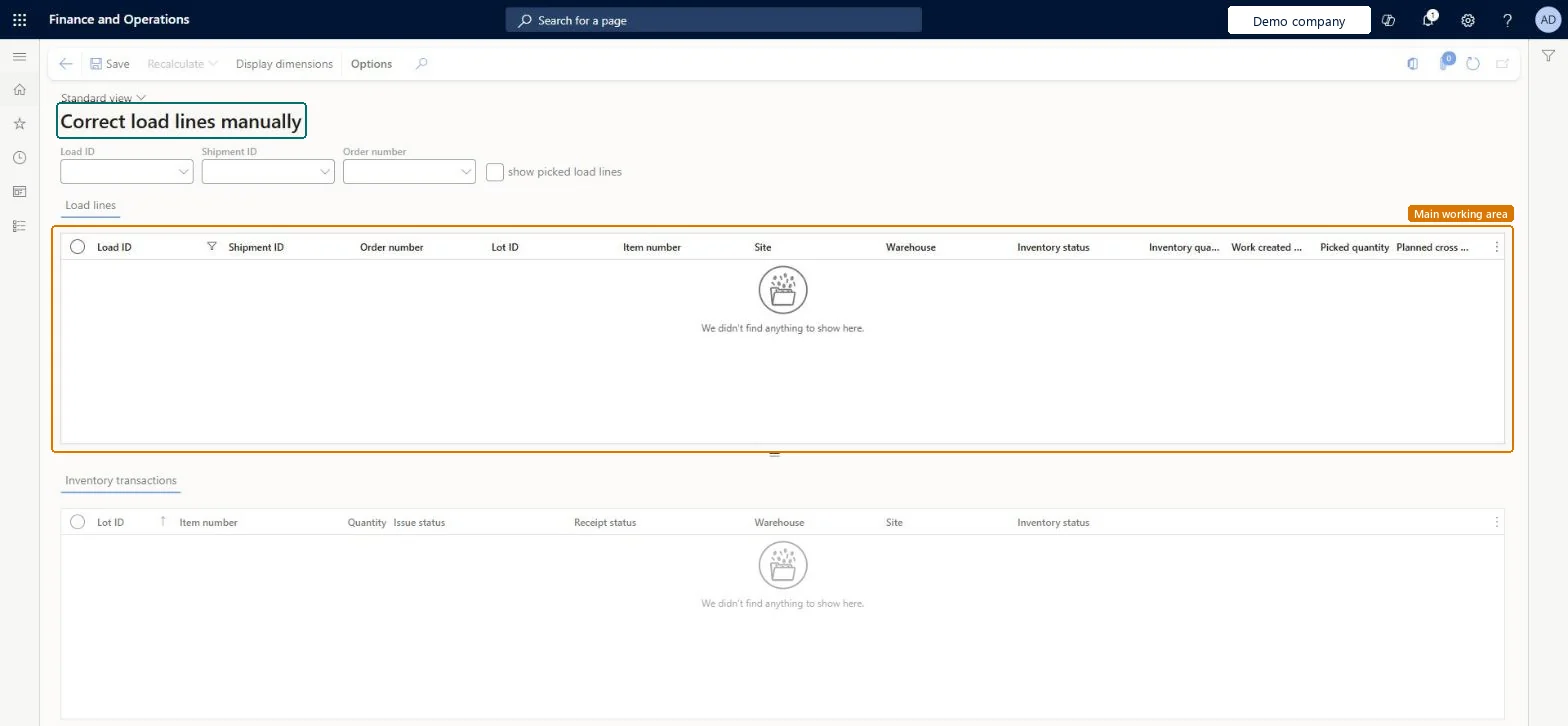
Correct load lines manually page in Dynamics 365
The page in Dynamics 365. page title tab to open what to set or check
Functional consultant · Solution architect

2Where it fits

Business processProcess outbound goods › Load goods for shipping
Menu pathWarehouse management › Periodic tasks › Clean up › Correct load lines manually
Related pagesPick sales lines manually Microsoft Learn Pick transfer lines manually Microsoft Learn
End user · Functional consultant

3How to do it

About the examples: Examples and screenshots in this guide use BEAT, a demo company in a Dynamics 365 test environment. Use your own company's codes and values instead of copying them.

When to run it

When to run itWhen a load line has quantities that don't match the warehouse work and the system can't finish processing the work in the usual way.
How oftenOn demand, only as an exception-handling step.
What the output showsUpdated Work created quantity, Picked quantity or Planned cross docking quantity on the selected load line. A load that still can't be shipped or released usually means the inventory transactions or work lines also need correcting.

Source: Microsoft Learn

Steps from Microsoft

  1. Go to Warehouse management > Periodic tasks > Clean up > Correct load lines manually.
  2. Use the Load ID, Shipment ID or Order number fields to find the load line. You can also open it from Pick sales lines manually or Pick transfer lines manually, on the Load lines tab.
  3. In the Inventory transactions grid, review the transactions of the selected load line to find which quantity is wrong.
  4. In the upper grid, correct Work created quantity, Picked quantity or Planned cross docking quantity. The system validates each change.
  5. Select Save, then open the load and check that its load line quantities and status match the warehouse work.

Source: Microsoft Learn

Fields on the page

FieldWhat it means
Work created quantityOne of the load line quantities that you can correct on this page.Microsoft Learn
Picked quantityOne of the load line quantities that you can correct on this page.Microsoft Learn
Planned cross docking quantityOne of the load line quantities that you can correct on this page.Microsoft Learn

Test checklist

  1. The corrected load line shows the intended quantities.
  2. The load can be processed further without the earlier error.

Source: Microsoft Learn

Solution architect

4Design impact

Shared or per companyPer company: each legal entity has its own records. Microsoft data model
Can it be undonePartly: You can open the load line again and enter the previous quantities, but there is no automatic undo. Note the original values before you save. Microsoft Learn
If you change it laterChanges load line quantities directly, which affects further work creation, picking and shipping for the load. Microsoft Learn
Technical architect

5Technical

Menu itemWHSLoadLineManualCorrection Checked in Dynamics 365
FormWHSLoadLineManualCorrection Checked in Dynamics 365
TableWHSLoadLineShown as “LOAD DETAILS” in Record infoChecked in Dynamics 365
Who can open itPrivilegesCorrect load lines manually WHSLoadLineManualCorrectionDutiesCorrect load lines manually WHSLoadLineManualCorrectionWHS self services (hard cancel, manual load line correction, manual sales line picking) WHSSelfServicesChecked in Dynamics 365
Actions on the page(Action Pane without tabs): Recalculate, Display dimensionsChecked in Dynamics 365
Developer

6Developer

Open it by URLhttps://<your-environment>/?mi=WHSLoadLineManualCorrection
Table definitionWHSLoadLine columns and relations Microsoft data model
Everyone

7Sources