BeyondERP.Newsletter
Menu

Job page · Warehouse management

Cycle count work by location

A periodic task that creates cycle counting work for the warehouse locations you select.

Business process
Count inventory
Menu item
action:WHSCycleCountCreateLocation
Show what matters for
PAGE GUIDEWhat the page does and how to use it7 sections. Choose a role to highlight what matters to you.
Everyone

1What it is and why

What it isA periodic task that creates cycle counting work for the warehouse locations you select.
What you do hereUse this task to create cycle counting work manually by location, optionally assigning it to a work pool.
ExampleFor example, if the warehouse manager sets the maximum number of cycle counts to 5, the system creates cycle counting work for five locations even when the item is present in 10 locations.
Cycle count work by location page in Dynamics 365
The page in Dynamics 365. page title tab to open what to set or check
Functional consultant · Solution architect

2Where it fits

Business processMaintain inventory levels › Count inventory
Menu pathWarehouse management › Cycle counting › Cycle count work by location
Used next byCycle count work pending review Microsoft Learn
Related pagesCycle count work by item Microsoft Learn
End user · Functional consultant

3How to do it

About the examples: Examples and screenshots in this guide use BEAT, a demo company in a Dynamics 365 test environment. Use your own company's codes and values instead of copying them.

When to run it

When to run itWhen you want to count specific locations now, outside the cycle count plans and thresholds, for example after a picking error at one location.
How oftenOn demand, whenever specific locations must be counted.
What the output showsCycle counting work for each selected location. Work is always for the whole location, without item or tracking dimensions; those are recorded when the worker counts.
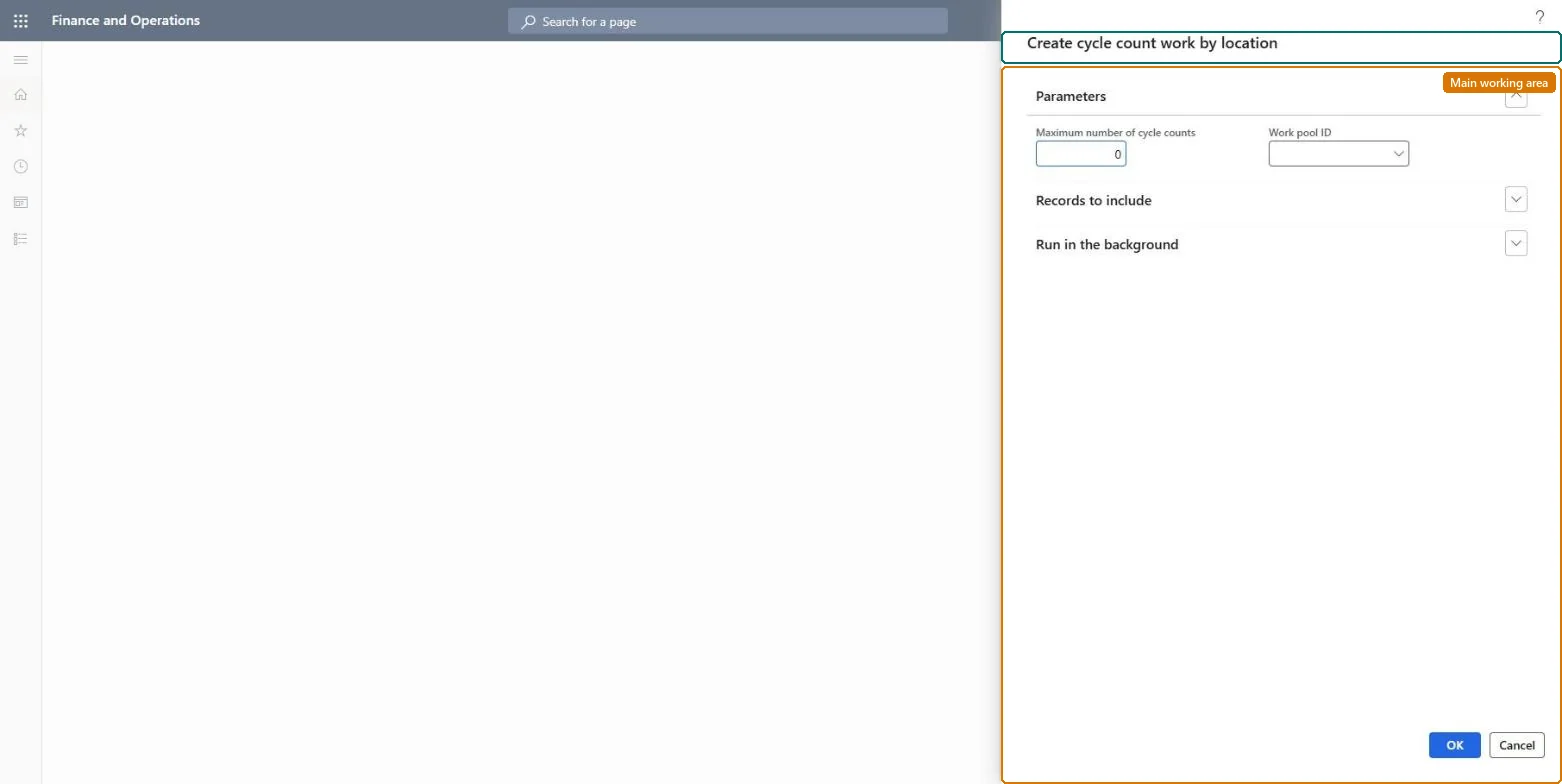
Source: Microsoft Learn

Steps from Microsoft

  1. Go to Warehouse management > Cycle counting > Cycle count work by location.
  2. In the Create cycle count work by location dialog, set Work pool ID if the counting work should be grouped, for example a pool named for cycle counts.
  3. In the query on the Range tab, set Warehouse and Location to the locations to count. The query only decides which locations get counting work.
  4. Run it; a message in the Action center tells you when work creation is finished.
  5. Open Warehouse management > Work > Work details and filter on the Work pool ID to see the counting work that was created.

Source: Microsoft Learn

Fields on the page

FieldWhat it means
Work pool IDThe work pool that the cycle counting work IDs created by the system are assigned to.Microsoft Learn

Test checklist

  1. One counting work exists per selected location.
  2. The work has the Work pool ID you entered.
  3. The work appears on the mobile device for counting.

Source: Microsoft Learn

Solution architect

4Design impact

Can it be undoneYes, before counting: You can cancel the counting work if it is no longer needed, as long as the count hasn't been done. Microsoft Learn
If you change it laterCreates cycle counting work for the selected locations; the on-hand stock stays available for reservation while the work is open. Microsoft Learn
Technical architect

5Technical

Menu itemaction:WHSCycleCountCreateLocation
Roles to set it up and use itTo use itWarehouse planner WHSWarehousePlannerGive people one of these roles. On this system, 1 role can run this page.Checked in Dynamics 365
Developer

6Developer

Open it by URLhttps://<your-environment>/?mi=action:WHSCycleCountCreateLocation
Everyone

7Sources