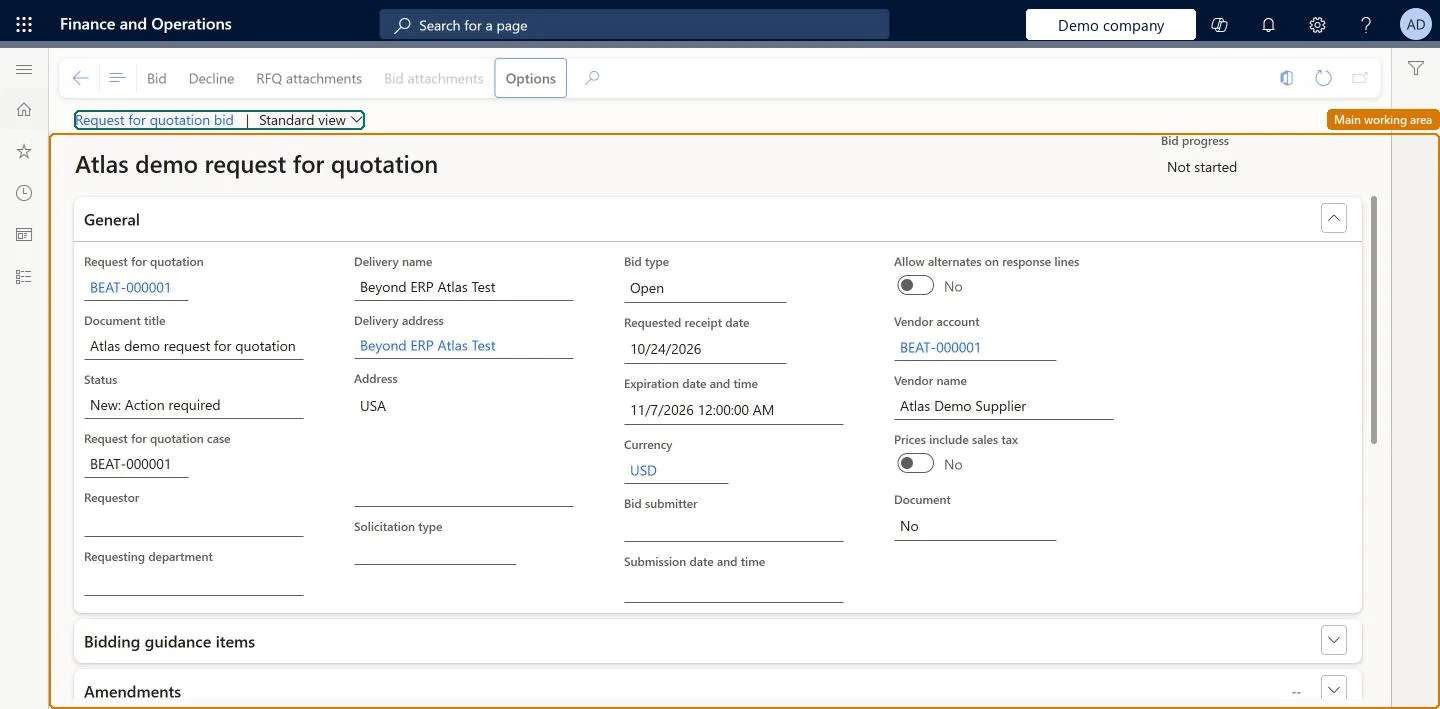
The page where a vendor enters, saves and submits its bid on a request for quotation, adds alternates and attachments, asks questions when the customer allows them, or declines to bid.
PAGE GUIDEWhat the page does and how to use it8 sections. Choose a role to highlight what matters to you.
Everyone
1What it is and why
What it is
The page where a vendor enters, saves and submits its bid on a request for quotation, adds alternates and attachments, asks questions when the customer allows them, or declines to bid.
What you do here
Use this page to enter your bid on an RFQ, add alternates and attachments, ask the customer questions, and submit or decline the bid.
Example
For example, the vendor opens BEAT's RFQ, selects Bid, enters a unit price of 12.50 on two lines, adds an alternate for a category line, attaches its price sheet with Bid attachments and submits. A question about item colour is asked first under Questions and answers, because the RFQ allows vendor questions until its cutoff date.
The page in Dynamics 365. page title tab to open what to set or check
About the examples: Examples and screenshots in this guide use BEAT, a demo company in a Dynamics 365 test environment. Use your own company's codes and values instead of copying them.
Setup steps on this page
Enter and submit a bid
Enter prices, alternates and attachments on an RFQ and submit the bid.
Steps from Microsoft
Go to Vendor collaboration > Requests for quotations > Request for quotation bid and open the RFQ.
Select Bid and enter prices in the line grid and extra information in the line details; use Add alternate where alternates are allowed.
Add your own files with Bid attachments and answer any questionnaires.
Save, then submit the bid before the expiration date; you can recall and update it until then.
If questions are allowed, select Questions and answers, then + Ask a question, enter the question and select Submit.
FastTab where the vendor enters questions about the RFQ.Microsoft Learn
Is the item available in blue?
Bid
Action that starts the bid; the vendor then enters prices in the line grid and extra information in the line details.Microsoft Learn
Questions and answers
Opens the vendor's questions and the customer's published answers; available when the RFQ allows vendor questions.Microsoft Learn
Common errors and fixes
Message
What to do
Questions and answers is not available
Set Allow vendor questions on the Request for quotation tab of Procurement and sourcing parameters, and Allow vendor question on the RFQ header. After an award or the cutoff date, questions are closed. Microsoft Learn
All bids disappeared after the RFQ was changed to allow questions
Amending an RFQ to allow vendor questions clears all existing responses when it is resent; vendors must bid again. Microsoft Learn
Test checklist
In the customer company, create an RFQ with Allow vendor question set to Yes and a cutoff date, and send it.
As the vendor user, open it, select Bid, enter prices and save.
Ask a question under Questions and answers and check that the customer sees it on the RFQ.
Submit the bid and check that the customer sees the reply on the RFQ.
Save the bid as you work and submit it well before the expiration date; recall it to change itA saved bid stays in Bids in progress and can be finished later; a submitted bid can be recalled and updated only until the RFQ expires.
Microsoft provides two external roles for vendor collaboration: Vendor admin (external), for contacts and user requests, and Vendor (external), for purchase orders, invoices, consignment inventory, RFQs and vendor information. External users created through a user request also get the SystemExternalUser role. On the live system, Vendor contact (external) maintains this page and Vendor admin (external) can view it.
Hard to reverse: Bids can be recalled until expiry. Decline can't be recalled. Microsoft Learn
If you change it later
A submitted bid can be recalled and updated until the RFQ expires. If the RFQ is amended, the bid replies are removed and a new bid must be entered. Microsoft Learn
Technical architect
6Technical
Menu item
PurchRFQVendReplyChecked in Dynamics 365
Form
PurchRFQVendReplyChecked in Dynamics 365
Table
PurchRFQTableShown as “REQUESTS FOR QUOTATIONS” in Record infoKey field: RFQIdChecked in Dynamics 365
Data entities
PurchRequestForQuotationReplyHeaderEntityRequest for quotation reply headers (the bid header) Microsoft data model PurchRequestForQuotationReplyLineV2EntityRequest for quotation reply lines V2 (the bid lines) PurchRFQVendPostedQuestionAnswerEntityAnswers posted to vendor questions (the published answers to vendor questions)
Who can open it
PrivilegesView request for quotation replies PurchRFQVendReplyMaintainView request for quotation replies PurchRFQVendReplyViewDutiesInquire into request for quotation for vendor PurchRFQVendorInquireMaintain request for quotation for vendor PurchRFQVendorMaintain2 security rolesVendor contact (external) VendVendorContactVendor admin (external) VendVendorContactExternalAdminChecked in Dynamics 365
Roles to set it up and use it
To set it up or change itVendor contact (external) VendVendorContactTo use itVendor admin (external) VendVendorContactExternalAdminGive people one of these roles. On this system, 2 roles can open this page.Checked in Dynamics 365
Actions on the page
(Action Pane without tabs): Bid, Decline, RFQ attachments, Bid attachmentsChecked in Dynamics 365
Developer
7Developer
Open it by URL
https://<your-environment>/?mi=PurchRFQVendReply
Data migration
PurchRequestForQuotationReplyHeaderEntity (Request for quotation reply headers): loaded for each company.PurchRequestForQuotationReplyLineV2Entity (Request for quotation reply lines V2): loaded for each company.Load order: Bids are entered by vendors; migrate only open RFQs in the customer company and let vendors bid on them. Load reply headers before reply lines.Load first: requests for quotations, vendorsChecked in Dynamics 365