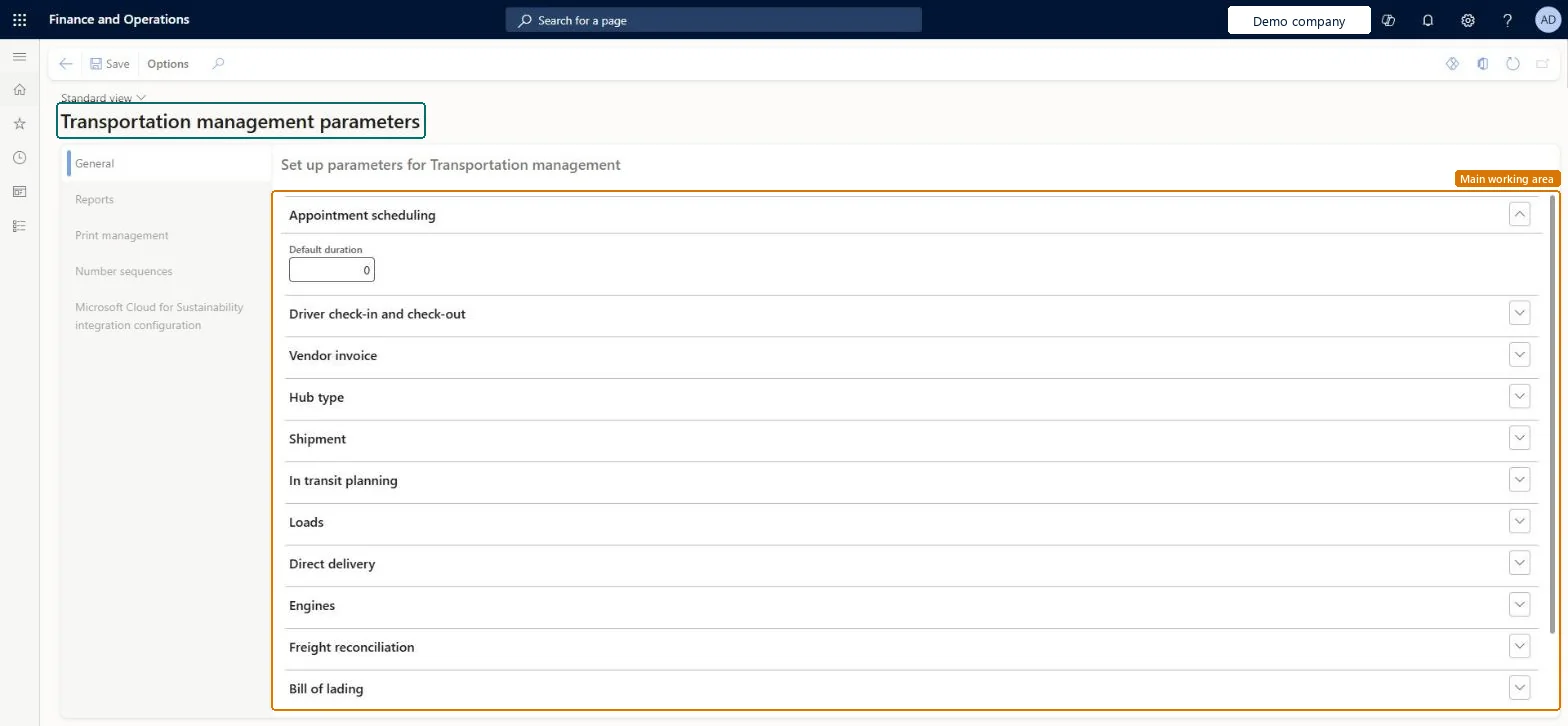
A setup page where you set the parameters for Transportation management, grouped on the General, Reports, Print management, Number sequences and Microsoft Cloud for Sustainability integration configuration tabs.
PAGE GUIDEWhat the page does and how to use it8 sections. Choose a role to highlight what matters to you.
Everyone
1What it is and why
What it is
A setup page where you set the parameters for Transportation management, grouped on the General, Reports, Print management, Number sequences and Microsoft Cloud for Sustainability integration configuration tabs.
What you do here
Use this page to control how Transportation management works, with settings for appointment scheduling, driver check-in and check-out, vendor invoices, shipments, loads, engines, freight reconciliation and bills of lading.
The page in Dynamics 365. page title tab to open what to set or check
About the examples: Examples and screenshots in this guide use BEAT, a demo company in a Dynamics 365 test environment. Use your own company's codes and values instead of copying them.
Setup steps on this page
Set up Transportation management parameters
Use this page to control how Transportation management works, with settings for appointment scheduling, driver check-in and check-out, vendor invoices, shipments, loads, engines, freight reconciliation and bills of lading.
Steps from Microsoft
Go to Transportation management > Setup > Transportation management parameters.
Open the General tab.
On the Performance settings FastTab, set Pro number generation mode to Default or Performance optimized.
Turns on freight reconciliation in Transportation management. It is set on the Freight reconciliation FastTab of the General tab.Microsoft Learn
Write vendor invoice journal
Lets the system create an invoice journal that reconciles any differences between the freight bill and the freight invoice.Microsoft Learn
WriteInvoiceJournal
Post journal
Lets the system post the invoice journal after it is approved by the user in the Workflow user field.Microsoft Learn
PostJournal
Automatically match and pay the freight invoice
Runs the automated match and pay batch jobs for freight invoices.Microsoft Learn
MatchAndPay
Match interval
Defines the schedule for automatic reconciliation or matching of freight bills and invoices.Microsoft Learn
MatchInterval
Alert interval
Sets the interval, on the Driver check-in and check out FastTab, after which a driver who has checked in but not checked out is shown as late on check out.Microsoft Learn
DriverCheckOutInterval
Pro number generation mode
Controls how the system allocates pro numbers. It is set on the Performance settings FastTab of the General tab.Microsoft Learn
Test checklist
Set Enable freight reconciliation to Yes on the General tab.
Ship-confirm a load and check a freight bill is generated.
Generate a freight bill invoice from Freight bill details and match it on Freight bill and invoice matching.
Submit for approval and check a vendor invoice journal is created (and posted if Post journal is on).
Enable freight reconciliation if carrier invoices are matched in the system; with Automatically match and pay the freight invoice on, set Match interval to at least 120 seconds; choose Pro number generation mode deliberately (Default unless release to warehouse is slow with pro numbers)Learn gives 120 seconds as the minimum standard recommended match interval for automatic match and pay, and recommends Performance optimized only when high-volume processes run slowly with pro numbers.
Reversible: All settings can be changed at any time; they affect later matching runs, journals and pro numbers. Pro numbers skipped under Performance optimized stay skipped. Microsoft Learn
Technical architect
6Technical
Menu item
TMSParametersChecked in Dynamics 365
Form
TMSParametersChecked in Dynamics 365
Table
TMSParametersShown as “TRX PARAMETERS” in Record infoChecked in Dynamics 365
Data entities
TMSTransportationManagementParametersEntityTransportation management parameters Microsoft data model
Who can open it
PrivilegesMaintain transportation parameters TMSParametersMaintainView transportation parameters TMSParametersViewDutiesEnable the transportation management process TMSTransportationMgmtEnableInquire into transportation management policies TMSTransportationMgmtPoliciesInquire2 security rolesLogistics manager TMSLogisticsManagerTransportation coordinator TMSTransportationCoordinatorChecked in Dynamics 365
Roles to set it up and use it
To set it up or change itLogistics manager TMSLogisticsManagerTo use itTransportation coordinator TMSTransportationCoordinatorGive people one of these roles. On this system, 2 roles can open this page.Checked in Dynamics 365
TMSTransportationManagementParametersEntity (Transportation management parameters): loaded for each company, in Microsoft's default template 405 - Transportation management.Load order: Microsoft's default template 405 - Transportation management loads Transportation management parameters at execution unit 1, level 40, sequence 10. Lower levels load first, and entities at the same level load in sequence order.Load first: the default templates at lower levels (System setup to dependency bands 30 to 90)Microsoft Learn