About the examples: Examples and screenshots in this guide use BEAT, a demo company in a Dynamics 365 test environment. Use your own company's codes and values instead of copying them.
Setup steps on this page
Register a group on one indirect activity
Start and stop the same indirect activity for several workers at once.
Steps from Microsoft
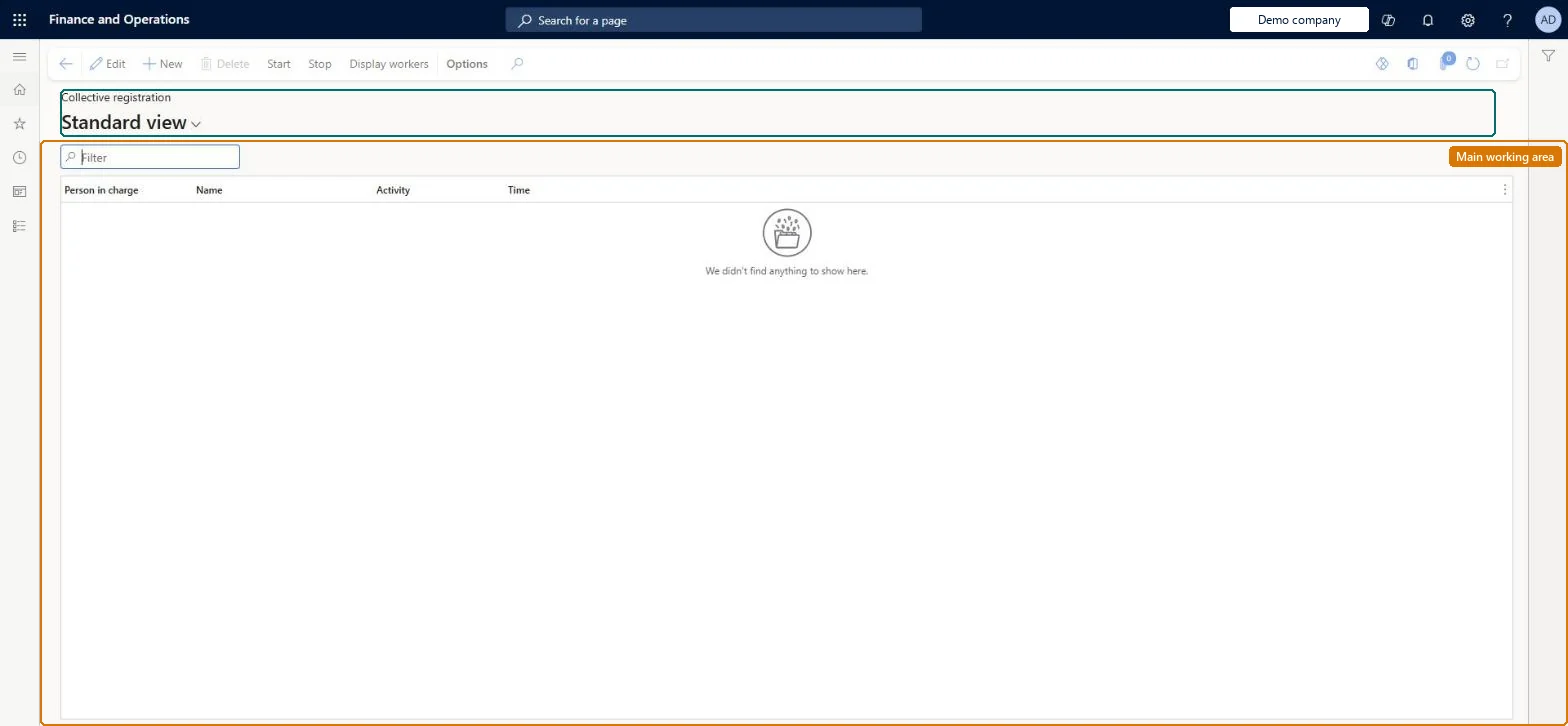
Go to Time and attendance > Manage registrations > Collective registration.
Create a new line.
In the Activity field, select the activity to register for each worker.
Select Start, and select the workers to start registrations for.
Select OK to start the registration.
When the activity is over, select the collective registration and select Stop.
The user who creates the collective registration.Microsoft Learn
WorkerInCharge
Activity
The indirect activity that the workers are registered on.Microsoft Learn
IpcActivityId
Time
The date and start time of the collective registration.Microsoft Learn
DateTime
Display workers
Lists the workers included in the collective registration.Microsoft Learn
Common errors and fixes
Message
What to do
A worker can't be added to the collective registration
Only time registration workers can be registered. Set the worker up on Time registration workers. Microsoft Learn
A worker can't be calculated or approved
Every worker who registers time must belong to a calculation group and an approval group. Set both on the worker in Time registration workers. Microsoft Learn
Test checklist
Start a collective registration on a meeting activity for two workers.
Stop it after the meeting.
Calculate the day and check both workers have the meeting time on the activity.
Use collective registration for activities a whole team attends, such as a department meeting, and stop it as soon as the activity ends.Stopping it returns workers to the jobs they were working on before, and the time lands on the indirect activity so its cost can be posted.
Time and attendance roles come from the security read in the Technical section. On this system the page is opened with roles such as Manager, Shop supervisor, Production supervisor. The Microsoft Learn article for this page names no Feature management feature to turn on.
Per company: each legal entity has its own collective registrations. Checked in Dynamics 365
Can it be undone
Reversible: Stop the collective registration; the registrations made are calculated and can still be corrected on Calculate before approval.
If you change it later
Stopping the collective registration ends it at once, and the workers automatically resume the jobs they were working on before. Microsoft Learn
Technical architect
6Technical
Menu item
JmgGroupSigningTableChecked in Dynamics 365
Form
JmgGroupSigningTableChecked in Dynamics 365
Table
JmgGroupSigningTableShown as “COLLECTIVE REGISTRATION” in Record infoChecked in Dynamics 365
Who can open it
PrivilegesMaintain collective registrations JmgGroupSigningTableMaintainView collective registrations JmgGroupSigningTableViewDutiesInquire into time and attendance progress JmgTimeAttendanceProgressInquireMaintain time supervision JmgTimeSupervisionMaintain3 security rolesManager HcmManagerShop supervisor JmgShopSupervisorProduction supervisor ProdProductionSupervisorChecked in Dynamics 365
Roles to set it up and use it
To set it up or change itProduction supervisor ProdProductionSupervisorShop supervisor JmgShopSupervisorTo use itManager HcmManagerGive people one of these roles. On this system, 3 roles can open this page.Checked in Dynamics 365
Actions on the page
(Action Pane without tabs): Start, Stop, Display workersChecked in Dynamics 365
Load order: A collective registration has no data entity in Data management, so it can't be loaded from a file or a configuration template. It is a day-to-day registration; start new ones in the new environment. The indirect activities it uses load with Indirect Activities (JmgIndirectTimeAndAttendanceActivityEntity).Checked in Dynamics 365