BeyondERP.Newsletter
Menu

Page · System administration

Message processor messages

A list page that shows the messages handled by the message processor, with their state, log and content.

Used by
Scale unit administrator, Information technology manager, Sales manager
Business process
Administer system features
Menu item
SysMessageProcessorMessage
Main table
SysMessage
Setup steps
1 on this page
Show what matters for
PAGE GUIDEWhat the page does and how to use it8 sections. Choose a role to highlight what matters to you.
Everyone

1What it is and why

What it isA list page that shows the messages handled by the message processor, with their state, log and content.
What you do hereUse this page to view messages and their logs, process or cancel messages by hand, and troubleshoot failures.
ExampleFor example, the Warehouse queue holds a message that posts a sales packing slip when the last shipment container is closed.
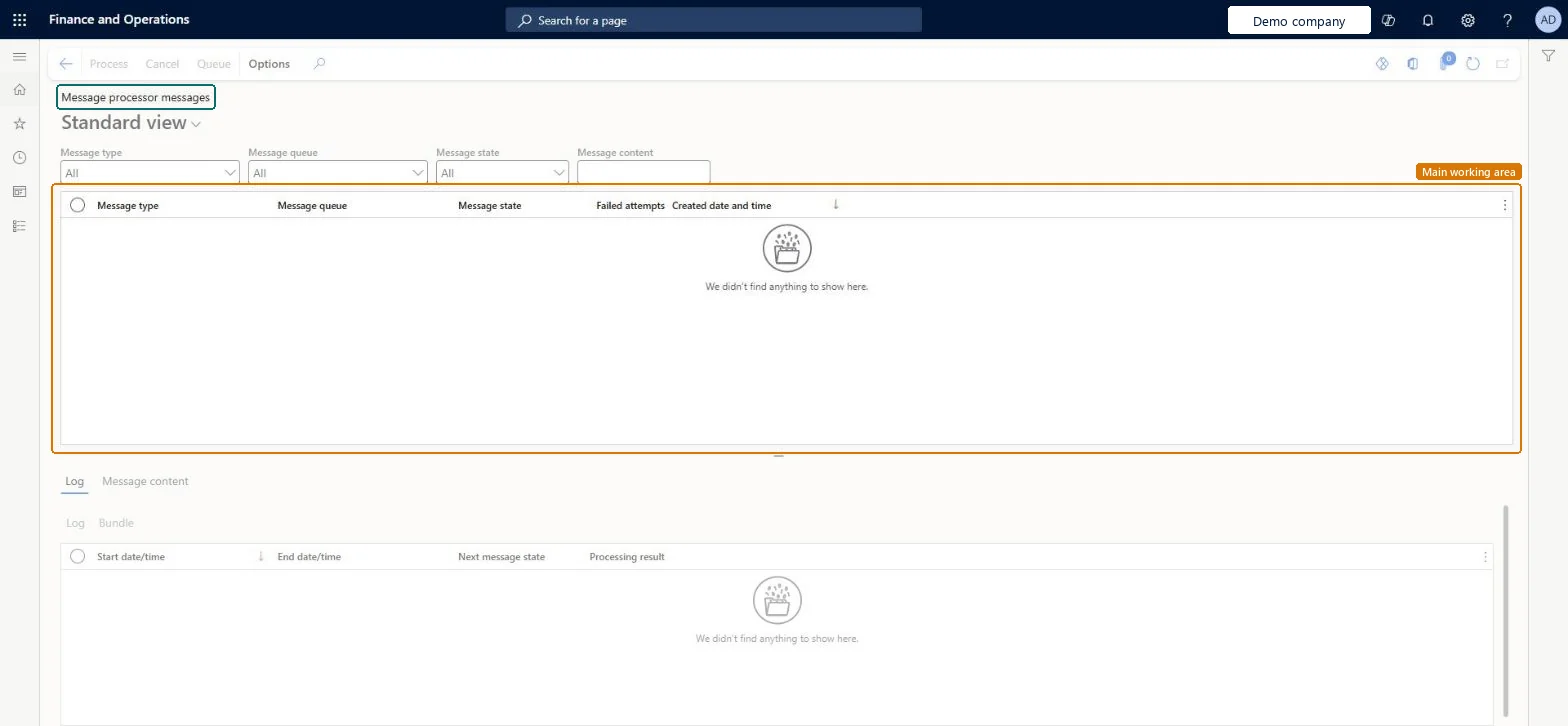
Message processor messages page in Dynamics 365
The page in Dynamics 365. page title tab to open what to set or check
Functional consultant · Solution architect

2Where it fits

Business processAdminister system features
Menu pathSystem administration › Message processor › Message processor messages
Set up firstMessage processor (scheduled jobs) Microsoft Learn
Used next byMessage queue setup (retention) Microsoft Learn
Related pagesMessage queue setup Microsoft Learn Business events catalog Microsoft Learn
End user · Functional consultant

3How to do it

About the examples: Examples and screenshots in this guide use BEAT, a demo company in a Dynamics 365 test environment. Use your own company's codes and values instead of copying them.

Setup steps on this page

Review failed messages

Find and resolve messages that failed to process.

Steps from Microsoft

  1. Go to System administration > Message processor > Message processor messages.
  2. Filter by message type, queue, state or content.
  3. Select a message and open the Log tab to see why it failed.
  4. Select Process or Cancel on the Action Pane.
  5. To requeue a canceled message, select it and select queue.

Source: Microsoft Learn

Fields on the page

FieldWhat it meansExample
Message queueThe queue that the message is processed in.Microsoft Learn Warehouse
Message stateQueued, Processed, Canceled or Failed.Microsoft Learn Failed
Message contentA full-text filter on the message content.Microsoft Learn
LogShows the processing results, useful for failed messages.Microsoft Learn
BundleShows the batch bundle a message was processed in.Microsoft Learn

Common errors and fixes

MessageWhat to do
A message is FailedOpen the Log tab to see why, fix the cause and select Process, or Cancel it. Microsoft Learn

Test checklist

  1. Filter on Message queue and Message state Failed.
  2. Select a message and open the Log tab to read the processing result.
  3. Fix the cause and select Process, or Cancel the message.
  4. Requeue a canceled message and check that it's processed.
  5. Check that a message processor batch job is scheduled for each queue in use.

Source: Microsoft Learn

Functional consultant

4Setup decisions

Setup stepRecommended value and whyDecision, common mistake and test
Review failed messagesFilter on Message state = Failed per queue every day and read the Log before you process againThe log shows the processing result of a failed message.What happens to a failed message?Selecting Process again without fixing the cause.Test: A failed message is reprocessed

Feature management and licence

Licence or add-inOn this system the page opens for Information technology manager, Scale unit administrator and Sales manager. No Feature management feature needs to be turned on for this page.

Microsoft Learn

Solution architect

5Design impact

Shared or per companyMessages from every queue are listed together; filter on Message queue to see one feature's messages. Microsoft Learn
Can it be undoneHard to reverse: A canceled message can be requeued and processed again, but canceled and processed messages are deleted after the days set on Message queue setup. Microsoft Learn
If you change it laterProcess and Cancel act on the message itself: a processed message has done its work (for example posting), and canceled or processed messages are deleted after the days set on Message queue setup. Microsoft Learn
Technical architect

6Technical

Menu itemSysMessageProcessorMessage Checked in Dynamics 365
FormSysMessageProcessorMessage Checked in Dynamics 365
TableSysMessageShown as “Messages” in Record infoChecked in Dynamics 365
Who can open itPrivilegesProcess messages SysMessageProcessProcess trade CDS messages TradeCDSMessageProcessDutiesMaintain the runtime of scale units. ScaleUnitRuntimeMaintainMaintain system settings SysServerSettingsMaintainProcess trade CDS messages TradeCDSMessageProcess
3 security rolesScale unit administrator ScaleUnitRuntimeAdminInformation technology manager SysServerITManagerSales manager TradeSalesManager
Checked in Dynamics 365
Roles to set it up and use itTo set it up or change itInformation technology manager SysServerITManagerScale unit administrator ScaleUnitRuntimeAdminSales manager TradeSalesManagerGive people one of these roles. On this system, 3 roles can open this page.Checked in Dynamics 365
Actions on the pageOptions: Personalize, Page options, ShareChecked in Dynamics 365
Developer

7Developer

Open it by URLhttps://<your-environment>/?mi=SysMessageProcessorMessage
Data migrationLoad order: Message processor messages has no data entity in Data management, so it can't be loaded from a file or a configuration template. Messages are created by the features that use the message processor; they aren't moved between environments.Checked in Dynamics 365
Everyone

8Sources