Service managementPerform periodic tasksService orders
SMAServicePeriodic_Cancel
Business process
Create service request by using Service management in Dynamics 365 Supply Chain Management
Menu item
SMAServicePeriodic_Cancel
Show what matters for
PAGE GUIDEWhat the page does and how to use it7 sections. Choose a role to highlight what matters to you.
Everyone
1What it is and why
What it is
A periodic task dialog that cancels several service orders at once, or reverses their Canceled status, based on the selection criteria you set.
What you do here
Use this page to cancel service orders that have become obsolete, or to uncancel orders with Revoke cancel; orders whose stage does not allow cancellation, that have item requirements, or that are already posted cannot be cancelled.
Example
For example, one of the service orders generated for January becomes obsolete because the job is cancelled, so the dispatcher cancels the service order.
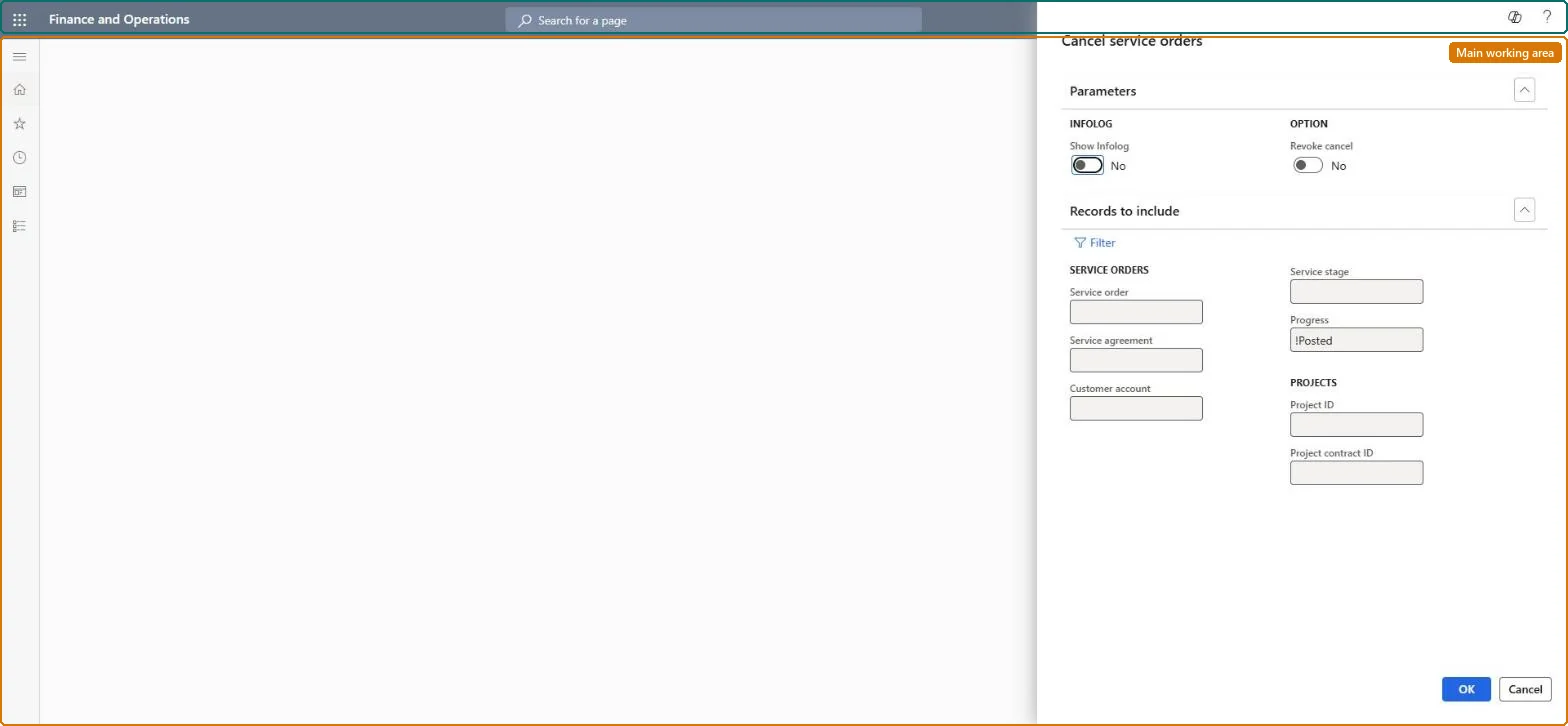
The page in Dynamics 365. page title tab to open what to set or check
About the examples: Examples and screenshots in this guide use BEAT, a demo company in a Dynamics 365 test environment. Use your own company's codes and values instead of copying them.
When to run it
When to run it
When service orders have become obsolete, for example because the planned job was cancelled, or when a cancellation must be reversed.
How often
On demand, when obsolete service orders need to be cleaned up.
What the output shows
The selected service orders change to Canceled, or back to In process with Revoke cancel. Orders already Canceled are not affected by a cancel run, and In process orders are not affected by a revoke run.
Go to Service management > Perform periodic tasks > Service orders > Cancel service orders.
On the Parameters FastTab, set Revoke cancel to No to cancel the selected orders, or to Yes to reverse their Canceled status back to In process.
Set Show Infolog to Yes to get an Action center message that lists the orders that were cancelled or uncancelled.
Select Filter and, on the Range tab of the Inquiry dialog, set the criteria for the obsolete service orders, then select OK to close the dialog.
Select OK and check the Action center message: orders whose stage doesn't allow cancellation, that have item requirements or that are already posted are not cancelled.
Yes: Run the job again with Revoke cancel set to Yes to return cancelled orders to In process. Microsoft Learn
If you change it later
Cancelling sets the orders to Canceled and uncancelling returns them to In process; already cancelled orders are not affected by a cancel run and in-process orders are not affected by a revoke run. Microsoft Learn
Technical architect
5Technical
Menu item
SMAServicePeriodic_CancelChecked in Dynamics 365
Form
DialogChecked in Dynamics 365
Roles to set it up and use it
To use itService dispatcher SMADispatcherGive people one of these roles. On this system, 1 role can run this page.Checked in Dynamics 365