Sales and marketingSales quotationsQuotation update
action:SalesQuotationEditLinesForm_Sales_Send
Business process
Estimate and quote sales
Menu item
action:SalesQuotationEditLinesForm_Sales_Send
Setup steps
1 on this page
Show what matters for
PAGE GUIDEWhat the page does and how to use it8 sections. Choose a role to highlight what matters to you.
Everyone
1What it is and why
What it is
An update dialog that sends a created quotation to the customer or prospect, by email or on paper.
What you do here
Use this page to send created quotations to customers and prospects and set them to Sent, as a task from the periodic Quotation update menu.
Example
For example, after mass creating 4 spring-offer quotations, BEAT's sales clerk sends them in one go with Print quotation set to Yes, and their status becomes Sent.
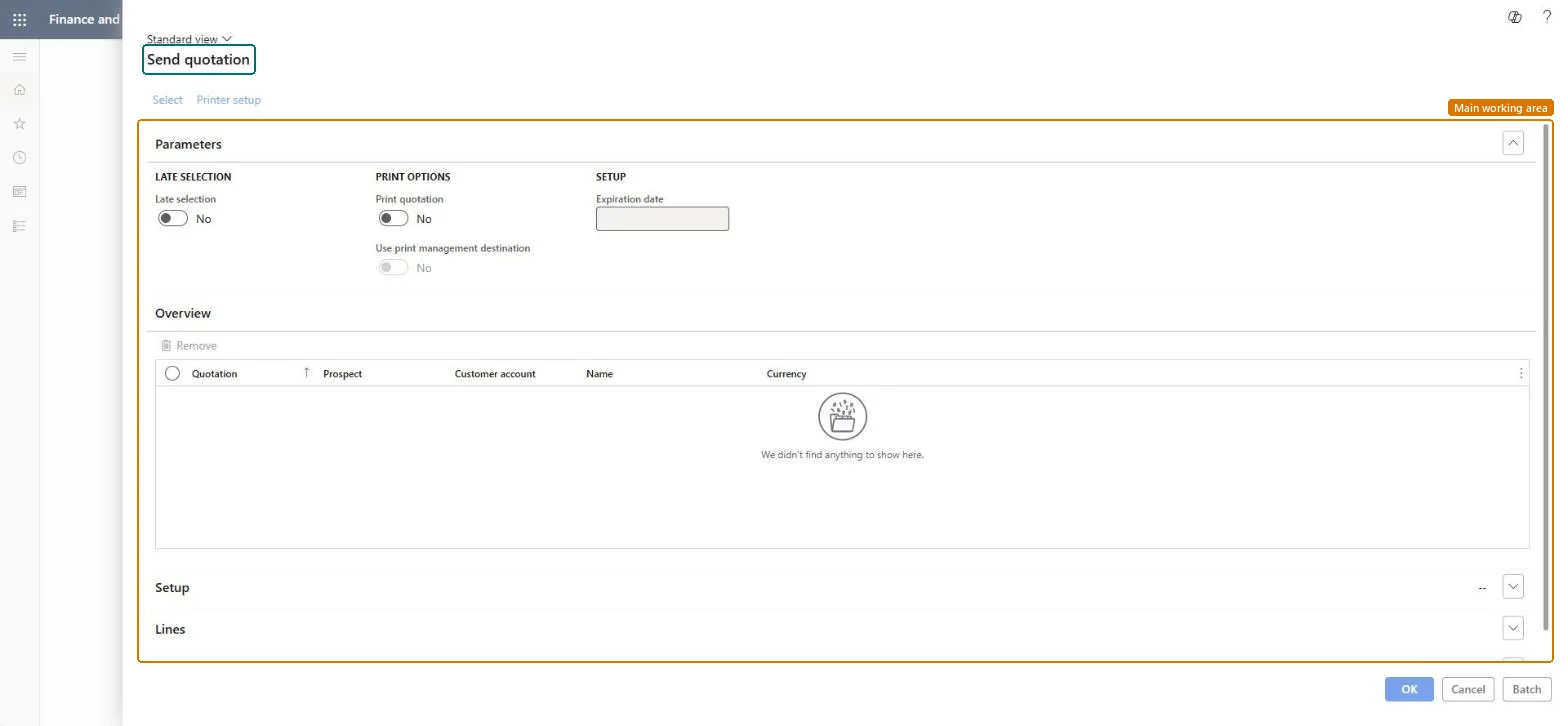
The page in Dynamics 365. page title tab to open what to set or check
About the examples: Examples and screenshots in this guide use BEAT, a demo company in a Dynamics 365 test environment. Use your own company's codes and values instead of copying them.
When to run it
When to run it
When quotations are complete and priced and you are ready to give them to the customer or prospect.
How often
On demand.
What the output shows
The quotation document, a quotation journal and the status Sent; follow up with Confirm, Lose quotation or Cancel quotation.
Use this page to send quotations and set them to Sent.
Steps from Microsoft
Go to Sales and marketing > Sales quotations > Quotation update > Send quotation.
Use this entry to send quotations as a back-office task, for example after Mass create quotations; for one quotation, Send quotation is on the Quotation tab in All quotations.
Set Print quotation to Yes to produce the quotation document.
Select OK and wait for the report to finish before you close the page.
Check in Sent sales quotations that a quotation journal exists for each quotation.
Prints the quotation document when you send it; the report can take a minute to generate.Microsoft Learn
Yes
Common errors and fixes
Message
What to do
A quotation can't be sent, lost, canceled, confirmed or deleted in Supply Chain Management.
The quotation is owned by Dynamics 365 Sales (Integrate Sales Quotation lifecycle with Dynamics 365 Sales). Process it in Sales; you can still edit it here while it is Created. Microsoft Learn
The quotation document doesn't appear straight away.
The report might take a minute to generate; don't close the page until it finishes. Microsoft Learn
Test checklist
Create a quotation.
Send it with Print quotation = Yes.
Check its status is Sent and one journal line exists in Sent sales quotations.
Send with Print quotation = Yes once totals are checked, and wait for the report to finish.Sending creates the quotation journal and, for quotations owned by Supply Chain Management, makes the data read-only in Sales.
Integrate Sales Quotation lifecycle with Dynamics 365 Sales
Licence or add-in
With the feature Integrate Sales Quotation lifecycle with Dynamics 365 Sales, a quotation owned by Sales is sent by activating it in Sales, not from here.
Per company: the update works on the sales quotations of the legal entity you are working in; quotations of other companies aren't touched. Microsoft data model
Can it be undone
Hard to reverse: Learn gives no step to take a quotation back from Sent; the journal stays. Follow up with Cancel quotation if it was sent by mistake. Microsoft Learn
If you change it later
Creates the sales quotation journal and updates the status to Sent; with the integration, the quotation becomes Active in Dynamics 365 Sales. Microsoft Learn
Technical architect
6Technical
Menu item
action:SalesQuotationEditLinesForm_Sales_SendChecked in Dynamics 365
Form
SalesQuotationEditLinesChecked in Dynamics 365
Roles to set it up and use it
To use itRental manager RentalManagerRental coordinator agent RentalCoordinatorAgentSales clerk TradeSalesClerkSales representative TradeSalesRepresentativeRental sales manager RentalSalesManagerGive people one of these roles. On this system, 7 roles can run this page.Checked in Dynamics 365
Load order: Send quotation has no data entity in Data management: it is an update on existing quotations and stores no records of its own; it creates the quotation journal. The quotations it updates load with SalesQuotationHeaderV2Entity.Microsoft data model