Credit management clerk, Accounts receivable clerk, Accounts receivable manager and 15 more roles
Business process
Process outbound goods
Menu item
SalesShipmentDeviation
Main table
InventDim
Data entity
BusinessDocumentInvoicedPackingSlipLineEntity
Setup steps
1 on this page
Show what matters for
PAGE GUIDEWhat the page does and how to use it8 sections. Choose a role to highlight what matters to you.
Everyone
1What it is and why
What it is
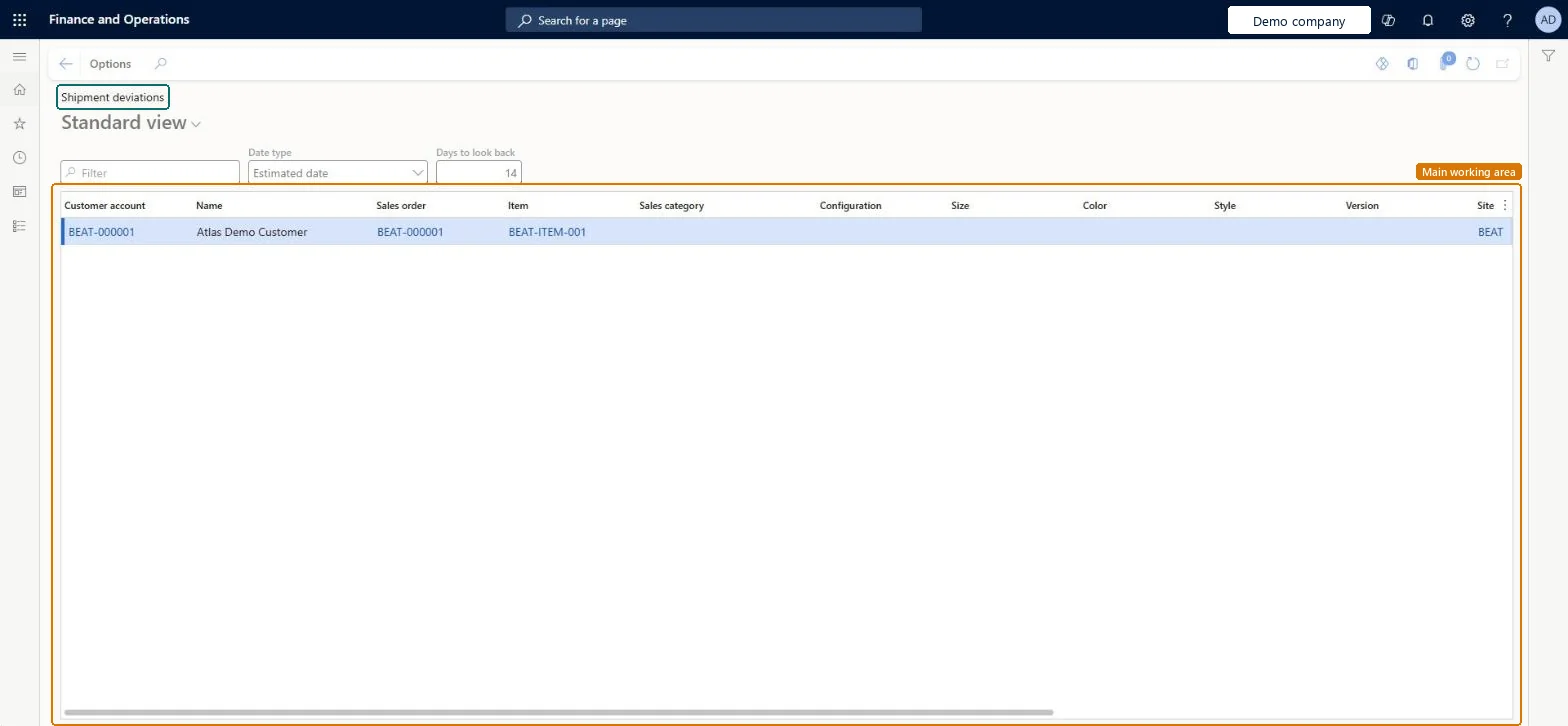
An inquiry page that shows sales order lines by customer, item and site, filtered by a date type and a number of days to look back.
What you do here
Use this page to review recent order lines by choosing the date type, such as Estimated date, and how many days back to look.
Example
For example, BEAT's sales manager sets Date type to Estimated date and Days to look back to 30, and sees 9 lines for customer BEAT-000123 at site 2, then checks why they deviated.
The page in Dynamics 365. page title tab to open what to set or check
About the examples: Examples and screenshots in this guide use BEAT, a demo company in a Dynamics 365 test environment. Use your own company's codes and values instead of copying them.
Setup steps on this page
Review shipment deviations
See recent order lines by date type.
How to use it
Go to Sales and marketing > Sales orders > Order shipping > Shipment deviations.
In Date type, choose the date to compare.
In Days to look back, enter the period.
Review the Customer account, Sales order, Item and Site columns.
Open the sales order of a line to see why it deviated.
Source: Checked in Dynamics 365
Fields on the page
Field
What it means
Example
Date type
The date the list compares, for example Estimated date.Checked in Dynamics 365
Estimated date
Days to look back
How many days back the list looks.Checked in Dynamics 365
InventDimShown as “Inventory dimensions” in Record infoKey field: inventDimIdChecked in Dynamics 365
Data entities
BusinessDocumentInvoicedPackingSlipLineEntityCustomer packing slip lines - invoiced Checked in Dynamics 365BusinessDocumentInvoicedPackingSlipLineV2EntityCustomer packing slip lines - invoiced V2 Checked in Dynamics 365BusinessDocumentInvoicedPackingSlipLineV3EntityCustomer packing slip lines - invoiced V3 Checked in Dynamics 365
Who can open it
PrivilegesGenerate supply capacity report SalesSupplyCapacityGenerateDutiesInquire into rental sales order progress RentalSalesOrderProgressInquireInquire into sales order progress SalesOrderProgressInquire19 security rolesCredit management clerk CredManClerkAccounts receivable clerk CustInvoiceAccountsReceivableClerkAccounts receivable manager CustInvoiceAccountsReceivableManagerMCRTestUserRoleAccounts receivable centralized payments clerk PaymAccountsReceivableCentralPaymClerkAccounts receivable payments clerk PaymAccountsReceivablePaymentsClerkProject manager ProjProjectManagerRental clerk RentalClerkRental coordinator agent RentalCoordinatorAgentRental manager RentalManagerRental purchasing manager RentalPurchasingManagerRental representative RentalRepresentativeProduction planner ReqProductionPlannerRetail service RetailServiceRetail store manager RetailStoreManagerCustomer service representative TradeCustomerServiceRepresentativeSales clerk TradeSalesClerkSales manager TradeSalesManagerSales representative TradeSalesRepresentativeChecked in Dynamics 365
Roles to set it up and use it
To use itSales manager TradeSalesManagerRental manager RentalManagerRental coordinator agent RentalCoordinatorAgentAccounts receivable clerk CustInvoiceAccountsReceivableClerkAccounts receivable manager CustInvoiceAccountsReceivableManagerGive people one of these roles. On this system, 18 roles can open this page.Checked in Dynamics 365
Actions on the page
Options: Personalize, Page options, ShareChecked in Dynamics 365
BusinessDocumentInvoicedPackingSlipLineEntity data entity Checked in Dynamics 365
Data migration
Load order: An inquiry: it reads posted order and packing slip data, so nothing is loaded through this page; migrate the sales orders instead.Checked in Dynamics 365