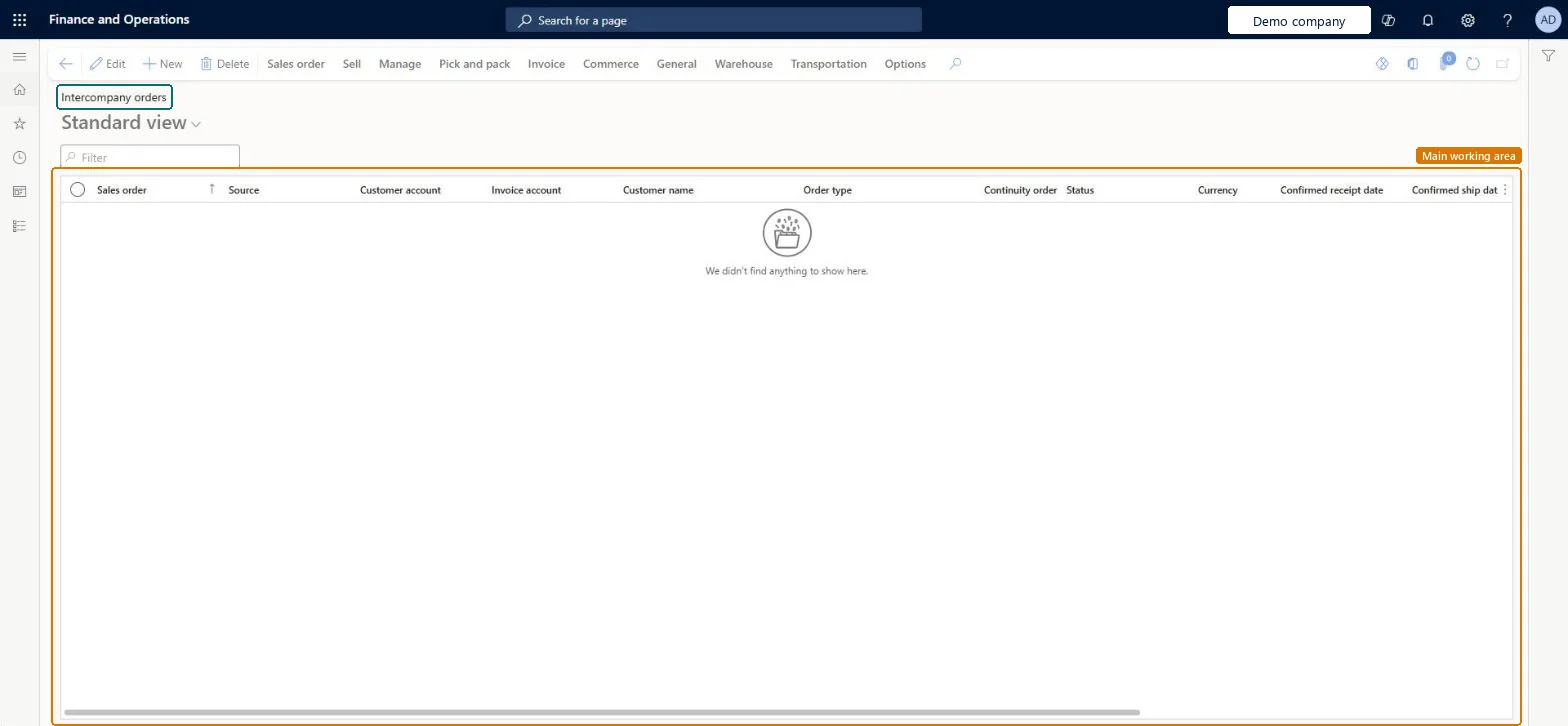
A list page of the intercompany sales orders in the current legal entity: sales orders to an intercompany customer that are linked to an intercompany purchase order in the related legal entity.
PAGE GUIDEWhat the page does and how to use it8 sections. Choose a role to highlight what matters to you.
Everyone
1What it is and why
What it is
A list page of the intercompany sales orders in the current legal entity: sales orders to an intercompany customer that are linked to an intercompany purchase order in the related legal entity.
What you do here
Use this page to review intercompany sales orders and open the related intercompany purchase order or the original sales order in the chain.
Example
For example, BEAT's sales company raises PO-000512 for 100.00 pcs of SPK-100 to its sister distribution company; an intercompany sales order is created in the distribution company, which finds it on Intercompany orders and confirms it for 6,900.00.
The page in Dynamics 365. page title tab to open what to set or check
About the examples: Examples and screenshots in this guide use BEAT, a demo company in a Dynamics 365 test environment. Use your own company's codes and values instead of copying them.
Setup steps on this page
Review intercompany sales orders
Follow intercompany sales orders and their linked purchase orders.
Steps from Microsoft
Go to Sales and marketing > Sales orders > Intercompany orders.
Filter on the intercompany customer to see the orders created from that legal entity's purchase orders.
Open an order and, in the order header, select Intercompany to see the related intercompany purchase order.
On the lines, select Intercompany to see on-hand inventory for intercompany trade.
Confirm the intercompany sales order and post its packing slip; with direct delivery the packing slip is also generated on the intercompany purchase order and the original sales order.
On the header, opens the related intercompany purchase order; on a line, shows on-hand inventory for intercompany trade.Microsoft Learn
Sales order numbering
Intercompany sales order policy: Company + original number or Number sequence code decides how the intercompany sales order is numbered.Microsoft Learn
Company + original number
Common errors and fixes
Message
What to do
Summary update error when you invoice a direct delivery purchase order.
Post the product receipt on the direct delivery purchase order first; it posts the packing slip on the linked sales order. Invoice the intercompany sales order after that. Microsoft Learn
Test checklist
Create an intercompany purchase order of 100.00 pcs in the buying company.
In the selling company, open Intercompany orders.
Check the intercompany sales order is listed with 100.00 pcs.
Select Intercompany on its header and check the purchase order number.
Clear Delete order after invoicing on the Accounts receivable parameters (and Delete purchase order after invoicing on the Accounts payable parameters) before intercompany orders are invoiced.With these options on, the related purchase order is deleted after invoicing and the chain can't be followed.
Set on the intercompany customer's sales order policies: Company + original number, or Number sequence code. Microsoft Learn
Feature management and licence
Licence or add-in
On the live system, Sales clerk, Sales manager, Sales representative and Accounts receivable clerk use this page.
Checked in Dynamics 365
Solution architect
5Design impact
Shared or per company
Per company: sales orders belong to the legal entity they're created in. An intercompany chain creates a separate order in each legal entity. Microsoft Learn
Can it be undone
Reversible with effort: Keep Delete order after invoicing cleared on the Accounts receivable parameters; otherwise the related purchase order is deleted after invoicing. Microsoft Learn
If you change it later
Header details are controlled from the original sales order, and changes on the intercompany orders aren't copied back. With direct delivery, posting the packing slip here also posts it on the intercompany purchase order and the original sales order. Microsoft Learn
Technical architect
6Technical
Menu item
SalesTableInterCompanyChecked in Dynamics 365
Form
SalesTableChecked in Dynamics 365
Table
SalesTableShown as “Sales orders” in Record infoChecked in Dynamics 365
Data entities
SalesOrderHeaderV2EntitySales order headers V2 Microsoft data model SalesOrderHeaderV2ExistAddrReadOnlyEntitySales order headers V2 readonly with the delivery address Microsoft data model ReturnOrderHeaderEntityReturn order headers Microsoft data model CustCollectionsBISalesOnHoldSales orders on hold for customers Microsoft data model
Roles to set it up and use it
To set it up or change itRental manager RentalManagerRental coordinator agent RentalCoordinatorAgentRental sales manager RentalSalesManagerSales representative TradeSalesRepresentativeSales clerk TradeSalesClerkTo use itSales manager TradeSalesManagerAccounts receivable clerk CustInvoiceAccountsReceivableClerkAccounts receivable manager CustInvoiceAccountsReceivableManagerRental representative RentalRepresentativeAccounts receivable centralized payments clerk PaymAccountsReceivableCentralPaymClerkGive people one of these roles. On this system, 28 roles can open this page.Checked in Dynamics 365
SalesOrderHeaderV2Entity Sales order headers V2: loaded for each company, before Sales order lines V2.Load order: Load customers, items and released products first, then Sales order headers V2, then Sales order lines V2 (SalesOrderLineV2Entity).Load first: Customers V3, Released productsMicrosoft Learn