Accounts payable clerk, Accounts payable manager, Collections manager and 14 more roles
Business process
Establish sales commission and incentive structures
Menu item
CommissionCustomerGroup
Main table
CommissionCustomerGroup
Data entity
CommissionCustomerGroupEntity
Setup steps
1 on this page
Show what matters for
PAGE GUIDEWhat the page does and how to use it8 sections. Choose a role to highlight what matters to you.
Everyone
1What it is and why
What it is
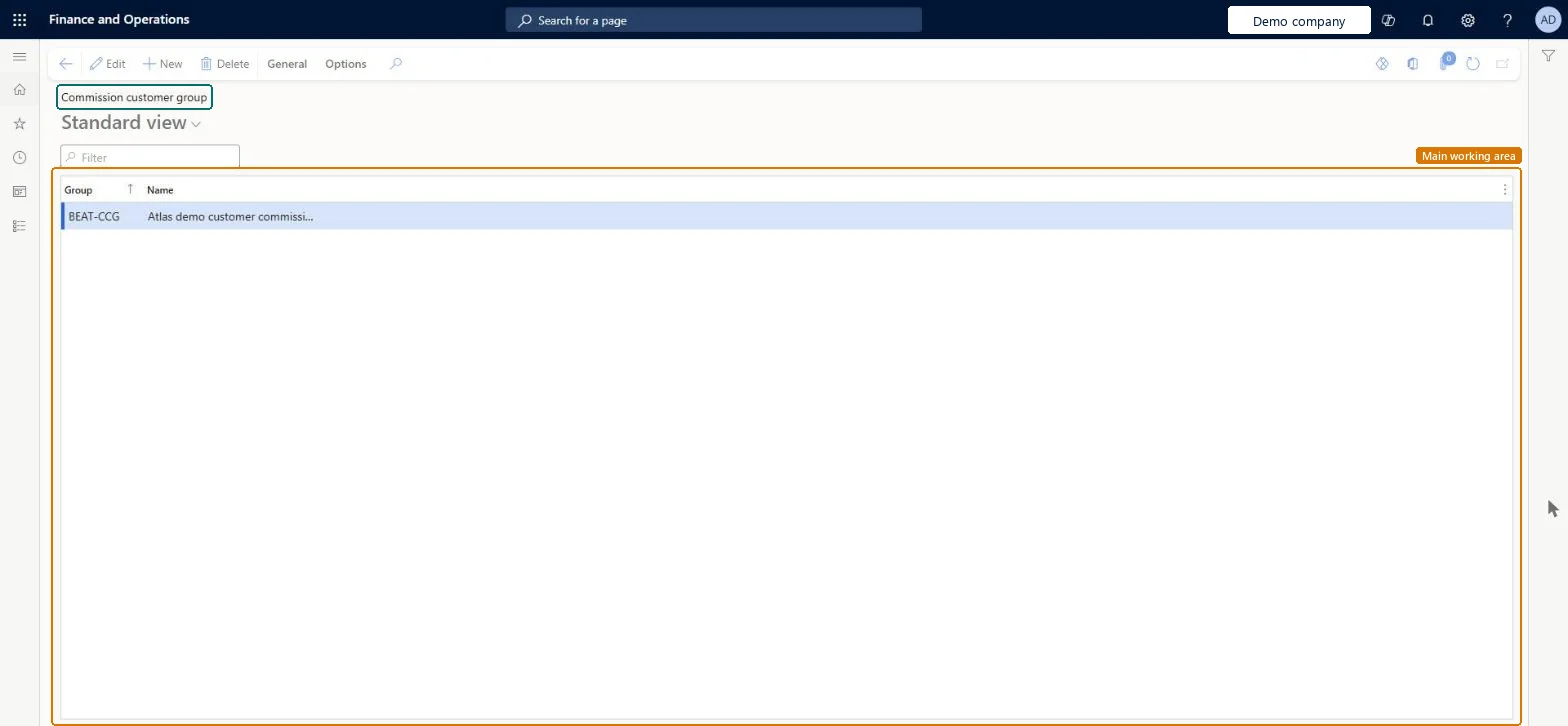
A setup page where you create commission groups of customers, used to track commissions for one or more customers.
What you do here
Use this page to group customers so one commission rate can cover the whole group; rates can also be set for a single customer instead.
Example
For example, BEAT puts its 25 key accounts in customer commission group KEYACCT, so one Commission calculation row pays 2.00 percent on all of them instead of 25 rows.
The page in Dynamics 365. page title tab to open what to set or check
About the examples: Examples and screenshots in this guide use BEAT, a demo company in a Dynamics 365 test environment. Use your own company's codes and values instead of copying them.
Step by step, with screenshots
Set up Customer groups for commission1 screen
Use this page to group customers so one commission rate can cover the whole group; rates can also be set for a single customer instead.
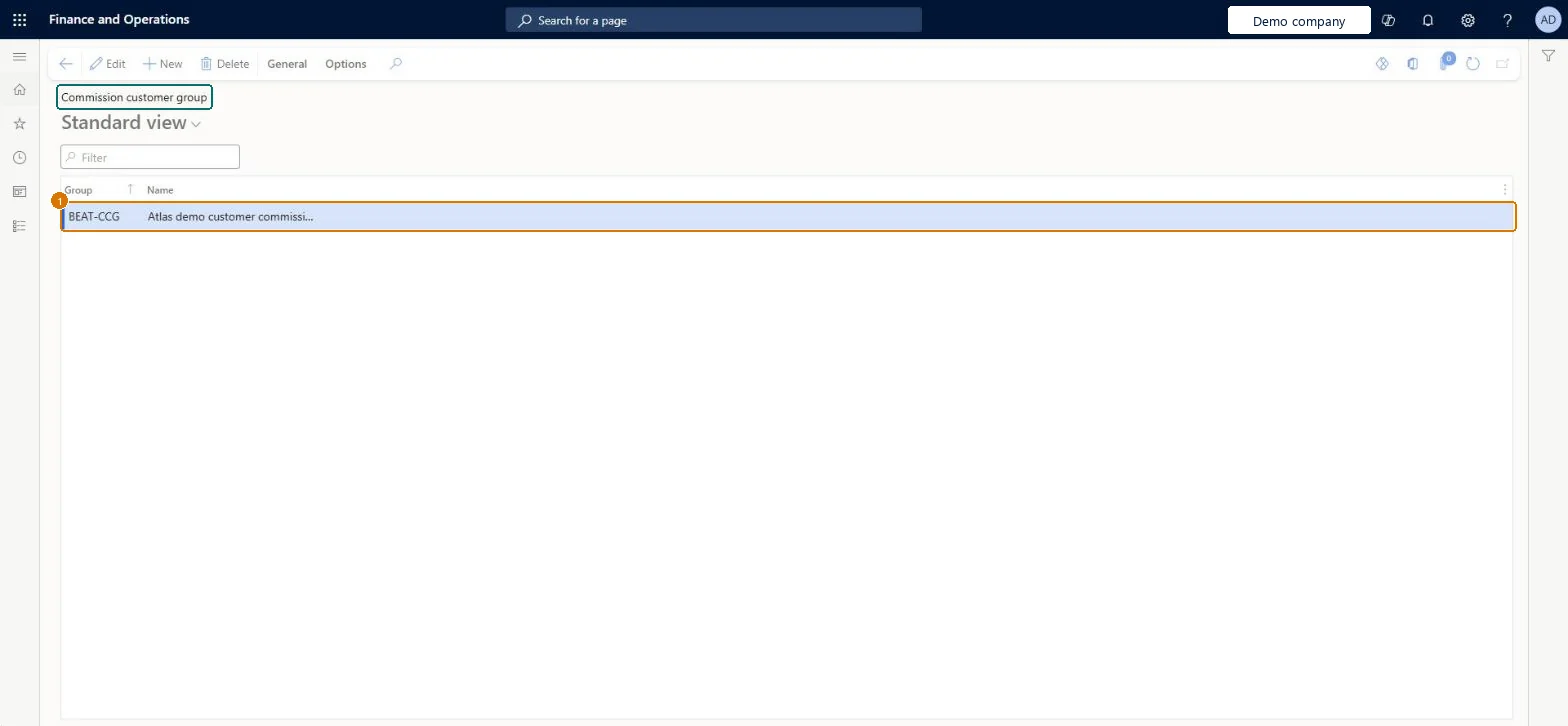
Screen 1
Create a customer group for commission
Go to Sales and marketing > Commissions > Customer groups for commission
Select New
Enter the group code and name
Select Save
1Group
BEAT-CCG
Name
Customer commission group
Show the full screen page title tab to open what to set or check
Steps from Microsoft
Go to Sales and marketing > Commissions > Customer groups for commission.
Commission customer groups only where one commission rate should cover several customers; set rates for single customers where the deal is customer-specificCommission groups are optional; commission can also be calculated for an individual customer, and the group is matched with item group and sales rep in Commission calculation.
Reversible: Groups can be added or reassigned on the customer's Sales order defaults at any time; commission already posted isn't recalculated. Microsoft Learn
If you change it later
The group is copied from the customer to the sales order, where it can be changed. Commission calculation rows with Customer code Group use it for invoices posted afterwards; posted commission isn't recalculated. Microsoft Learn
Technical architect
6Technical
Menu item
CommissionCustomerGroupChecked in Dynamics 365
Form
CommissionCustomerGroupChecked in Dynamics 365
Table
CommissionCustomerGroupShown as “Commission customer group” in Record infoChecked in Dynamics 365
PrivilegesMaintain setup of commission elements CommissionCalcMaintainView setup of commission elements CommissionCalcViewDutiesInquire into sales commissions master CustInvoiceSalesCommissionsInquireMaintain sales commissions master CustInvoiceSalesCommissionsMaintainInquire into compensation process HcmCompensationInquire17 security rolesCollections manager CollectionLetterCollectionsManagerAccounts receivable clerk CustInvoiceAccountsReceivableClerkAccounts receivable manager CustInvoiceAccountsReceivableManagerCompensation and benefits manager HcmCompensationAndBenefitsManagerHuman resource manager HcmHumanResourceManagerPayroll administrator HcmPayrollAdministratorPayroll manager HcmPayrollManagerAccountant LedgerAccountantAccounting manager LedgerAccountingManagerAccounting supervisor LedgerAccountingSupervisorAccounts payable centralized payments clerk PaymAccountsPayableCentralPaymClerkAccounts payable payments clerk PaymAccountsPayablePaymentsClerkAccounts receivable centralized payments clerk PaymAccountsReceivableCentralPaymClerkAccounts receivable payments clerk PaymAccountsReceivablePaymentsClerkSales manager TradeSalesManagerAccounts payable clerk VendInvoiceAccountsPayableClerkAccounts payable manager VendInvoiceAccountsPayableManagerChecked in Dynamics 365
Roles to set it up and use it
To set it up or change itSales manager TradeSalesManagerAccounting supervisor LedgerAccountingSupervisorTo use itAccounts receivable clerk CustInvoiceAccountsReceivableClerkAccounts receivable manager CustInvoiceAccountsReceivableManagerAccounts receivable centralized payments clerk PaymAccountsReceivableCentralPaymClerkAccounts receivable payments clerk PaymAccountsReceivablePaymentsClerkCollections manager CollectionLetterCollectionsManagerGive people one of these roles. On this system, 17 roles can open this page.Checked in Dynamics 365
Actions on the page
General: SetupOptions: Personalize, Page options, ShareChecked in Dynamics 365
CommissionCustomerGroupEntity (Commission customer group): loaded for each company, in Microsoft's default template 140 - Accounts receivable.Load order: Microsoft's default template 140 - Accounts receivable loads Commission customer group at execution unit 1, level 30, sequence 10. Lower levels load first, and entities at the same level load in sequence order.Load first: the default templates at lower levels (System setup to General ledger)Microsoft Learn
Checked in a working Dynamics 365 system, version 10.0.49: the menu item, form, table and security, the page, the demo records and the values in the screenshots.