A periodic job that writes inventory availability into a dedicated product attribute, used by inventory-aware product listing pages on e-commerce sites.
Retail and CommerceRetail and Commerce ITProducts and inventory
RetailInventoryAvailabilityPropertyBatchDisplay
Business process
Create B2C eCommerce sales channel in Dynamics 365 Commerce
Menu item
RetailInventoryAvailabilityPropertyBatchDisplay
Show what matters for
PAGE GUIDEWhat the page does and how to use it8 sections. Choose a role to highlight what matters to you.
Everyone
1What it is and why
What it is
A periodic job that writes inventory availability into a dedicated product attribute, used by inventory-aware product listing pages on e-commerce sites.
What you do here
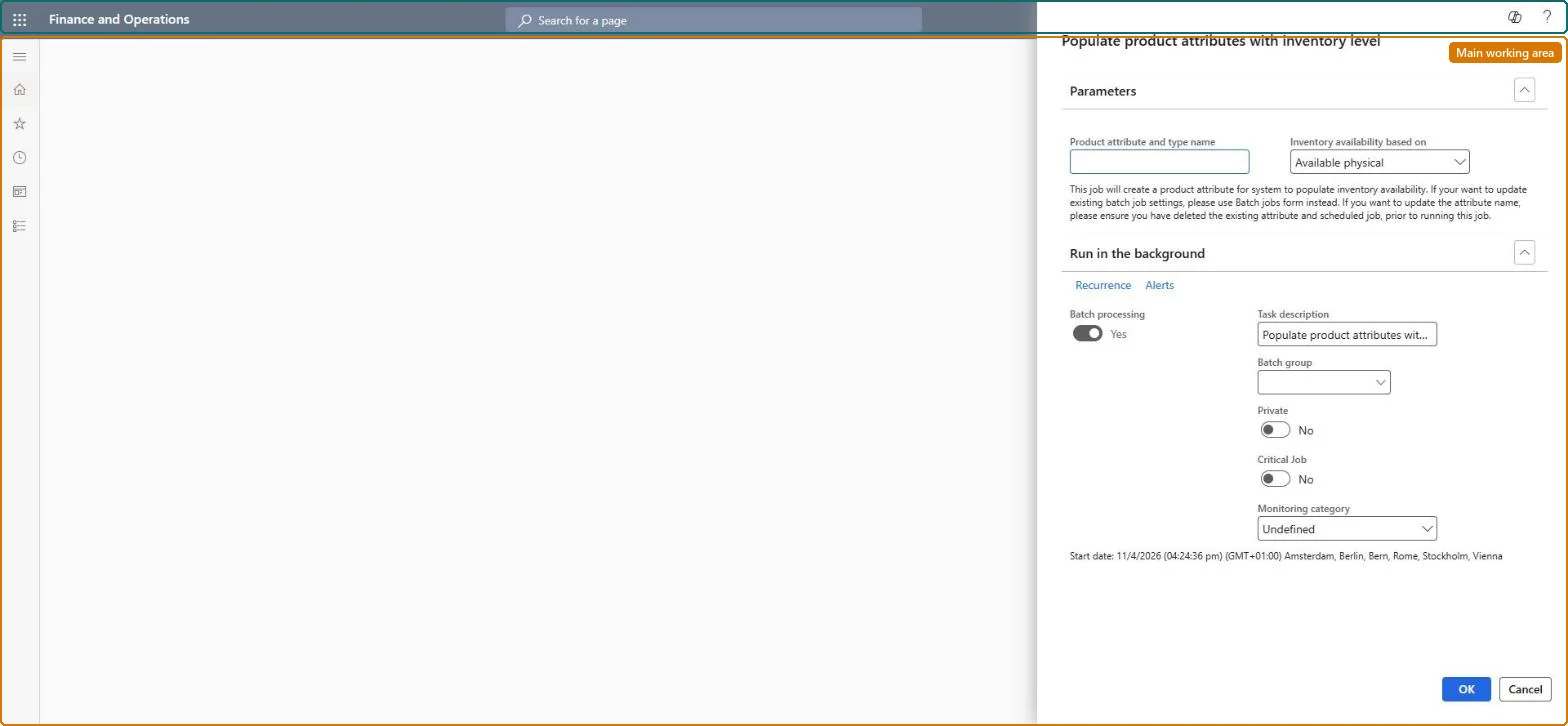
Use this page to create and refresh the inventory availability attribute so that category and search results pages can show stock labels, hide or move out-of-stock products, and filter by inventory.
Example
For example, run the job in batch and schedule the 1150 (Catalog) job at the same frequency so that online search results show Out of stock labels.
The page in Dynamics 365. page title tab to open what to set or check
About the examples: Examples and screenshots in this guide use BEAT, a demo company in a Dynamics 365 test environment. Use your own company's codes and values instead of copying them.
Steps from Microsoft
Go to Retail and Commerce > Retail and Commerce IT > Products and inventory > Populate product attributes with inventory level.
In Product attribute and type name, enter a name for the inventory attribute.
In Inventory availability based on, select Available physical or Total available.
Reversible: Each run rewrites the inventory attribute. A change to Inventory availability based on takes effect after the next run and the next 1150 (Catalog) job. Keep it the same as Inventory level based on in Commerce site builder, or site pages will calculate inventory levels differently. Microsoft Learn
If you change it later
Use the same quantity type here and in Commerce site builder, or inventory levels will be calculated inconsistently across site pages. Microsoft Learn
Technical architect
6Technical
Menu item
RetailInventoryAvailabilityPropertyBatchDisplayChecked in Dynamics 365