BeyondERP.Newsletter
Menu

Job page · Retail and Commerce

Validate store transactions

A batch process that checks store transactions against validation rules and marks those that would cause statement posting errors.

Business process
Post store end-of-day financial statements in Dynamics 365 Commerce
Menu item
RetailTransactionConsistencyCheckerBatch
Show what matters for
PAGE GUIDEWhat the page does and how to use it7 sections. Choose a role to highlight what matters to you.
Everyone

1What it is and why

What it isA batch process that checks store transactions against validation rules and marks those that would cause statement posting errors.
What you do hereUse this page to schedule validation so that only transactions that pass the rules are picked up by transactional statement calculation.
ExampleFor example, it flags a transaction whose header total doesn't match the total of its lines.
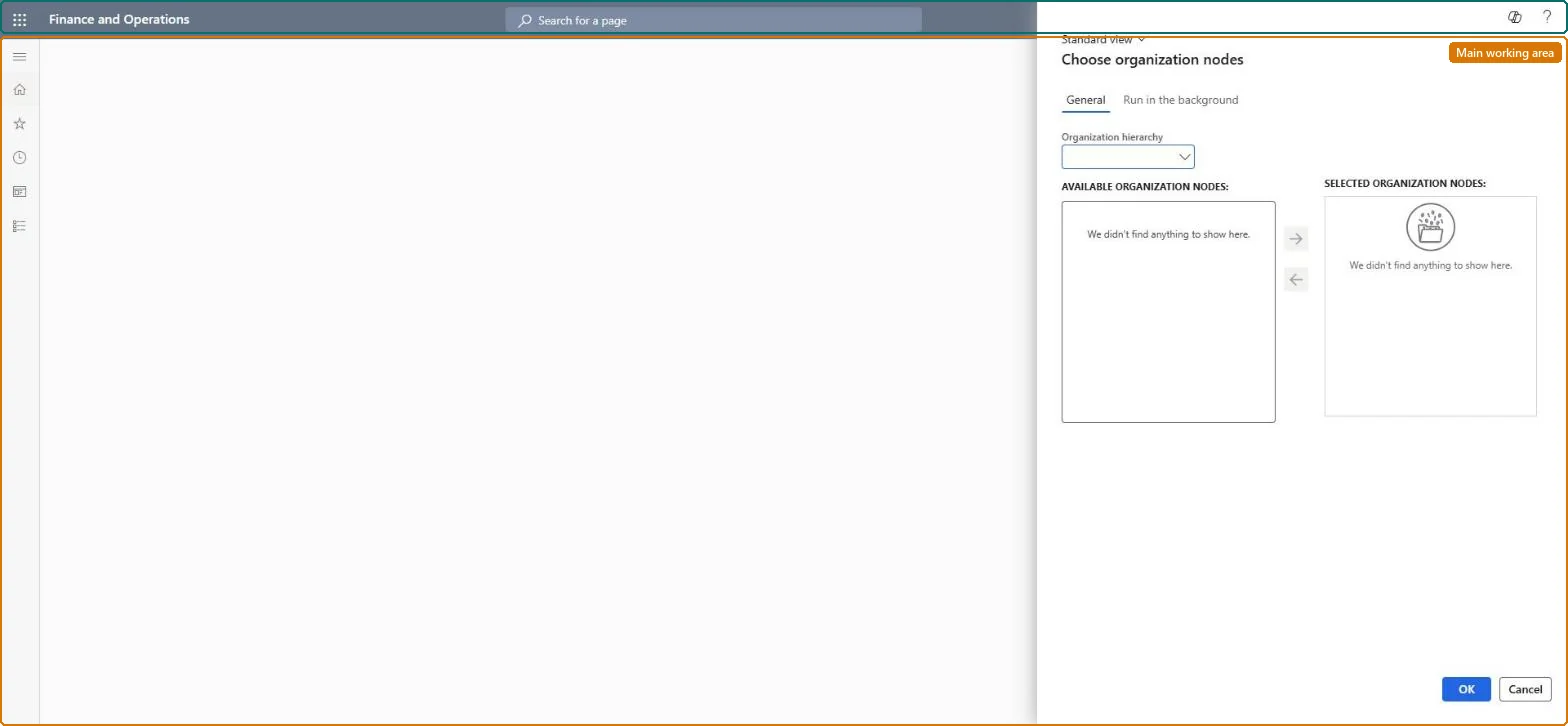
Validate store transactions page in Dynamics 365
The page in Dynamics 365. page title tab to open what to set or check
Functional consultant · Solution architect

2Where it fits

Business processManage sales orders › Manage store operations › Post store end-of-day financial statements in Dynamics 365 Commerce
Menu pathRetail and Commerce › Retail and Commerce IT › POS posting › Validate store transactions
Set up firstP-job Microsoft Learn
Used next byCalculate transactional statements in batch Microsoft Learn
Related pagesStore financials workspace Microsoft Learn
End user · Functional consultant

3How to do it

About the examples: Examples and screenshots in this guide use BEAT, a demo company in a Dynamics 365 test environment. Use your own company's codes and values instead of copying them.

When to run it

When to run itThroughout the day when trickle feed posting is used, after the P-job uploads store transactions and before transactional statements are calculated.
How oftenAt the same frequency as the P-job and Calculate transactional statements in batch.
Batch settingsA recurring batch job per store group, scheduled with the same recurrence as the P-job.
What the output showsEach store transaction gets a Validation status of Successful, Error or None and a Last validation time. Only Successful transactions go into transactional statements; Error transactions show on the Cash and carry validation failures tile until fixed.

Source: Microsoft Learn

Steps from Microsoft

  1. Go to Retail and Commerce > Retail and Commerce IT > POS posting > Validate store transactions.
  2. On the General tab, pick the Organization hierarchy and move the stores whose transactions you want to check from Available organization nodes to Selected organization nodes.
  3. Schedule it on the Run in the background tab at the same frequency as the P-job and the transactional statement calculation job.
  4. After a run, open the Cash and carry validation failures tile in the Store financials workspace, select a transaction and select Validation errors to see which rule failed.
  5. Fix the failed transaction, for example with Edit selected transaction in Excel, and run the job again so the next statement picks it up.

Source: Microsoft Learn

Fields on the page

FieldWhat it means
Validation statusSet on each store transaction to Successful, Error, or None by the job.Microsoft Learn
Last validation timeThe date of the last validation run for the transaction.Microsoft Learn
Maximum number of threads to validate store transactionsA Commerce parameter that sets how many threads the validation uses.Microsoft Learn

Test checklist

  1. Uploaded transactions have a Validation status and Last validation time.
  2. Failed transactions appear on the Cash and carry validation failures tile.

Source: Microsoft Learn

Solution architect

4Design impact

Can it be undoneYes, by rerunning: The job only sets Validation status and Last validation time. After you fix a transaction, run it again to revalidate. Microsoft Learn
If you change it laterTransactions that fail validation are left out of transactional statements until they are fixed. Microsoft Learn
Technical architect

5Technical

Menu itemRetailTransactionConsistencyCheckerBatch Checked in Dynamics 365
FormRetailOperatingUnitPicker Checked in Dynamics 365
Roles to set it up and use itTo use itRetail service RetailServiceRetail operations manager RetailOperationsManagerRetail store manager RetailStoreManagerGive people one of these roles. On this system, 3 roles can run this page.Checked in Dynamics 365
Developer

6Developer

Open it by URLhttps://<your-environment>/?mi=RetailTransactionConsistencyCheckerBatch
Everyone

7Sources