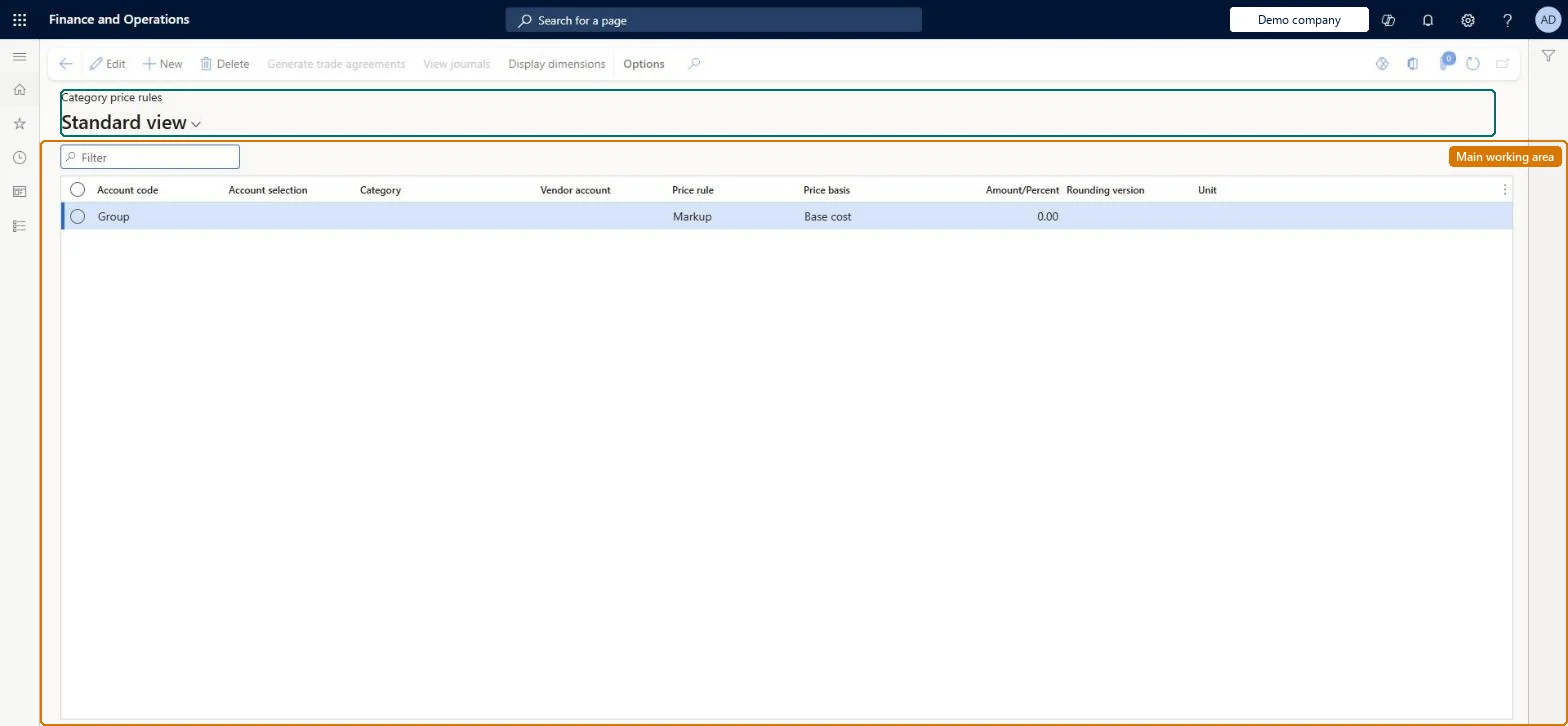
A page where you define a pricing rule for a product category (markup, margin or fixed amount on a chosen price basis) and generate a trade agreement journal of new sales prices for every product in that category.
PAGE GUIDEWhat the page does and how to use it8 sections. Choose a role to highlight what matters to you.
Everyone
1What it is and why
What it is
A page where you define a pricing rule for a product category (markup, margin or fixed amount on a chosen price basis) and generate a trade agreement journal of new sales prices for every product in that category.
What you do here
Use this page to create or expire sales price trade agreements for all products in a category at once, for a customer, price group or all customers, instead of entering each product price by hand.
Example
For example, set every product in a category to cost plus 50 percent markup for a channel price group and generate the journal in one step.
The page in Dynamics 365. page title tab to open what to set or check
About the examples: Examples and screenshots in this guide use BEAT, a demo company in a Dynamics 365 test environment. Use your own company's codes and values instead of copying them.
Setup steps on this page
Set up Category price rules
Use this page to create or expire sales price trade agreements for all products in a category at once, for a customer, price group or all customers, instead of entering each product price by hand.
Steps from Microsoft
Go to Retail and Commerce > Pricing and discounts > Category price rules.
Select New.
Set the Account code and Account selection (for example Group and a channel price group).
Select the Category, enter the Amount/Percent, and choose the Rounding version.
Select Generate trade agreements, enter the From date and To date, set Find next to Yes, and select Next.
Select Finish to create the trade agreement journal.
Review and edit the generated prices, then select Post > OK.
Account code Group for channel, catalog, affiliation or loyalty prices; reuse the same price rule for a category when prices change, and review the generated journal before postingGroup account codes create price-group specific agreements, and existing agreements can only be found and expired when the same price rule is reused. The generated journal is not posted until you post it.
Creating a new price rule for a category that already has one. The old trade agreements aren't expired, so old and new prices overlap.Test: Category markup creates channel prices
Solution architect
5Design impact
Can it be undone
Hard to reverse: Nothing changes until the generated journal is posted. After posting, prices are live and must be expired, which works automatically only when you reuse the same price rule. Microsoft Learn
If you change it later
Generating prices only creates an unposted journal, so nothing changes until it is posted; expiring existing agreements works only when the same price rule (same category) is reused. Microsoft Learn
Technical architect
6Technical
Menu item
RetailCategoryPriceRuleChecked in Dynamics 365
Form
RetailCategoryPriceRuleChecked in Dynamics 365
Table
RetailCategoryPriceRuleShown as “RETAIL CATEGORY PRICE RULE TABLE” in Record infoChecked in Dynamics 365
PrivilegesMaintain retail pricing RetailPricingMaintainDutiesMaintain retail product pricing RetailProductPricingMaintain2 security rolesRetail merchandising manager RetailMerchandisingManagerRetail service RetailServiceChecked in Dynamics 365
Roles to set it up and use it
To set it up or change itRetail service RetailServiceRetail merchandising manager RetailMerchandisingManagerGive people one of these roles. On this system, 2 roles can open this page.Checked in Dynamics 365
Actions on the page
(Action Pane without tabs): Generate trade agreements, View journals, Display dimensionsChecked in Dynamics 365