Retail operations manager, Retail service, Retail store manager
Business process
Manage sales channels
Menu item
RetailLeaveType
Main table
LeaveType
Data entity
LeaveTypeEntity
Setup steps
1 on this page
Show what matters for
PAGE GUIDEWhat the page does and how to use it8 sections. Choose a role to highlight what matters to you.
Everyone
1What it is and why
What it is
A setup page where you define the types of leave (such as paid time off, sick leave or bereavement leave) that employees can request and report.
What you do here
Use this page to create each leave type and set its request type, unit, workflow and rules such as reason codes, rounding, carry-forward and expiration before you build leave plans.
Example
For example, an HR administrator creates a Sick leave type measured in hours that requires a reason code when an employee submits a request.
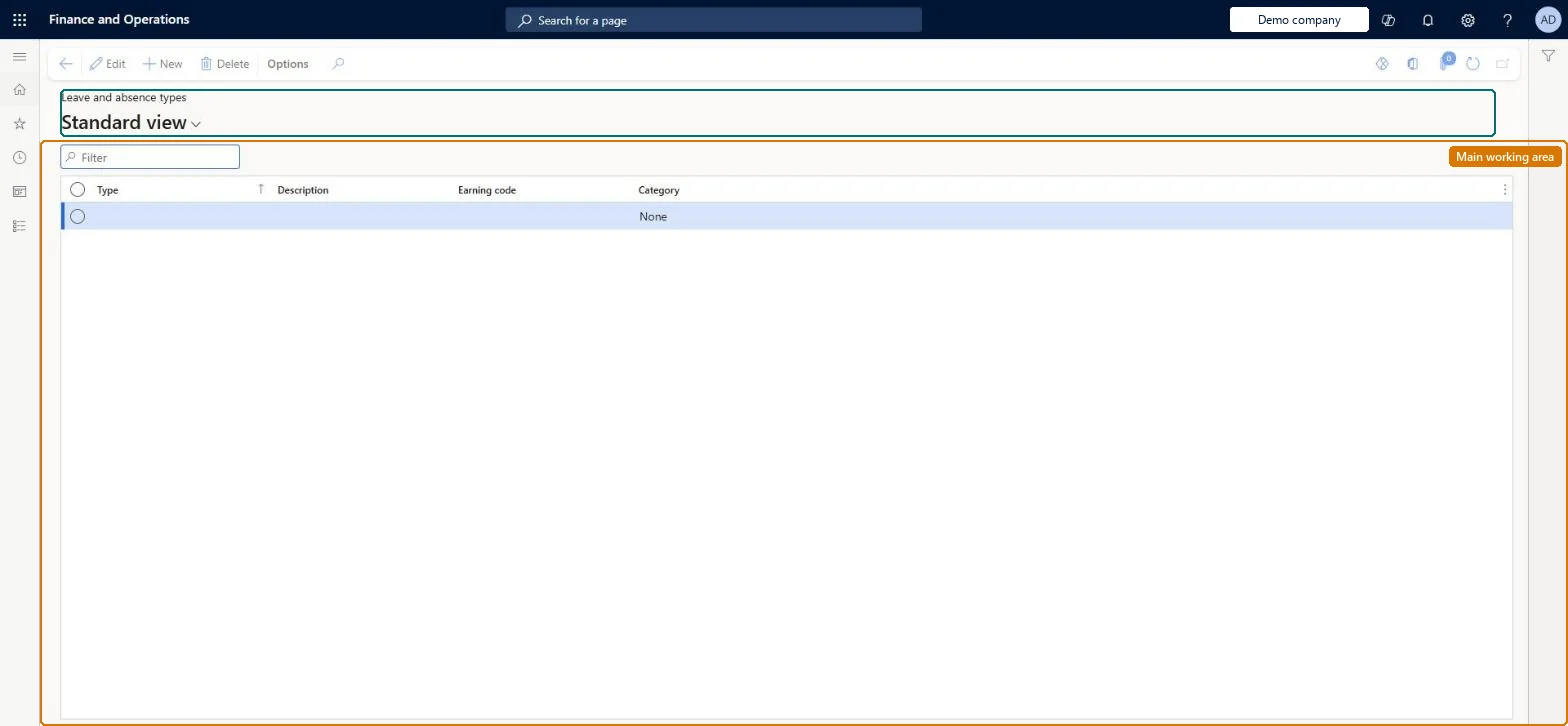
The page in Dynamics 365. page title tab to open what to set or check
About the examples: Examples and screenshots in this guide use BEAT, a demo company in a Dynamics 365 test environment. Use your own company's codes and values instead of copying them.
Setup steps on this page
Set up Leave and absence types
Use this page to create each leave type and set its request type, unit, workflow and rules such as reason codes, rounding, carry-forward and expiration before you build leave plans.
Steps from Microsoft
Go to Retail and Commerce > Employees > Time and attendance > Leave and absence types.
Select New.
Enter a name under Type, a description under Description, and select a workflow in the Workflow ID field.
Select a Request type, for example Time off or Leave of absence.
In General, select a Category and an Earning code.
Under Reason code required, choose whether a reason code is needed and add the reason codes.
Under Calendar color, select the colour shown on leave calendars.
Decide Hours or Days for each leave type before the first leave request; give leave types that employees combine on one request the same unitThe unit of a leave type can be changed only while it has no leave transactions, and all leave types selected on a single leave request must have the same leave unit.
One-way: Warning: the leave-units feature can't be turned off once enabled, and a leave type's unit is locked as soon as it has leave transactions. Requests that include closed days can be canceled only while Include weekends and holidays stays on. Microsoft Learn
If you change it later
The unit of a leave type can be changed only while no leave transactions exist for it, and the leave-units feature cannot be switched off once enabled. Microsoft Learn
Technical architect
6Technical
Menu item
RetailLeaveTypeChecked in Dynamics 365
Form
LeaveTypeChecked in Dynamics 365
Table
LeaveTypeShown as “LEAVE AND ABSENCE TYPE” in Record infoKey field: TypeChecked in Dynamics 365
Data entities
LeaveTypeEntityLeave and absence type Checked in Dynamics 365
Who can open it
PrivilegesView workers RetailLimitedWorkerViewDutiesMaintain retail worker RetailWorkerMaintain3 security rolesRetail operations manager RetailOperationsManagerRetail service RetailServiceRetail store manager RetailStoreManagerChecked in Dynamics 365
Roles to set it up and use it
To set it up or change itRetail service RetailServiceRetail operations manager RetailOperationsManagerRetail store manager RetailStoreManagerGive people one of these roles. On this system, 3 roles can open this page.Checked in Dynamics 365
Developer
7Developer
Open it by URL
https://<your-environment>/?mi=RetailLeaveType
Integrate with
LeaveTypeEntity data entity Checked in Dynamics 365