PAGE GUIDEWhat the page does and how to use it8 sections. Choose a role to highlight what matters to you.
Everyone
1What it is and why
What it is
A setup page where you define target markets: named lists of customers and prospects that make up a segment a catalog is mailed to.
What you do here
Use this page to create a target market and list the customers and prospects in it, so that a catalog source code can be linked to the segment and the catalog response tracked.
Example
For example, a direct-marketing team defines a rented mailing list as a target market, links it to the spring catalog's source code and can later see which customers received that catalog.
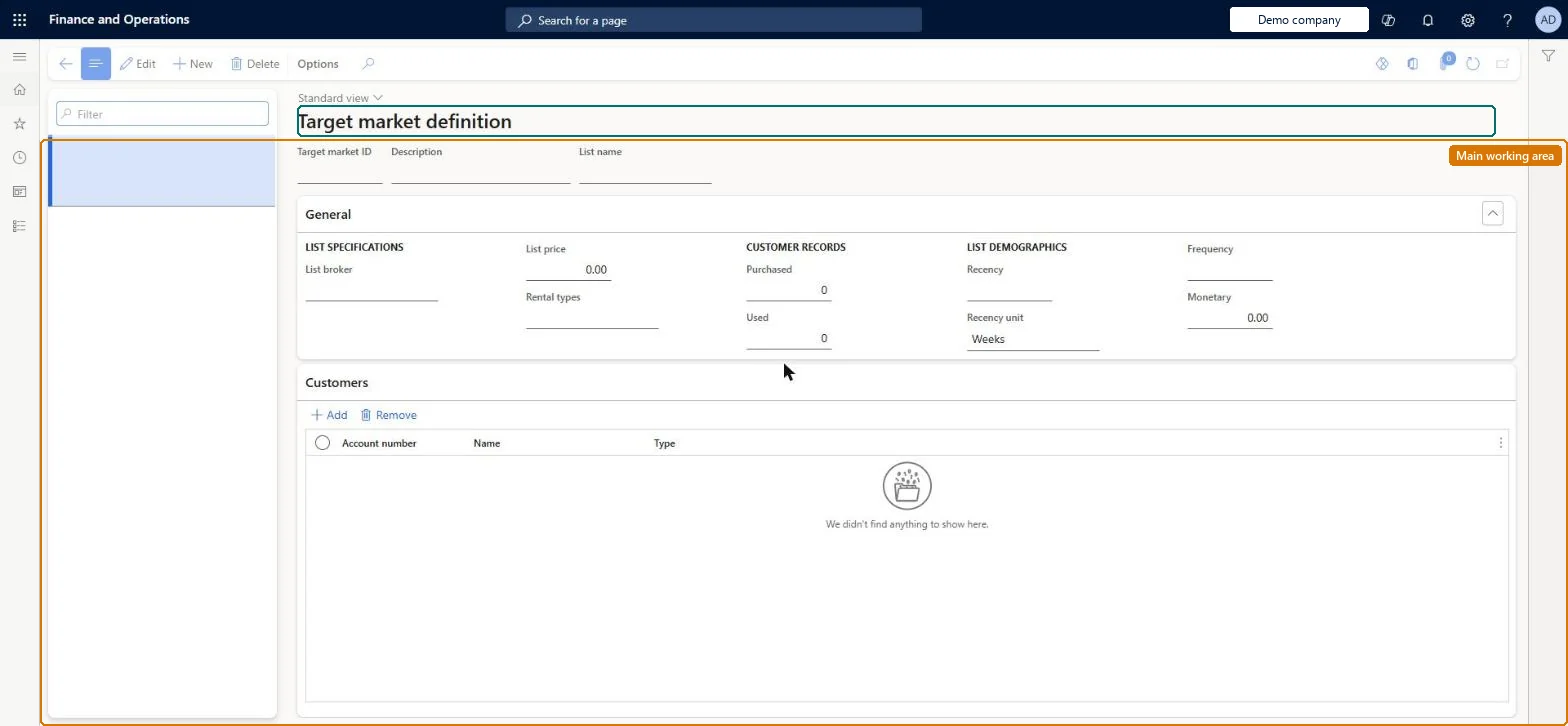
The page in Dynamics 365. page title tab to open what to set or check
About the examples: Examples and screenshots in this guide use BEAT, a demo company in a Dynamics 365 test environment. Use your own company's codes and values instead of copying them.
Setup steps on this page
Set up Target market
Use this page to create a target market and list the customers and prospects in it, so that a catalog source code can be linked to the segment and the catalog response tracked.
Steps from Microsoft
Go to Retail and Commerce > Customers > Target market.
Select New.
In the Target market ID field, enter a unique ID.
In the List name field, select the type of list (rented, purchased or other).
Optionally enter demographics on the General FastTab and the Purchased and Used counts under Customer records.
On the Customers FastTab, select New and add each customer or prospect account.
One target market per mailed customer segment, each linked to its own source code ID on the catalogGiving each segment a unique source code lets you track catalog response down to the segment level.
Leaving customers out of a target market, or not linking it to an active source code and catalog: call center users then can't see which catalogs the customer was sent (Source codes, or the Targeted filter on the order).
Solution architect
5Design impact
Can it be undone
Reversible: Target markets and their customer lists can be changed any time; what call center users see as Targeted follows the current link to an active source code and catalog. Microsoft Learn
Technical architect
6Technical
Menu item
MCRTargetSetupChecked in Dynamics 365
Form
MCRTargetSetupChecked in Dynamics 365
Table
MCRTargetSetupShown as “CUSTOMER TARGET LIST” in Record infoKey field: TargetIDChecked in Dynamics 365
Who can open it
PrivilegesMaintain target definitions MCRTargetSetupMaintainDutiesMaintain source code and catalog offers MCRSourceOfferMaintain1 security roleMarketing manager CRMMarketingManagerChecked in Dynamics 365
Roles to set it up and use it
To set it up or change itMarketing manager CRMMarketingManagerGive people one of these roles. On this system, 1 role can open this page.Checked in Dynamics 365