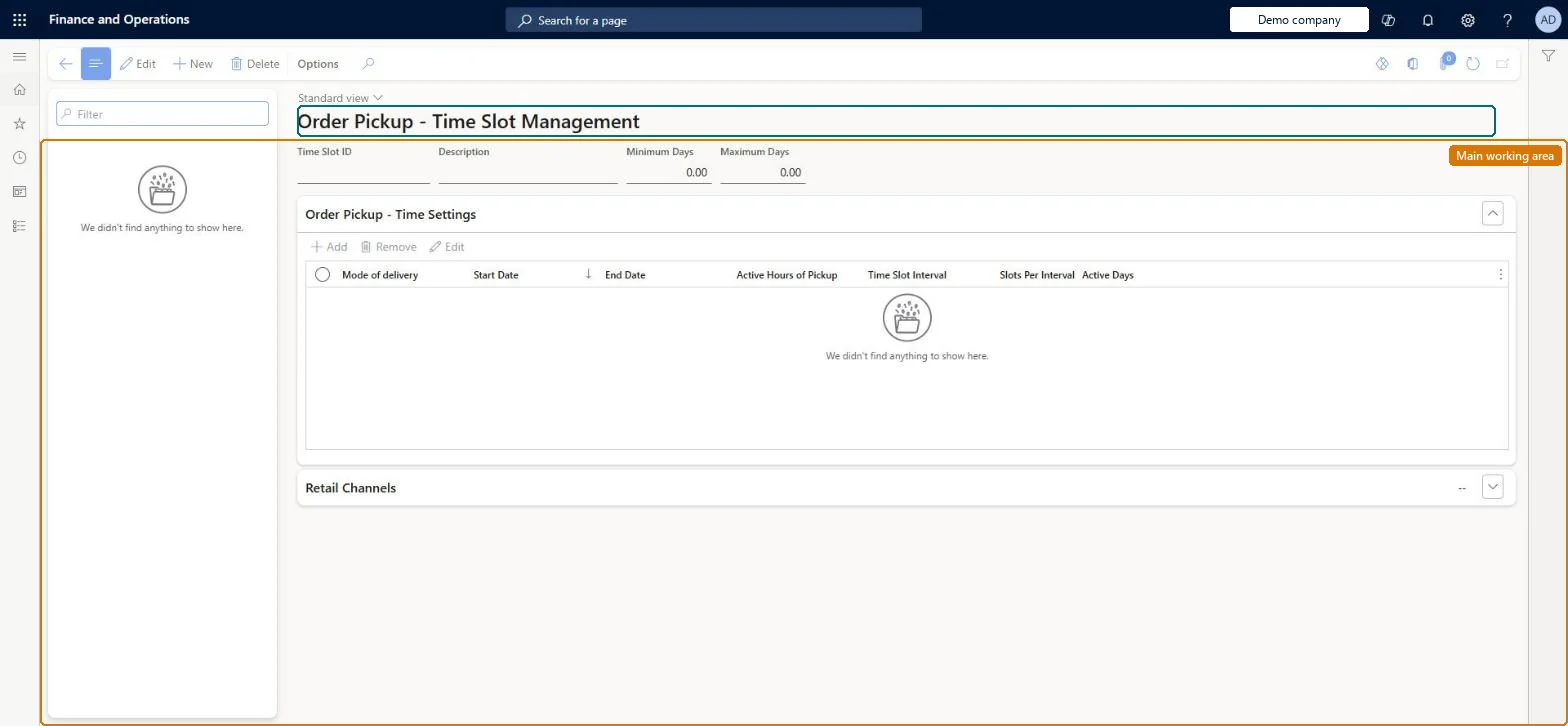
A setup page where you create time slot templates that define the days, hours, interval and capacity for customer order pickup at stores, and associate each template with channels.
Business Performance Planning app role, Data management administrator, Data management migration user and 4 more roles
Business process
Manage sales channels
Menu item
RetailPickupTimeslot
Main table
RetailPickupTimeslotTemp
Data entity
RetailPickupTimeslotTemplateEntity
Setup steps
1 on this page
Show what matters for
PAGE GUIDEWhat the page does and how to use it8 sections. Choose a role to highlight what matters to you.
Everyone
1What it is and why
What it is
A setup page where you create time slot templates that define the days, hours, interval and capacity for customer order pickup at stores, and associate each template with channels.
What you do here
Use this page to define, for each pickup mode of delivery, when orders can be collected and how many orders each slot can hold, so that POS, call center and e-commerce checkout can offer pickup dates and times.
Example
For example, pickup can be limited to 2 PM to 5 PM in 30-minute slots with three orders per slot.
The page in Dynamics 365. page title tab to open what to set or check
About the examples: Examples and screenshots in this guide use BEAT, a demo company in a Dynamics 365 test environment. Use your own company's codes and values instead of copying them.
Setup steps on this page
Set up Store pickup time slot
Use this page to define, for each pickup mode of delivery, when orders can be collected and how many orders each slot can hold, so that POS, call center and e-commerce checkout can offer pickup dates and times.
Steps from Microsoft
Go to Retail and Commerce > Channel setup > Store pickup time slot.
Select New to create a time slot template, or select an existing template in the left pane.
Enter values in the Time Slot ID and Description fields.
On the Order Pickup - Time Settings FastTab, select Add.
In the dialog box, define the date range, mode of delivery, active hours, active days, time slot interval and slots per interval, then select OK.
Add more entries if slots vary by day, making sure dates and times don't overlap.
On the Retail Channels FastTab, select Add and choose the stores or organization nodes, then select OK.
On the Distribution schedule page, run the 1070 and 1135 jobs.
The pickup mode of delivery the time slot applies to.Microsoft Learn
DlvMode
Minimum Days / Maximum Days
The earliest and latest pickup dates, counted from the order date.Microsoft Learn
Start Date / End Date
The period during which the time slot entry is valid.Microsoft Learn
Active Hours of Pickup
The daily period when pickup is allowed, in the store's time zone.Microsoft Learn
Time Slot Interval
The length of each slot; 0 means one slot for the whole active period.Microsoft Learn
Slots Per Interval
How many orders or customers can be served in each slot.Microsoft Learn
CapacityPerInterval
Active Days
The days of the week on which pickup slots apply.Microsoft Learn
Retail Channels
The stores or organization nodes the template is associated with.Microsoft Learn
Test checklist
Create a template for the pickup mode of delivery with Minimum Days 1, a 30-minute Time Slot Interval and 2 Slots Per Interval, and assign it to a test store.
Run distribution jobs 1070 and 1135.
In POS, create a pickup order for the store: check the earliest date offered is the next eligible day and slots follow the 30-minute interval.
Book two orders into the same slot and check a third order can no longer select that slot.
If e-commerce is used, check the checkout page has the pickup information module, otherwise no slot is captured.
One template per channel, with one non-overlapping time setting per pickup mode of delivery, End Date set to Never when slots are stable, and pickup hours entered in the store's time zoneOnly one template can be associated with a store or channel, and each time slot should be unique per delivery mode in a template. Never avoids gaps when slots don't change.
Defining pickup hours or dates when the store is closed (for example holidays), or entering hours in headquarters time instead of the store's time zone, so customers book slots the store cannot serve.
Solution architect
5Design impact
Can it be undone
Reversible: You can change or replace a template at any time and resync with jobs 1070 and 1135. Changing a time slot's start and end dates does not change orders already placed with a slot. Microsoft Learn
If you change it later
Changing a template's dates does not affect orders already placed, and only one template can be associated with a given store or channel. Microsoft Learn
Technical architect
6Technical
Menu item
RetailPickupTimeslotChecked in Dynamics 365
Form
RetailPickupTimeslotChecked in Dynamics 365
Table
RetailPickupTimeslotTempShown as “PICKUP TIME SLOT TEMPLATE” in Record infoChecked in Dynamics 365
Data entities
RetailPickupTimeslotTemplateEntityRetailPickupTimeslotTemplateEntity Checked in Dynamics 365
Who can open it
PrivilegesRetailPickupTimeslotMaintainDutiesMaintain Master entity data for data management DataManagementApplicationMasterEntitiesMaintainRetailPickupTimeslotMaintain7 security rolesBusiness Performance Planning app role BPPBudgetPlanningAppRoleData management administrator DataManagementAdministratorData management migration user DataManagementMigrationUserRetail operations manager RetailOperationsManagerRetail service RetailServiceDemand planning app role ScpDemandPlanningAppRoleInformation technology manager SysServerITManagerChecked in Dynamics 365
Roles to set it up and use it
To set it up or change itRetail service RetailServiceRetail operations manager RetailOperationsManagerInformation technology manager SysServerITManagerBusiness Performance Planning app role BPPBudgetPlanningAppRoleData management migration user DataManagementMigrationUserGive people one of these roles. On this system, 7 roles can open this page.Checked in Dynamics 365