PAGE GUIDEWhat the page does and how to use it8 sections. Choose a role to highlight what matters to you.
Everyone
1What it is and why
What it is
A setup page where you override the Device parameters of a connector technical profile for one POS register or for all registers in one store.
What you do here
Use this page to give an individual register or store its own fiscal device connection settings (for example a connection string) without changing the shared technical profile. The feature 'Fiscal integration technical profile overrides' must be enabled first.
Example
For example, you can specify fiscal device connection strings at the level of an individual POS register.
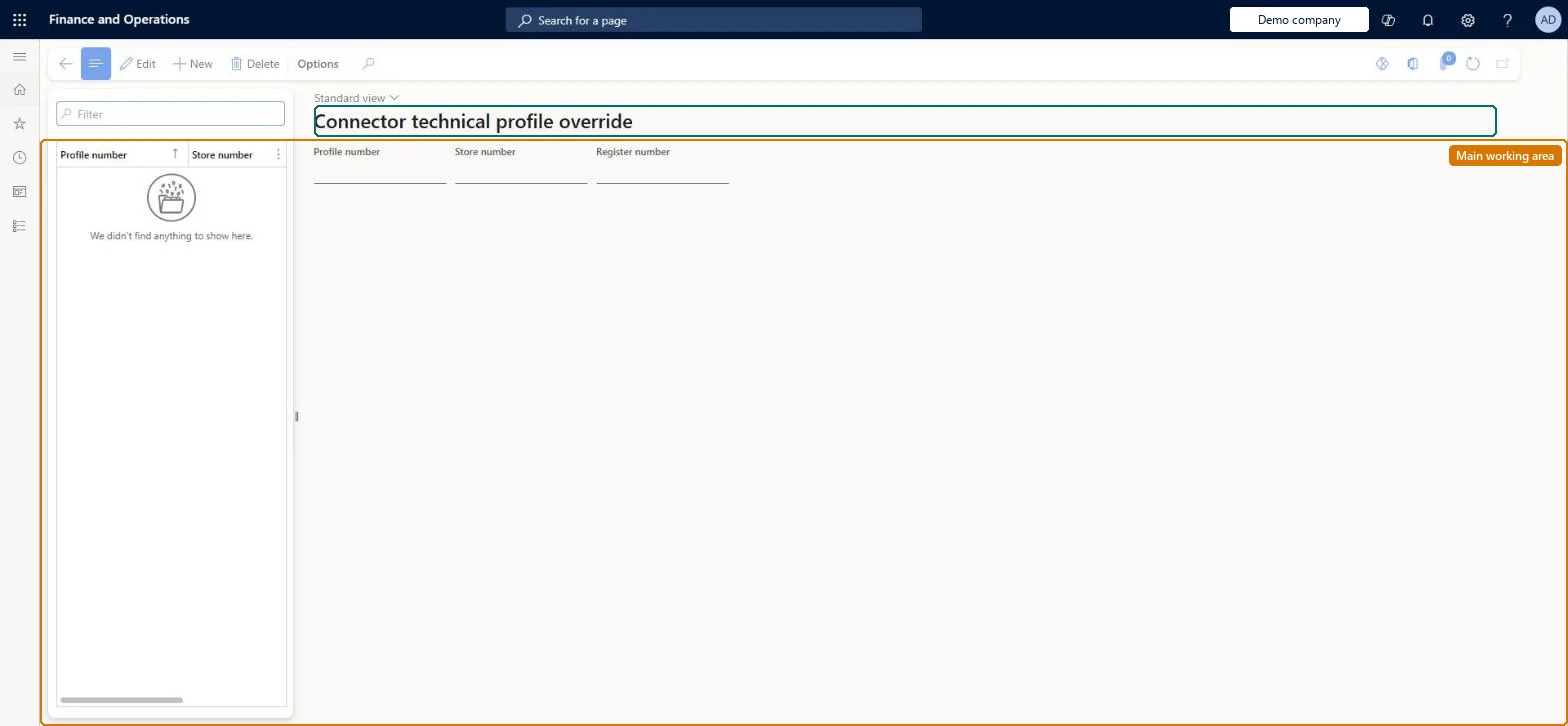
The page in Dynamics 365. page title tab to open what to set or check
About the examples: Examples and screenshots in this guide use BEAT, a demo company in a Dynamics 365 test environment. Use your own company's codes and values instead of copying them.
Setup steps on this page
Set up Connector technical profile override
Use this page to give an individual register or store its own fiscal device connection settings (for example a connection string) without changing the shared technical profile. The feature 'Fiscal integration technical profile overrides' must be enabled first.
Steps from Microsoft
Go to Retail and Commerce > Channel setup > Fiscal integration > Connector technical profile override.
Alternatively, open Retail and Commerce > Channel setup > Fiscal integration > Connector technical profiles, select the profile and select the Override menu item.
On the Override page, create a new record.
Select a store or a POS register.
On the Device tab, enter the parameters for the selected POS register or store.
The scope of the override: one register, or every register in one store.Microsoft Learn
Device tab
The device parameters that replace the technical profile's values for the chosen scope.Microsoft Learn
Test checklist
Turn on Fiscal integration technical profile overrides in Feature management.
On the technical profile, select Override, create a record for one register and enter its connection string on Device.
Run jobs 1070 and 1090.
On that register, open POS Settings > Fiscal Integration > Details and check the overridden connection parameters; check another register still shows the shared values.
Override only the Device parameters that differ per register or store (for example the connection string), and keep everything else on the shared technical profileAn override applies the selected parameters to one register or all registers of one store, without changing the shared profile for others.
Setting up overrides before turning on Fiscal integration technical profile overrides, so the Override page and register-level settings are not available.
Feature management and licence
Feature to turn on
Fiscal integration technical profile overrides (Must be on)
Reversible: Delete or change the override record at any time; only the selected register or store is affected. Microsoft Learn
If you change it later
An override changes the technical profile parameters only for the selected register or store; other registers keep the shared profile values. Microsoft Learn
Technical architect
6Technical
Menu item
RetailFiscalIntegrationTechnicalProfileOverrideChecked in Dynamics 365
Form
RetailFiscalIntegrationTechnicalProfileOverrideChecked in Dynamics 365
Table
RetailFiscalIntegrationTechnicalProfileShown as “CONNECTOR TECHNICAL PROFILE OVERRIDE” in Record infoKey field: TechnicalProfileId, StoreId, TerminalIdChecked in Dynamics 365
Data entities
RetailFiscalIntegrationTechnicalProfileOverrideEntityFiscal integration technical profile override Checked in Dynamics 365