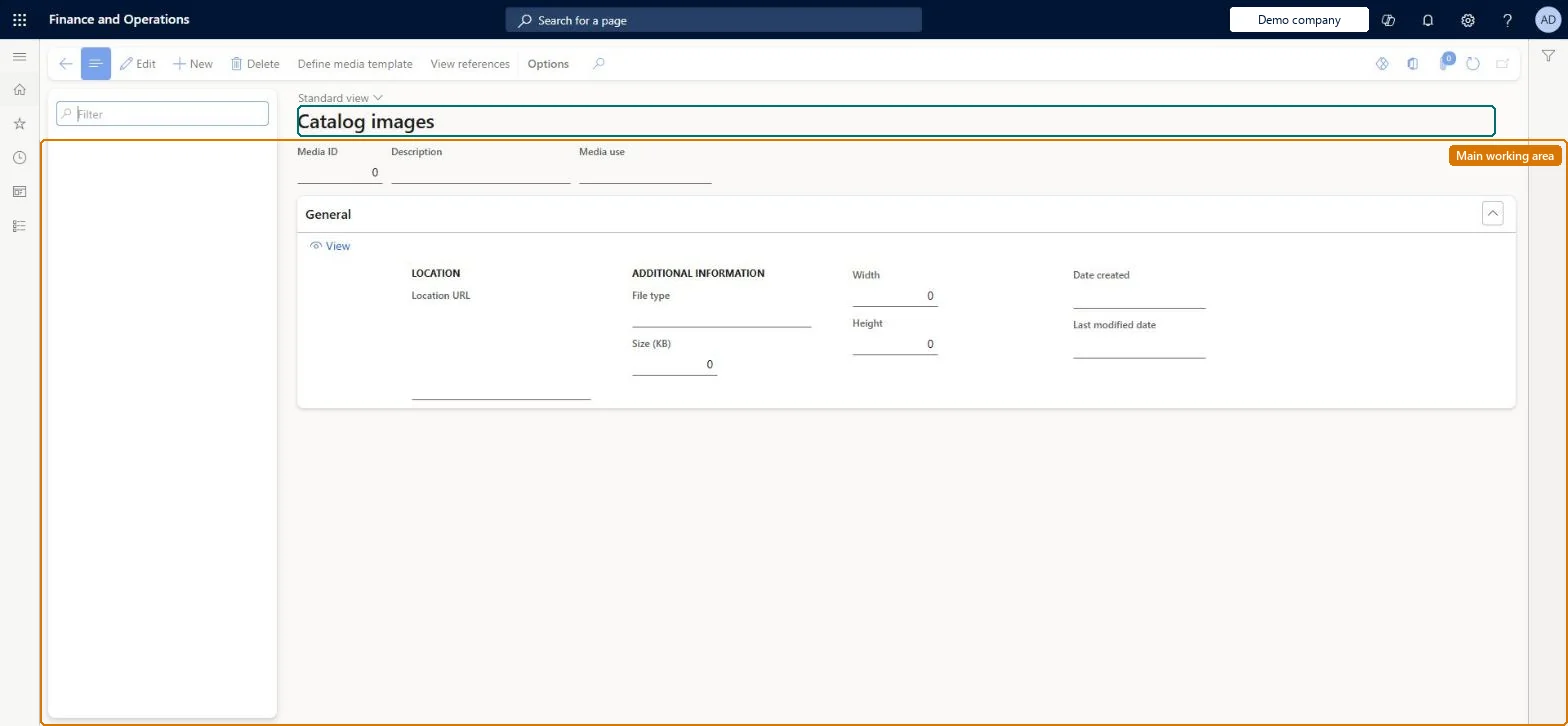
A page where you define the media template that builds the image URL for every catalog, generate the resulting URLs for Excel, and view or overwrite individual catalog image links.
Retail catalog manager, Retail merchandising manager, Retail store manager
Business process
Develop eCommerce catalogs in Dynamics 365 Commerce
Menu item
RetailCatalogsImage
Main table
RetailImageResource
Show what matters for
PAGE GUIDEWhat the page does and how to use it7 sections. Choose a role to highlight what matters to you.
Everyone
1What it is and why
What it is
A page where you define the media template that builds the image URL for every catalog, generate the resulting URLs for Excel, and view or overwrite individual catalog image links.
What you do here
Use this page to tell Store Commerce where externally hosted catalog images live by setting the media path and file extension, and to override the URL for specific catalogs.
Example
For example, a catalog named Fabrikam Base Catalog resolves to the file Fabrikam Base Catalog.jpg under the Catalogs/en-US folder of the media server.
The page in Dynamics 365. page title tab to open what to set or check
Product images / Category images / Employee images / Customer image (Define media template) Microsoft Learn
End user · Functional consultant
3How to do it
About the examples: Examples and screenshots in this guide use BEAT, a demo company in a Dynamics 365 test environment. Use your own company's codes and values instead of copying them.
Steps from Microsoft
Go to Retail and Commerce > Catalogs and assortments > Catalog images.
On the Action Pane, select Define media template; Catalog is selected in the Entity field.
On the Media path FastTab, enter the remaining path of the image location (LanguageID can be used as a variable).
In the File Extension field, select the image file extension, and rename your image files to the catalog names.
Select OK.
Reopen Define media template and use Generate Image URLs for Excel to check the URLs.
Run Catalog Job 1150 from Retail and Commerce IT > Distribution schedule.
The entity the media template applies to; Catalog on this page.Microsoft Learn
Media path
The part of the image URL after the channel's media base URL; supports a LanguageID variable.Microsoft Learn
File Extension
The expected file name extension of the catalog images.Microsoft Learn
Generate Image URLs for Excel
Previews the URLs built from the saved template and must be run before Edit in Excel.Microsoft Learn
File name (hard-coded)
Image files must be named after the catalog; the format cannot be changed.Microsoft Learn
Test checklist
Set the Media base URL on the channel profile the test store uses.
Open Define media template for the Catalog entity, set the Media path and File Extension, and select Generate on the Generate Image URLs for Excel FastTab.
Check that a generated URL ends with the catalog name and the chosen extension, and that the file opens anonymously in a browser.
Run the Catalog job (1150) from Distribution schedule.
Open Store Commerce for that store and check the catalog image is shown.
Reversible: You can change the media template at any time, but stores only use the new template after the Catalog job (1150) runs. You can delete overwritten image URLs, but not URLs derived from the template; to change those, change the template. Microsoft Learn
If you change it later
A changed template is only used by stores after the Catalog job (1150) syncs it to the channel; the gallery on this page does not preview template-derived URLs, only overwritten ones. Microsoft Learn
Technical architect
5Technical
Menu item
RetailCatalogsImageChecked in Dynamics 365
Form
RetailMediaGalleryChecked in Dynamics 365
Table
RetailImageResourceShown as “RETAILIMAGERESOURCE” in Record infoChecked in Dynamics 365
Who can open it
PrivilegesMaintain media management security. RetailMediaMaintainDutiesMaintain media management security. RetailMediaMaintain3 security rolesRetail catalog manager RetailCatalogManagerRetail merchandising manager RetailMerchandisingManagerRetail store manager RetailStoreManagerChecked in Dynamics 365
Roles to set it up and use it
To set it up or change itRetail store manager RetailStoreManagerRetail merchandising manager RetailMerchandisingManagerRetail catalog manager RetailCatalogManagerGive people one of these roles. On this system, 3 roles can open this page.Checked in Dynamics 365
Actions on the page
(Action Pane without tabs): Define media template, View referencesChecked in Dynamics 365