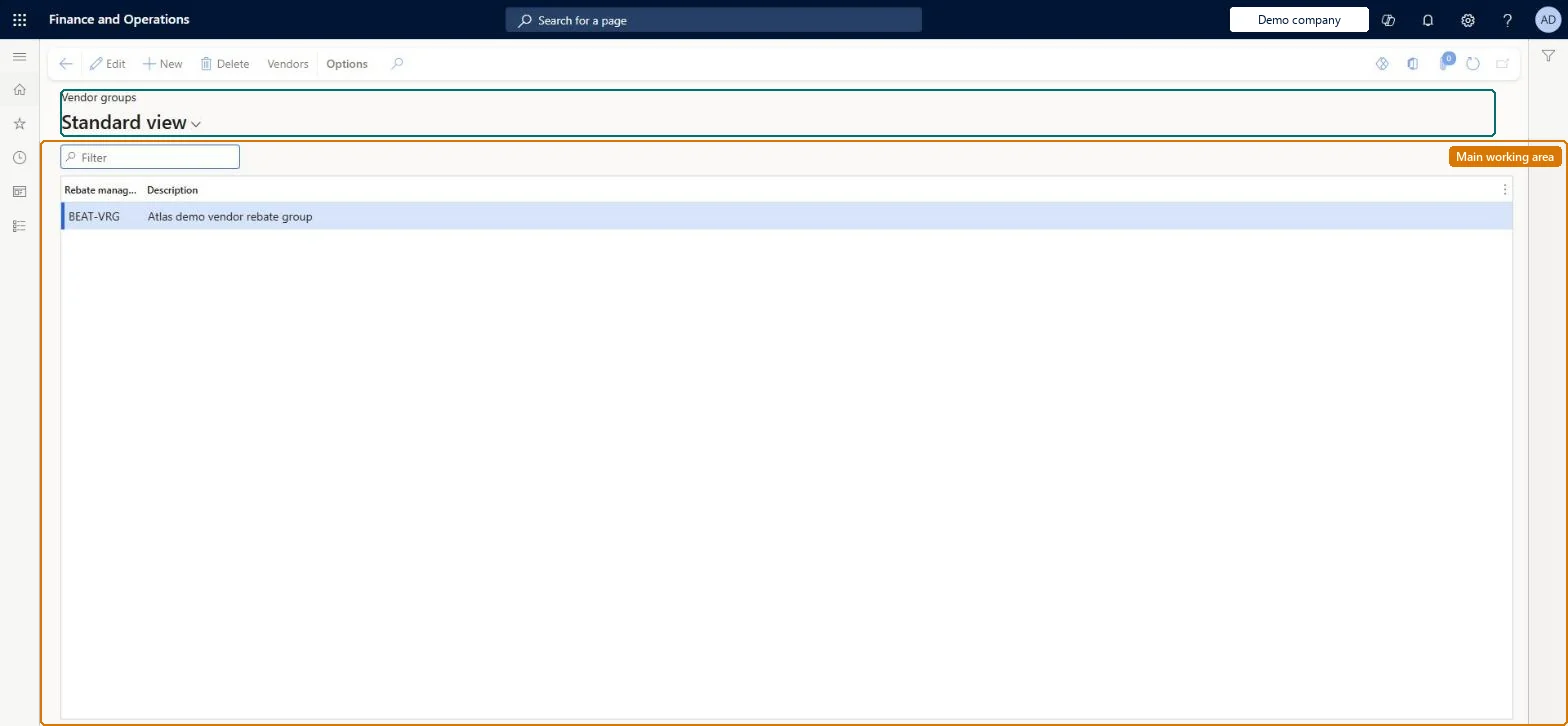
A setup page where you create Rebate management vendor groups, which gather vendors so that a rebate calculation can be driven by the group rather than by individual vendors.
Accounts payable manager, Accounts receivable clerk, Accounts receivable manager and 2 more roles
Business process
Set product prices
Menu item
TAMRebateGroupVend
Main table
TAMRebateGroup
Data entity
TAMRebateVendorRebateAndDeductionsGroupEntity
Setup steps
1 on this page
Show what matters for
PAGE GUIDEWhat the page does and how to use it8 sections. Choose a role to highlight what matters to you.
Everyone
1What it is and why
What it is
A setup page where you create Rebate management vendor groups, which gather vendors so that a rebate calculation can be driven by the group rather than by individual vendors.
What you do here
Use this page to add or remove vendor groups and, through the Vendors button, to assign the vendor accounts that belong to each group.
Example
For example, group the vendors that represent a set of delivery points so that one rebate deal covers all of them.
The page in Dynamics 365. page title tab to open what to set or check
About the examples: Examples and screenshots in this guide use BEAT, a demo company in a Dynamics 365 test environment. Use your own company's codes and values instead of copying them.
Setup steps on this page
Set up Vendor groups
Use this page to add or remove vendor groups and, through the Vendors button, to assign the vendor accounts that belong to each group.
Steps from Microsoft
Go to Rebate management > Rebate management groups setup > Vendor groups.
Select New on the Action Pane.
Enter a unique Rebate management group name and a Description.
Select the group, then select Vendors on the Action Pane.
Select New and set Vendor account for each vendor to add.
One group per set of vendors (for example delivery points) that share a vendor rebate schemeMicrosoft describes vendor group calculations as often created for a group of delivery points.
Expecting exclusive membership: a vendor can belong to any number of groups and so to more than one deal.
Solution architect
5Design impact
Can it be undone
Reversible: Change groups and members at any time; only later processing is affected. Microsoft Learn
If you change it later
Group membership is not exclusive: a vendor can belong to any number of groups, and membership can be changed from either the group list or the vendor record. Microsoft Learn
Technical architect
6Technical
Menu item
TAMRebateGroupVendChecked in Dynamics 365
Form
TAMRebateGroupChecked in Dynamics 365
Table
TAMRebateGroupShown as “REBATE MANAGEMENT GROUPS” in Record infoChecked in Dynamics 365
Data entities
TAMRebateVendorRebateAndDeductionsGroupEntityRebate management vendor group Checked in Dynamics 365TAMRebateCustomerRebateAndDeductionsGroupEntityRebate management customer group Checked in Dynamics 365TAMRebateProductRebateAndDeductionsGroupEntityRebate management product group Checked in Dynamics 365
Who can open it
PrivilegesMaintain rebate management groups TAMRebateGroupMaintainView rebate management groups TAMRebateGroupViewDutiesViews customer rebate agreements PdsRebateAgreementViewMaintain customer rebates PdsRebateTableMaintainInquire into customer rebate agreements TAMRebateCustomerAgreementsInquireInquire into customer rebates TAMRebateCustomerInquireInquire into vendor rebate agreements TAMVendRebateAgreementInquireMaintain vendor rebate agreements TAMVendRebateAgreementMaintainInquire into vendor rebates TAMVendRebateInquireMaintain purchase rebates TAMVendRebateMaintain5 security rolesAccounts receivable clerk CustInvoiceAccountsReceivableClerkAccounts receivable manager CustInvoiceAccountsReceivableManagerPurchasing manager TradePurchasingManagerSales manager TradeSalesManagerAccounts payable manager VendInvoiceAccountsPayableManagerChecked in Dynamics 365
Roles to set it up and use it
To set it up or change itAccounts payable manager VendInvoiceAccountsPayableManagerAccounts receivable clerk CustInvoiceAccountsReceivableClerkSales manager TradeSalesManagerTo use itAccounts receivable manager CustInvoiceAccountsReceivableManagerPurchasing manager TradePurchasingManagerGive people one of these roles. On this system, 5 roles can open this page.Checked in Dynamics 365
Actions on the page
(Action Pane without tabs): Items, Add itemsChecked in Dynamics 365
Developer
7Developer
Open it by URL
https://<your-environment>/?mi=TAMRebateGroupVend
Integrate with
TAMRebateVendorRebateAndDeductionsGroupEntity data entity Checked in Dynamics 365