BeyondERP.Newsletter
Menu

Job page · Rebate management

Cancel provision

A periodic task that reverses rebate provision (accrual) transactions that have already been processed and posted for Rebate management deals.

Business process
Manage approved rebates in Dynamics 365 Supply Chain Management
Menu item
TAMRebateCancelTransactionsProvision
Show what matters for
PAGE GUIDEWhat the page does and how to use it7 sections. Choose a role to highlight what matters to you.
Everyone

1What it is and why

What it isA periodic task that reverses rebate provision (accrual) transactions that have already been processed and posted for Rebate management deals.
What you do hereUse this page to cancel posted provision transactions so that they are reversed; the reversals are then recorded in the Rebate management journals.
ExampleFor example, after a provision has been posted, select the posted provision transactions and run Cancel provision to reverse them.
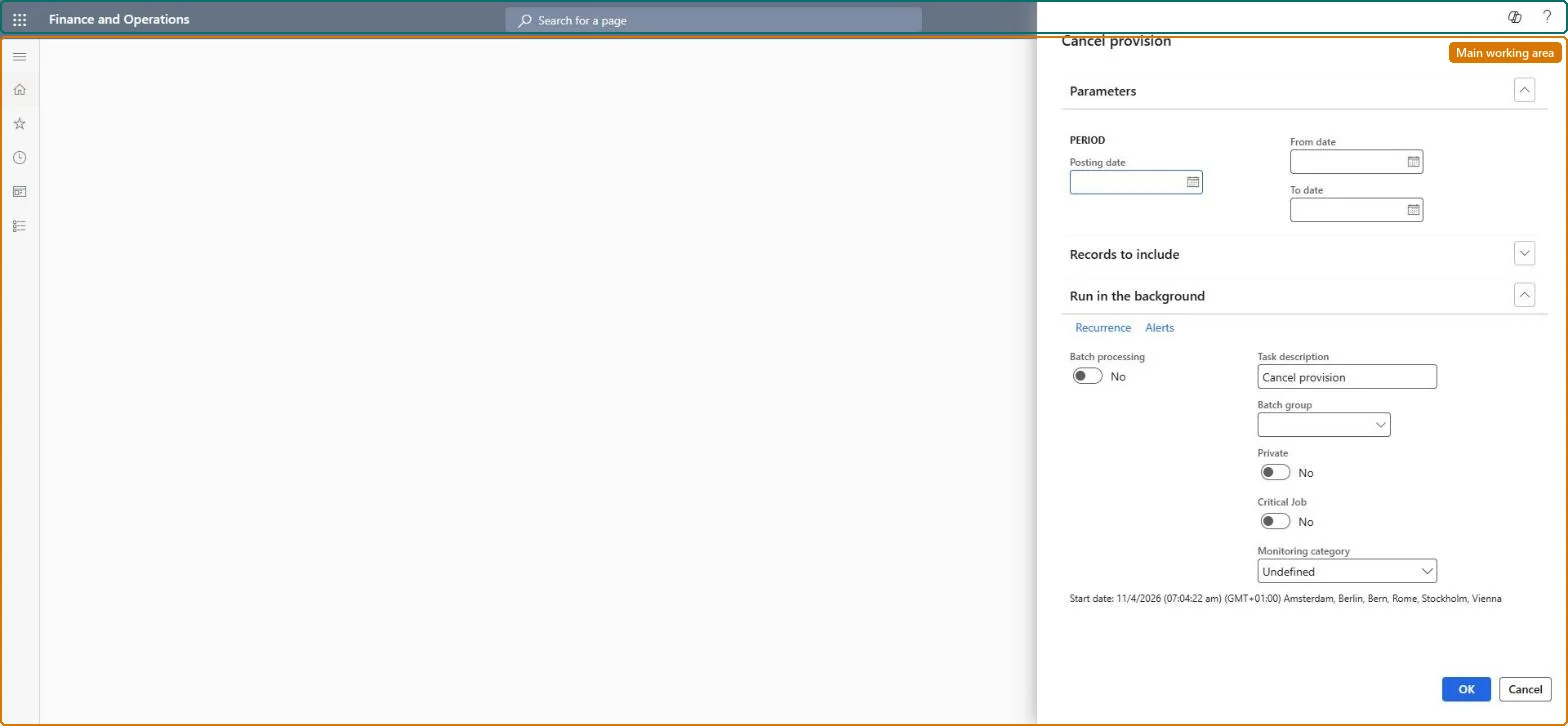
Cancel provision page in Dynamics 365
The page in Dynamics 365. page title tab to open what to set or check
Functional consultant · Solution architect

2Where it fits

End user · Functional consultant

3How to do it

About the examples: Examples and screenshots in this guide use BEAT, a demo company in a Dynamics 365 test environment. Use your own company's codes and values instead of copying them.

When to run it

When to run itWhen posted provisions are wrong, for example after a deal correction, and must be reversed before you provision again.
How oftenOn demand, only when posted provisions need reversing.
Batch settingsRun it in the background when many deals are affected; avoid a recurring schedule because it reverses posted accruals.
What the output showsReversal entries for the selected posted provision transactions, visible in the Rebate management journals. Provisions that are still there were usually outside the date range or the filter.

Source: Microsoft Learn

Steps from Microsoft

  1. Go to Rebate management > Periodic tasks > Cancel > Cancel provision.
  2. Under Parameters, enter the Posting date of the reversal and the From date and To date of the posted provisions to cancel.
  3. Use Filter under Records to include to choose only the deals whose provisions were wrong.
  4. For one-off corrections, you can instead select the posted provision lines on the Rebate workbench and select Cancel provision.
  5. Open the Rebate management journals for the deal and look for the reversal entries.

Source: Microsoft Learn

Test checklist

  1. Reversal entries appear in the Rebate management journals.
  2. The accrual account balance drops by the cancelled amount.

Source: Microsoft Learn

Solution architect

4Design impact

Can it be undoneNo: The reversal is posted. Process and post the provision again to restore the accrual. Microsoft Learn
If you change it laterRunning the cancellation reverses the selected posted provision transactions, and the reversals also appear in the Rebate management journals. Microsoft Learn
Technical architect

5Technical

Menu itemTAMRebateCancelTransactionsProvision Checked in Dynamics 365
FormSysOperationTemplateForm Checked in Dynamics 365
Roles to set it up and use itTo use itAccounts payable manager VendInvoiceAccountsPayableManagerAccounts receivable manager CustInvoiceAccountsReceivableManagerAccounts receivable clerk CustInvoiceAccountsReceivableClerkAccounts payable clerk VendInvoiceAccountsPayableClerkGive people one of these roles. On this system, 4 roles can run this page.Checked in Dynamics 365
Developer

6Developer

Open it by URLhttps://<your-environment>/?mi=TAMRebateCancelTransactionsProvision
Everyone

7Sources