Production controlPeriodic tasksProduction order status update
action:ProdBOMChangeItemAction
Business process
Update the production BOM or Formula to meet to production requirements in Dynamics 365 Supply Chain Management
Menu item
action:ProdBOMChangeItemAction
Show what matters for
PAGE GUIDEWhat the page does and how to use it7 sections. Choose a role to highlight what matters to you.
Everyone
1What it is and why
What it is
A periodic dialog that substitutes one BOM item for another on selected production orders that have the status Estimated or Scheduled.
What you do here
Use this page when a raw item is changed or revised and several open production orders must switch to the new item, optionally only once the on-hand stock of the old item is used up.
Example
For example, select Proposal to use-up on-hand so that orders switch to the new item only after the old item's on-hand inventory reaches zero.
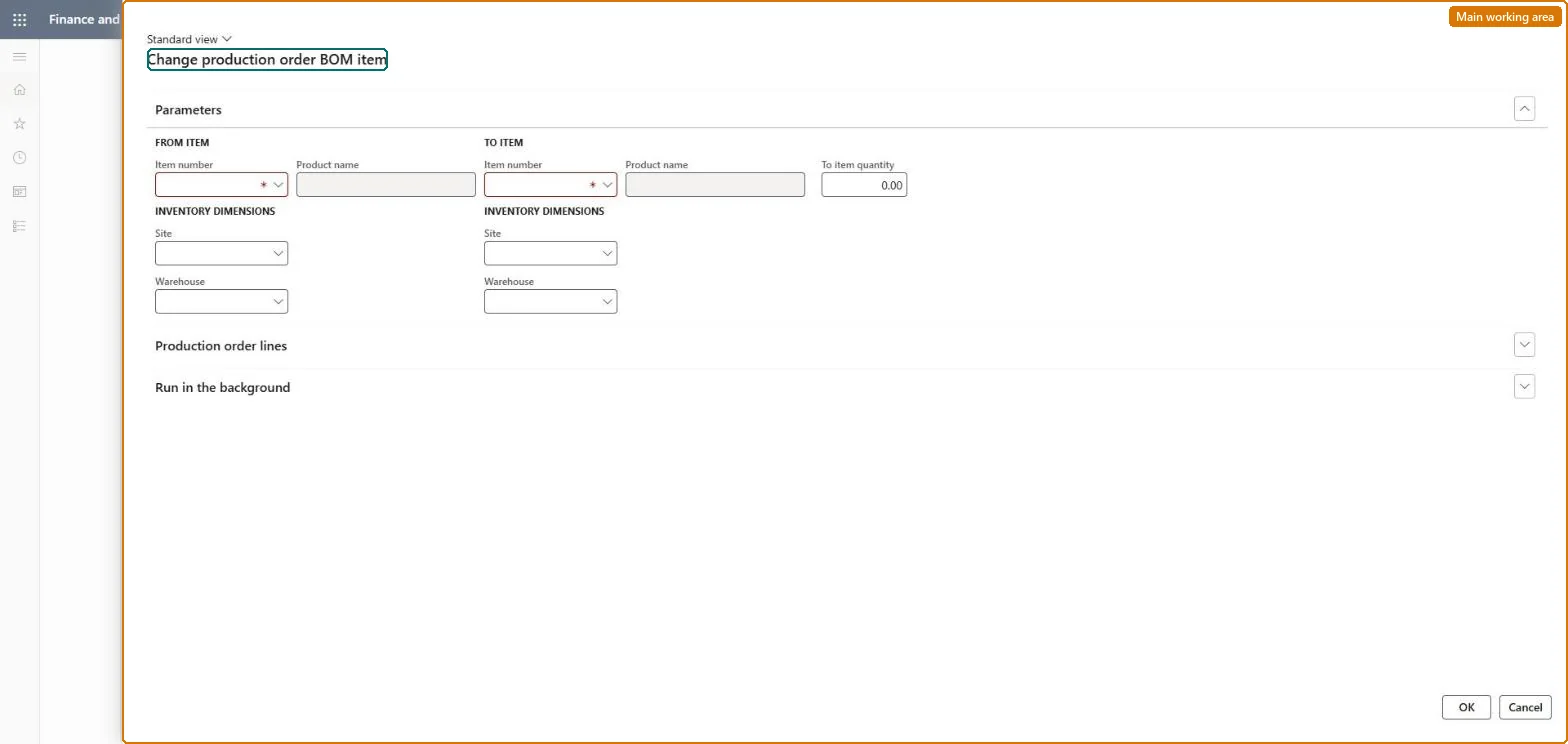
The page in Dynamics 365. page title tab to open what to set or check
About the examples: Examples and screenshots in this guide use BEAT, a demo company in a Dynamics 365 test environment. Use your own company's codes and values instead of copying them.
When to run it
When to run it
When a raw item is changed or revised and several estimated or scheduled orders must switch to the new item before release.
How often
On demand, whenever an engineering change replaces a component on open orders.
Batch settings
Run it in the background when many orders are marked, so the change is applied without blocking your session.
What the output shows
A zero-quantity line for the old item and a new BOM line for the new item, with line type, vendor, site, warehouse, scrap, flushing principle, resource consumption and per series copied. An order that wasn't changed was probably not Estimated or Scheduled, or not marked.
Go to Production control > Periodic tasks > Production order status update > Change production order BOM item.
On the Parameters FastTab, in the From item section, enter the item and inventory dimensions to replace; only orders with status Estimated or Scheduled can be changed.
In the To item section, enter the replacement item and dimensions; it must use the same inventory unit. Enter a New quantity, or leave 0 to keep the existing quantity.
On the Production order lines FastTab, mark the orders that should take the new item, or select Proposal to use-up on-hand to mark orders from the point where the old item's stock runs out.
Open a changed order's BOM afterwards: the old line has quantity 0 and a new line holds the new item.
Yes, by running it again: Run the change again with the items swapped, or edit the production BOM lines by hand. Microsoft Learn
If you change it later
The old BOM line is set to zero quantity and a new line is created for the new item, copying line type, vendor, site, warehouse, scrap, flushing principle, resource consumption and per series from the old line. Microsoft Learn
Technical architect
5Technical
Menu item
action:ProdBOMChangeItemActionChecked in Dynamics 365
Form
ProdBOMChangeItemDialogChecked in Dynamics 365
Roles to set it up and use it
To use itProduction supervisor ProdProductionSupervisorGive people one of these roles. On this system, 1 role can run this page.Checked in Dynamics 365