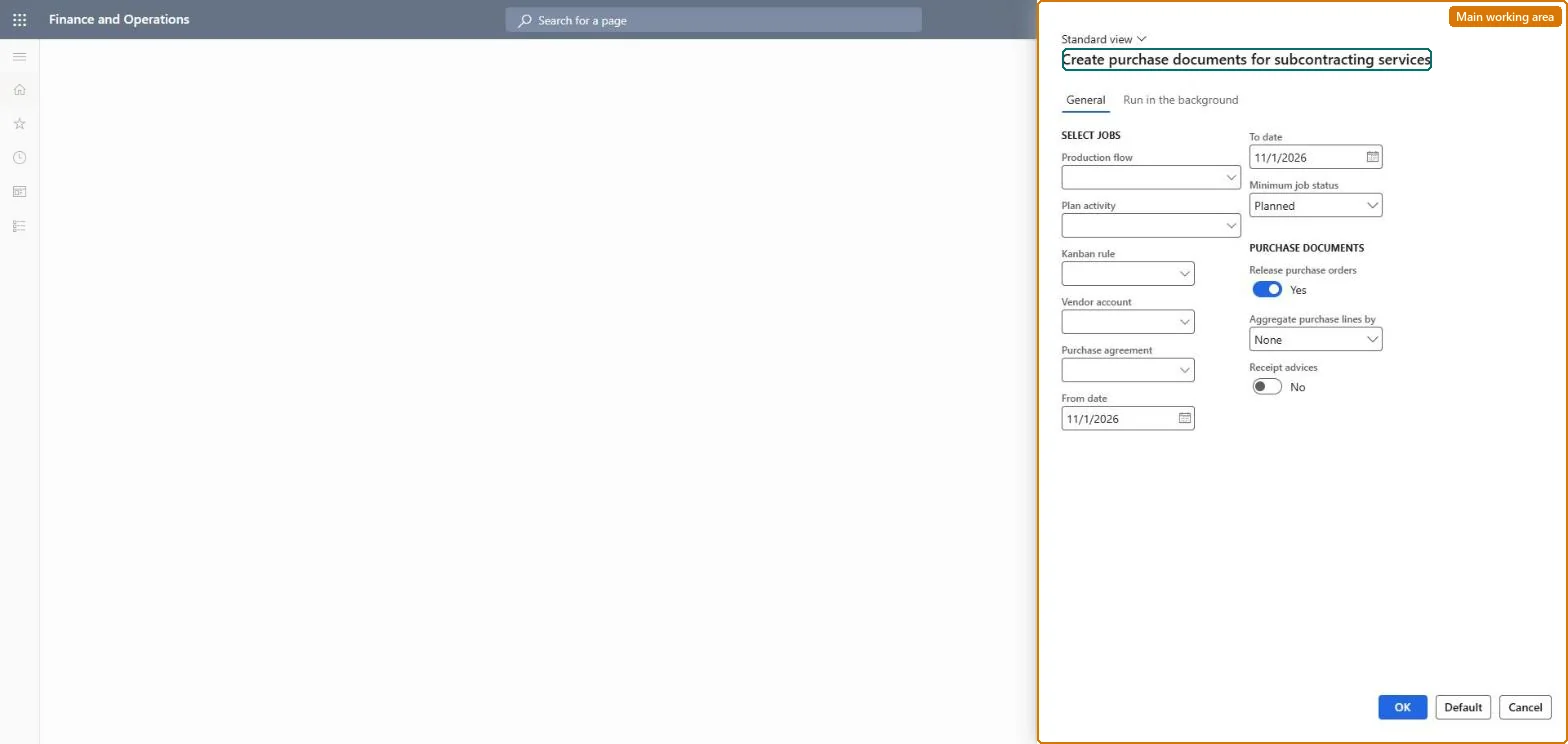
A periodic page that creates purchase orders and receipt advices for subcontracted services, based on the kanban jobs of subcontracted production flow activities.
Production controlPeriodic tasksKanban job batch processing
action:LeanDocumentServiceCreate
Business process
Subcontract services using production in Dynamics 365 Supply Chain Management
Menu item
action:LeanDocumentServiceCreate
Show what matters for
PAGE GUIDEWhat the page does and how to use it7 sections. Choose a role to highlight what matters to you.
Everyone
1What it is and why
What it is
A periodic page that creates purchase orders and receipt advices for subcontracted services, based on the kanban jobs of subcontracted production flow activities.
What you do here
Use this page to generate the purchase documents for subcontractors in bulk or on a batch schedule, filtering jobs by production flow, activity, dates and minimum job status, and grouping jobs into purchase lines by day, month or all.
Example
For example, run the job at month end to create one purchase line per service for all jobs of the month and receipt advices for the jobs that were completed.
The page in Dynamics 365. page title tab to open what to set or check
About the examples: Examples and screenshots in this guide use BEAT, a demo company in a Dynamics 365 test environment. Use your own company's codes and values instead of copying them.
When to run it
When to run it
When subcontracted kanban jobs exist and the subcontractor's purchase orders or receipt advices must be created for a period.
How often
Per purchasing or invoicing period agreed with the subcontractor, often as a recurring batch job.
Batch settings
Run it as a recurring batch job per production flow so documents for completed jobs are created each period.
What the output shows
Release purchase orders for the subcontracted service based on the kanban jobs, and receipt advices for completed jobs. Missing lines usually mean the jobs are below the minimum job status or outside the date range.
Go to Production control > Periodic tasks > Kanban job batch processing > Subcontracting documents.
Select the Production flow and, if needed, the Plan activity to limit the kanban jobs to one subcontracted activity.
Enter the From date and To date and select the Minimum job status that jobs must have to be included.
Select Release purchase orders and choose in Aggregate purchase lines by whether jobs are grouped into purchase lines per day, per month or all together.
Select Receipt advices to create receipt documents for completed jobs, then review the purchase orders and receipt advices for the subcontractor.
Yes, before posting: Created purchase orders and receipt advices can be adjusted or deleted before they are posted. Microsoft Learn
If you change it later
Posting the receipt advices created here books the service value into the WIP accounts of the production flow, which feeds the period's backflush costing. Microsoft Learn
Technical architect
5Technical
Menu item
action:LeanDocumentServiceCreateChecked in Dynamics 365
Form
LeanDocumentServiceCreationChecked in Dynamics 365
Roles to set it up and use it
To use itProduction supervisor ProdProductionSupervisorGive people one of these roles. On this system, 1 role can run this page.Checked in Dynamics 365