Production controlPeriodic tasksKanban quantity calculation
KanbanRules
Used by
Materials manager, Shop supervisor, Production manager and 4 more roles
Business process
Develop production processes
Menu item
KanbanRules
Main table
KanbanRule
Setup steps
1 on this page
Show what matters for
PAGE GUIDEWhat the page does and how to use it8 sections. Choose a role to highlight what matters to you.
Everyone
1What it is and why
What it is
A setup page where you create kanban rules, which define when kanbans are created and how the requirements are fulfilled.
What you do here
Use this page to set up manufacturing and withdrawal kanban rules, choose their replenishment strategy and quantities, and create the kanbans for each rule.
Example
For example, when the economic batch size of an item is 30, you can set up a kanban rule with a product quantity of 10 and an Automatic planning quantity of 3.
The page in Dynamics 365. page title tab to open what to set or check
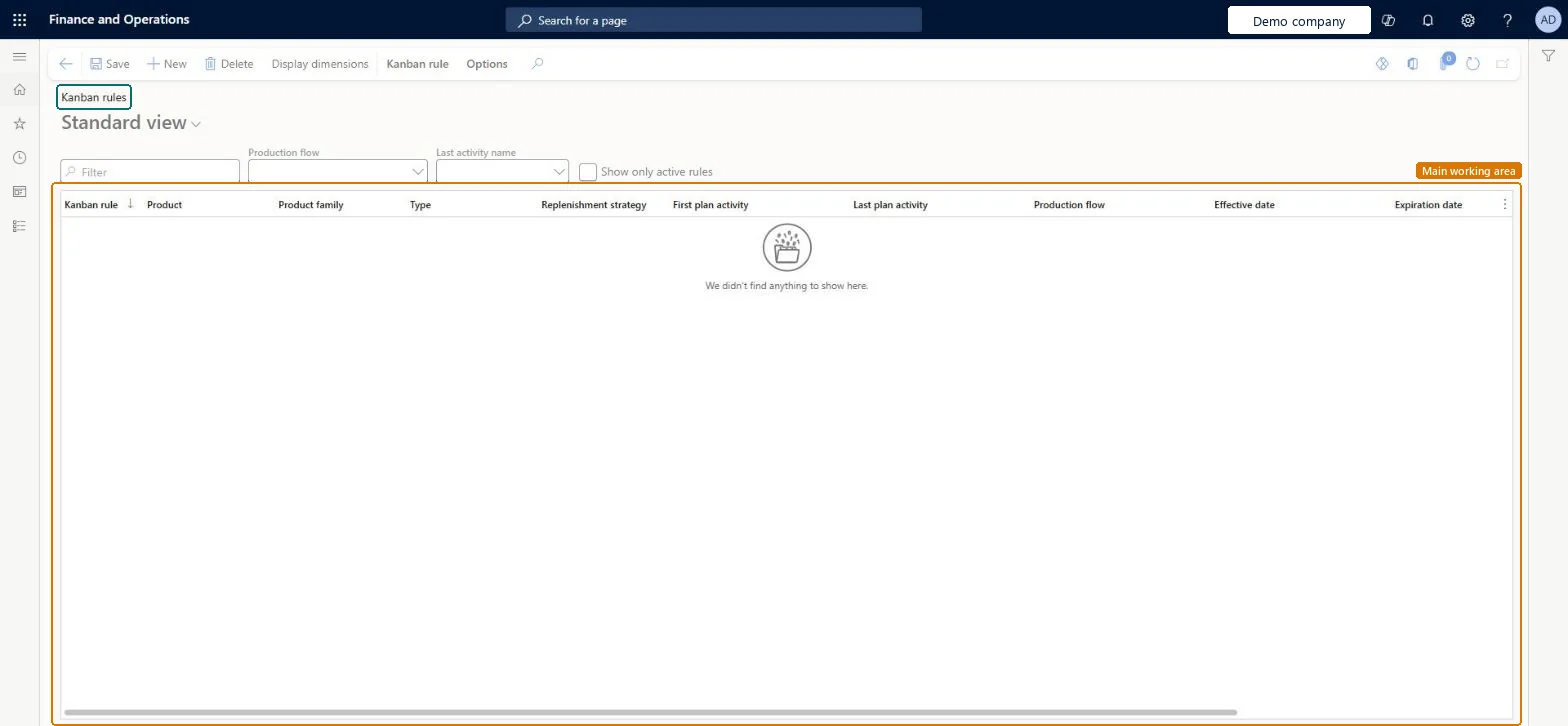
Production control › Periodic tasks › Kanban quantity calculation › Kanban rules
End user · Functional consultant
3How to do it
About the examples: Examples and screenshots in this guide use BEAT, a demo company in a Dynamics 365 test environment. Use your own company's codes and values instead of copying them.
Setup steps on this page
Set up Kanban rules
Use this page to set up manufacturing and withdrawal kanban rules, choose their replenishment strategy and quantities, and create the kanbans for each rule.
Steps from Microsoft
Go to Production control > Periodic tasks > Kanban quantity calculation > Kanban rules.
Select New. The default Type is Manufacturing and the default Replenishment strategy is Fixed.
In the First plan activity field, enter or select a value.
Expand the Details section and select the Product, the Unit of measure and the Lead time.
Expand the Quantities section and set the Default quantity, the Fixed kanban quantity, the alert boundaries and the Automatic planning quantity.
Select Save.
Expand the Kanbans section, select Add and then select Create.
Whether the rule is a manufacturing rule, which creates process kanban jobs, or a withdrawal rule, which creates transfer kanban jobs.Microsoft Learn
KanbanType
Replenishment strategy
How the rule replenishes requirements: Fixed quantity, Scheduled or Event. Fixed quantity rules keep a constant number of active kanbans.Microsoft Learn
ReplenishmentStrategy
First plan activity
The activity that is performed for the kanbans created from this rule.Microsoft Learn
Default quantity
The quantity that is transferred for each kanban.Microsoft Learn
Quantity
Product quantity variance
When selected, kanbans can be completed with a quantity that differs from the default quantity within the variance below and above.Microsoft Learn
AllowDeviatingQuantity
Fixed kanban quantity
The number of kanbans that should be active for the rule.Microsoft Learn
Alert boundary minimum
The minimum number of full kanbans that should be at the destination, used for example on the kanban quantity overview.Microsoft Learn
MinimumAlertLevel
Automatic planning quantity
How many kanban jobs are grouped before they are planned automatically. A value of 1 plans each kanban job as soon as it is created.Microsoft Learn
Test checklist
Create a Manufacturing rule with Replenishment strategy Fixed, a First plan activity, product, lead time and Default quantity.
Set Product quantity variance with Variance below and above, Fixed kanban quantity, alert boundaries and Automatic planning quantity 1.
Save, then on the Kanbans FastTab select Add and check Number of new kanbans equals Fixed kanban quantity.
Select Create and check that the expected number of kanbans exists, each for the default quantity.
Replenishment strategy chosen per demand pattern (Fixed, Scheduled or Event); for Fixed rules, size Fixed kanban quantity with the kanban quantity calculation and keep Automatic planning quantity at 1 unless you want to group jobs to save setupsLearn says fixed-quantity rules can have their optimal kanban and product quantities calculated from forecast, open orders, lead time and history, and that Automatic planning quantity 1 plans every kanban while a higher value waits for that many empty kanbans to group work and avoid setup.
Which replenishment strategy should each kanban rule use?Using automatic empty registration When handling units are received on multi-bin fixed-quantity rules. Learn recommends it only for single-bin kanbans; kanbans have no partial emptying, so oversized kanban quantities also distort WIP consumption in backflush costing.
Solution architect
5Design impact
Can it be undone
Hard to reverse: Rule settings can be edited, but kanbans already created from the rule are not changed. Quantity changes from the kanban quantity calculation take effect from the Rule effective date. Microsoft Learn
Technical architect
6Technical
Menu item
KanbanRulesChecked in Dynamics 365
Form
KanbanRulesChecked in Dynamics 365
Table
KanbanRuleShown as “KANBAN RULES” in Record infoKey field: RuleIdChecked in Dynamics 365
Who can open it
PrivilegesMaintain kanban rules KanbanRulesMaintainView kanban rules KanbanRulesViewDutiesEnable kanban execution process KanbanExecutionProcessEnableMaintain service receipts kanban execution KanbanExecutionServiceReceiptsMaintainInquire into kanban rules master KanbanRulesMasterInquireMaintain kanban rules master KanbanRulesMasterMaintainMaintain kanban schedule KanbanScheduleMaintainEnable the kanban scheduling process KanbanScheduleProcessEnableMaintain kanban purchase orders schedule KanbanSchedulePurchaseOrdersMaintainInquire into kanban schedule status KanbanScheduleStatusInquire7 security rolesMaterials manager InventMaterialsManagerShop supervisor JmgShopSupervisorProduction manager ProdProductionManagerProduction supervisor ProdProductionSupervisorProduction planner ReqProductionPlannerProcess engineer RouteProcessEngineerSales manager TradeSalesManagerChecked in Dynamics 365
Roles to set it up and use it
To set it up or change itProduction supervisor ProdProductionSupervisorShop supervisor JmgShopSupervisorProcess engineer RouteProcessEngineerProduction planner ReqProductionPlannerTo use itProduction manager ProdProductionManagerMaterials manager InventMaterialsManagerSales manager TradeSalesManagerGive people one of these roles. On this system, 7 roles can open this page.Checked in Dynamics 365
Actions on the page
Kanban rule: New, Modify, Planning, Production flows, View(Action Pane without tabs): Display dimensionsChecked in Dynamics 365