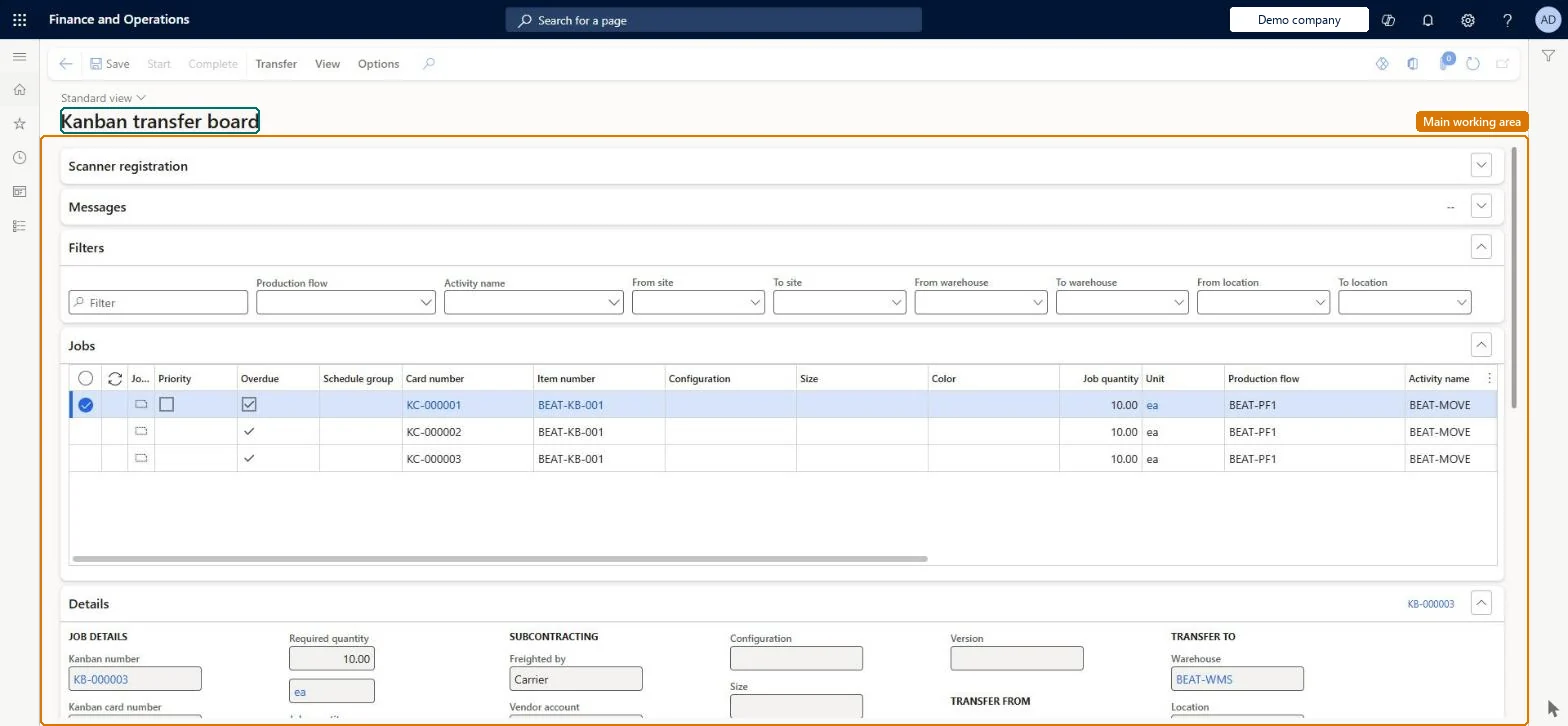
A board that lists the active transfer kanban jobs that move material between locations, work cells, supermarkets, sites or subcontractors, with picking list and pegging details for each job.
Materials manager, Receiving clerk, Shipping clerk and 7 more roles
Business process
Consume materials in a kanban supermarket in Dynamics 365 Supply Chain Management
Menu item
KanbanBoardTransferJob
Main table
KanbanBoardTmpTransferJob
Show what matters for
PAGE GUIDEWhat the page does and how to use it7 sections. Choose a role to highlight what matters to you.
Everyone
1What it is and why
What it is
A board that lists the active transfer kanban jobs that move material between locations, work cells, supermarkets, sites or subcontractors, with picking list and pegging details for each job.
What you do here
Use this page to pick material for transfer jobs, start and complete them, register receipts, and reverse or cancel jobs; a bar code scanner can select, start, complete or empty a kanban.
Example
For example, a material handler sets the registration mode to Complete and scans each kanban card as the handling unit is delivered to the supermarket.
The page in Dynamics 365. page title tab to open what to set or check
About the examples: Examples and screenshots in this guide use BEAT, a demo company in a Dynamics 365 test environment. Use your own company's codes and values instead of copying them.
How to use it
Go to Production control > Kanban > Kanban board for transfer jobs.
Read the list of active transfer kanban jobs.
Select a job and select Start, then Complete, above the list to register the transfer.
Use Transfer, Maintain job status, Pegging, Print and Warehouse on the Transfer tab of the Action Pane for the selected job.
Use Set up, Dimensions display and Kanban quantity overview on the View tab to change the board or open the overview.
Source: Checked in Dynamics 365
Fields on the page
Field
What it means
Table column
Set registration mode
Chooses what a scan does: Start, Complete, Empty or Select the job.Microsoft Learn
Kanban card number
The scanned or typed card that identifies the job.Microsoft Learn
CardId
Job status
Not planned, In progress or Completed; it decides which actions are allowed.Microsoft Learn
Who is responsible for a subcontracted transfer: shipper, recipient or carrier.Microsoft Learn
FreightedBy
Supply status
Whether material for the picking line is available, based on pegging.Microsoft Learn
Solution architect
4Design impact
If you change it later
A completed transfer job can only be emptied; it cannot be started, picked or completed again, and jobs whose pegged supply is not complete cannot be started. Microsoft Learn
Technical architect
5Technical
Menu item
KanbanBoardTransferJobChecked in Dynamics 365
Form
KanbanBoardTransferJobChecked in Dynamics 365
Table
KanbanBoardTmpTransferJobShown as “KANBAN BOARD - LIST OF TRANSFER JOBS” in Record infoChecked in Dynamics 365
Who can open it
PrivilegesManage transfer jobs in kanban board KanbanBoardTransferJobMaintainView transfer jobs in kanban board KanbanBoardTransferJobViewDutiesMaintain materials kanban execution KanbanExecutionMaterialsMaintainInquire into materials kanban progress KanbanExecutionMaterialsProgressInquireEnable kanban execution process KanbanExecutionProcessEnable10 security rolesMaterials manager InventMaterialsManagerReceiving clerk InventReceivingClerkShipping clerk InventShippingClerkShop supervisor JmgShopSupervisorWaterspider LeanWaterspiderProduction manager ProdProductionManagerProduction supervisor ProdProductionSupervisorProduction planner ReqProductionPlannerWarehouse manager WMSWarehouseManagerWarehouse worker WMSWarehouseWorkerChecked in Dynamics 365
Roles to set it up and use it
To set it up or change itWaterspider LeanWaterspiderReceiving clerk InventReceivingClerkShipping clerk InventShippingClerkWarehouse worker WMSWarehouseWorkerTo use itProduction supervisor ProdProductionSupervisorProduction manager ProdProductionManagerShop supervisor JmgShopSupervisorProduction planner ReqProductionPlannerMaterials manager InventMaterialsManagerGive people one of these roles. On this system, 10 roles can open this page.Checked in Dynamics 365
Actions on the page
Transfer: Transfer, Maintain job status, Pegging, Print, WarehouseView: Set up, Dimensions display, Kanban quantity overview(Action Pane without tabs): Start, CompleteChecked in Dynamics 365