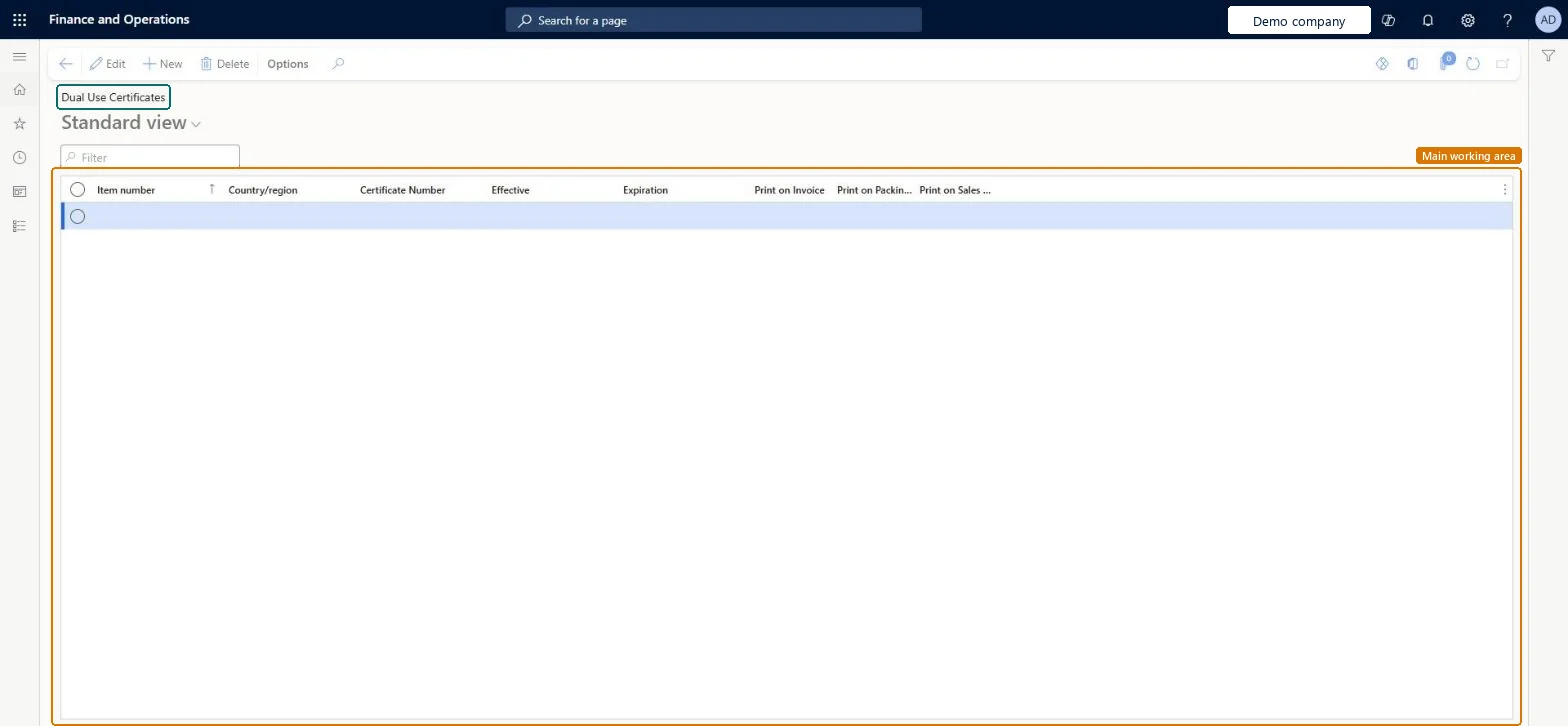
A setup page where you manage the dual-use certificates required for each product and destination country/region, with their validity dates and print options.
Product information managementSetupDual Use Products
COODualUseCerts
Used by
View Country of Origin and Dual Use functionality, Manage Country of Origin and Dual Use functionality
Business process
Develop product strategy
Menu item
COODualUseCerts
Main table
COODualUseCertificate
Setup steps
1 on this page
Show what matters for
PAGE GUIDEWhat the page does and how to use it8 sections. Choose a role to highlight what matters to you.
Everyone
1What it is and why
What it is
A setup page where you manage the dual-use certificates required for each product and destination country/region, with their validity dates and print options.
What you do here
Use this page to record the certificate number for each dual-use product and country/region and to choose whether it prints on invoices, packing slips and sales orders. This setup is checked when you create a sales order.
Example
For example, when shipments to France require a certification, you record a certificate for each dual-use product that is shipped to France, with its effective and expiration dates.
The page in Dynamics 365. page title tab to open what to set or check
About the examples: Examples and screenshots in this guide use BEAT, a demo company in a Dynamics 365 test environment. Use your own company's codes and values instead of copying them.
Setup steps on this page
Set up Dual Use Certificates
Use this page to record the certificate number for each dual-use product and country/region and to choose whether it prints on invoices, packing slips and sales orders. This setup is checked when you create a sales order.
Steps from Microsoft
Go to Product information management > Setup > Dual Use Products > Dual Use Certificates.
Select an existing certificate to edit it, or select New on the Action Pane to create a new certificate.
Set the Item number, Country/region, Certificate Number, Effective and Expiration fields.
Select the Print on Invoice, Print on packing slip and Print on sales order check boxes as required.
Prints the certificate number on invoices addressed to the country/region within the date range.Microsoft Learn
PrintOnInvoice
Print on packing slip
Prints the certificate number on packing slips addressed to the country/region within the date range.Microsoft Learn
PrintOnPackingSlip
Print on sales order
Prints the certificate number on sales orders addressed to the country/region within the date range.Microsoft Learn
PrintOnSO
Common errors and fixes
Message
What to do
Dual use certificates for one or more dual-use items in this sales order aren't valid. Do you want to proceed with the confirmation?
Add or renew the certificate for the item and destination country/region so that it covers the confirmed ship date, then confirm again. Microsoft Learn
Test checklist
Mark a destination country/region as Certificate Required on Dual use country setup.
Create a certificate for a dual-use item and that country/region with an Expiration date in the past.
Create and confirm a sales order for that item to a customer in that country/region and check the warning appears.
Move the Expiration date past the ship date, confirm again and check there is no warning.
With Print on sales order selected, check the certificate number prints on the confirmation.
One certificate per dual-use item and destination country/region, with Effective and Expiration matching the issued certificateAt sales confirmation the system checks that a certificate exists for each dual-use item and destination, and that it is valid for the confirmed ship dates.
Letting a certificate expire. Confirmation still goes ahead if the user overrules the warning, so an expired certificate can slip through unless the team treats the warning as a stop.
Number sequences
Reference
Shared or per company
Note
Item number
Per company
New records on this page take their Item number from the ItemId reference; BEAT uses number sequence Inve_3. Checked in Dynamics 365
Reversible: You can edit dates, numbers and print options at any time. Changes are used at the next sales confirmation and on documents printed after the change. Microsoft Learn
Technical architect
6Technical
Menu item
COODualUseCertsChecked in Dynamics 365
Form
COODualUseCertsChecked in Dynamics 365
Table
COODualUseCertificateShown as “DUAL USE CERTIFICATES” in Record infoKey field: ItemId, CertificateNumberChecked in Dynamics 365
Who can open it
PrivilegesMaintain Dual Use Product Setup COODualUseMaintainView Dual Use Product Setup COODualUseViewDutiesMaintain Country of Origin Setup COOMaintainView Country of Origin and Dual Use Data COOView2 security rolesView Country of Origin and Dual Use functionality COOClerkManage Country of Origin and Dual Use functionality COOManageChecked in Dynamics 365
Roles to set it up and use it
To set it up or change itManage Country of Origin and Dual Use functionality COOManageTo use itView Country of Origin and Dual Use functionality COOClerkGive people one of these roles. On this system, 2 roles can open this page.Checked in Dynamics 365