Product information managementSetupDual Use Products
COODualUseCountries
Used by
View Country of Origin and Dual Use functionality, Manage Country of Origin and Dual Use functionality
Business process
Develop product strategy
Menu item
COODualUseCountries
Main table
COODualUseCountry
Setup steps
1 on this page
Show what matters for
PAGE GUIDEWhat the page does and how to use it8 sections. Choose a role to highlight what matters to you.
Everyone
1What it is and why
What it is
A setup page where you keep track of the countries/regions that do and do not require a certificate for dual-use goods.
What you do here
Use this page to mark the countries/regions that require a dual-use certificate. The information is checked when you create sales orders, and you are reminded to provide the required certifications.
Example
For example, you can indicate that shipments to France require a certification for dual-use goods.
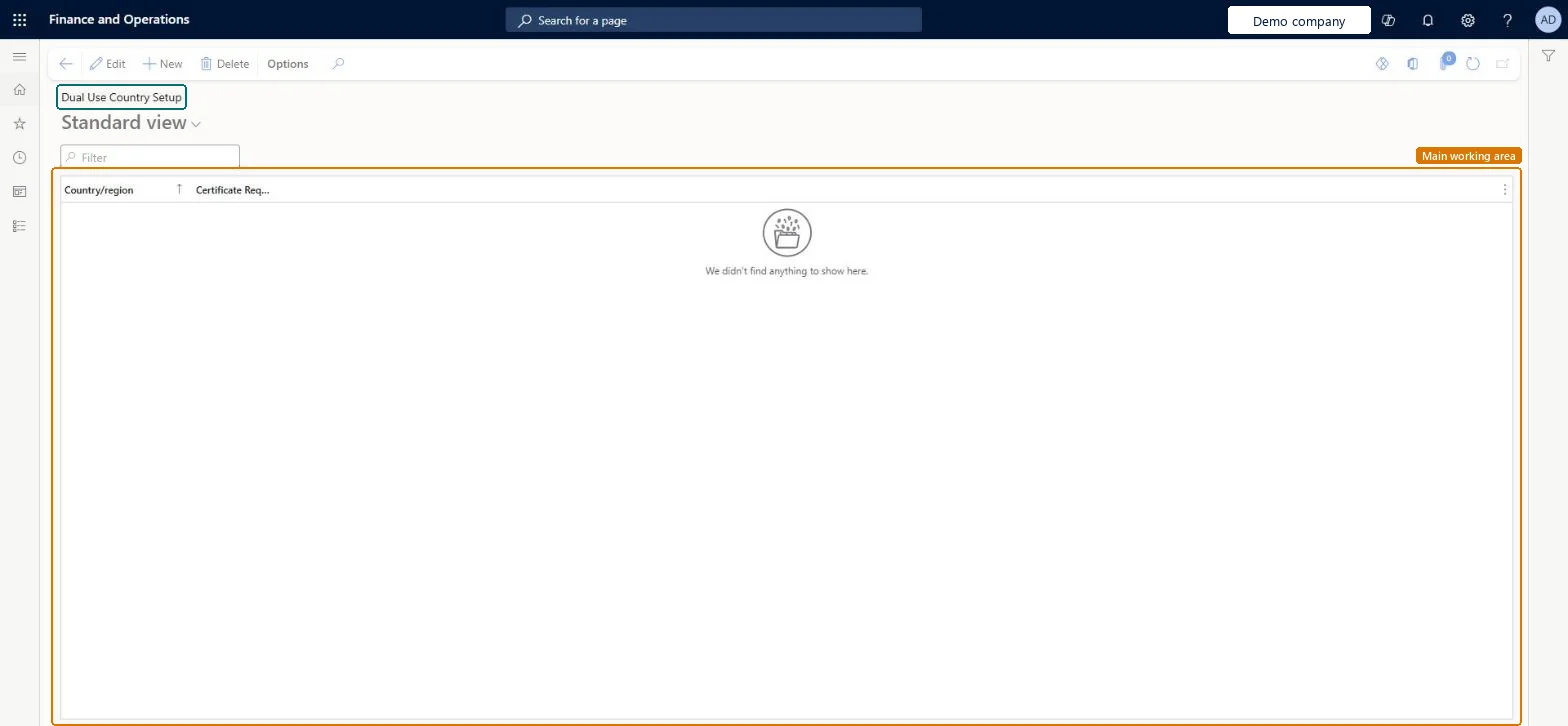
The page in Dynamics 365. page title tab to open what to set or check
About the examples: Examples and screenshots in this guide use BEAT, a demo company in a Dynamics 365 test environment. Use your own company's codes and values instead of copying them.
Setup steps on this page
Set up Dual Use Country Setup
Use this page to mark the countries/regions that require a dual-use certificate. The information is checked when you create sales orders, and you are reminded to provide the required certifications.
Steps from Microsoft
Go to Product information management > Setup > Dual Use Products > Dual Use Country Setup.
Select an existing country/region setup to edit it, or select New on the Action Pane to create a new country/region setup.
In the Country/region field, select the country/region that you are tracking requirements for.
Select the Certificate Required check box when the country/region requires a certification for dual-use goods, or clear it when it does not.
Select Certificate Required for every destination country/region that requires a dual-use certificateThe confirmation check only asks for certificates when the destination country/region requires them.
Leaving a destination out. With no requirement on the country/region, sales confirmation raises no warning for dual-use items shipped there.
Reversible: Select or clear Certificate Required at any time. The setup is shared by all legal entities, so a change applies to every company's next confirmation. Microsoft Learn
Technical architect
6Technical
Menu item
COODualUseCountriesChecked in Dynamics 365
Form
COODualUseCountriesChecked in Dynamics 365
Table
COODualUseCountryShown as “DUAL USE COUNTRY SETUP” in Record infoKey field: CountryIdChecked in Dynamics 365
Who can open it
PrivilegesMaintain Dual Use Product Setup COODualUseMaintainView Dual Use Product Setup COODualUseViewDutiesMaintain Country of Origin Setup COOMaintainView Country of Origin and Dual Use Data COOView2 security rolesView Country of Origin and Dual Use functionality COOClerkManage Country of Origin and Dual Use functionality COOManageChecked in Dynamics 365
Roles to set it up and use it
To set it up or change itManage Country of Origin and Dual Use functionality COOManageTo use itView Country of Origin and Dual Use functionality COOClerkGive people one of these roles. On this system, 2 roles can open this page.Checked in Dynamics 365