About the examples: Examples and screenshots in this guide use BEAT, a demo company in a Dynamics 365 test environment. Use your own company's codes and values instead of copying them.
When to run it
When to run it
At the end of each cumulation period of a vendor rebate agreement, after the purchase invoices of the period are posted.
How often
Once per cumulation period of the agreement (for example monthly or yearly).
What the output shows
Rebate claims of the vendor recalculated for the group of claims and set to Calculated. A claim still at To be calculated usually lies outside the dates you entered.
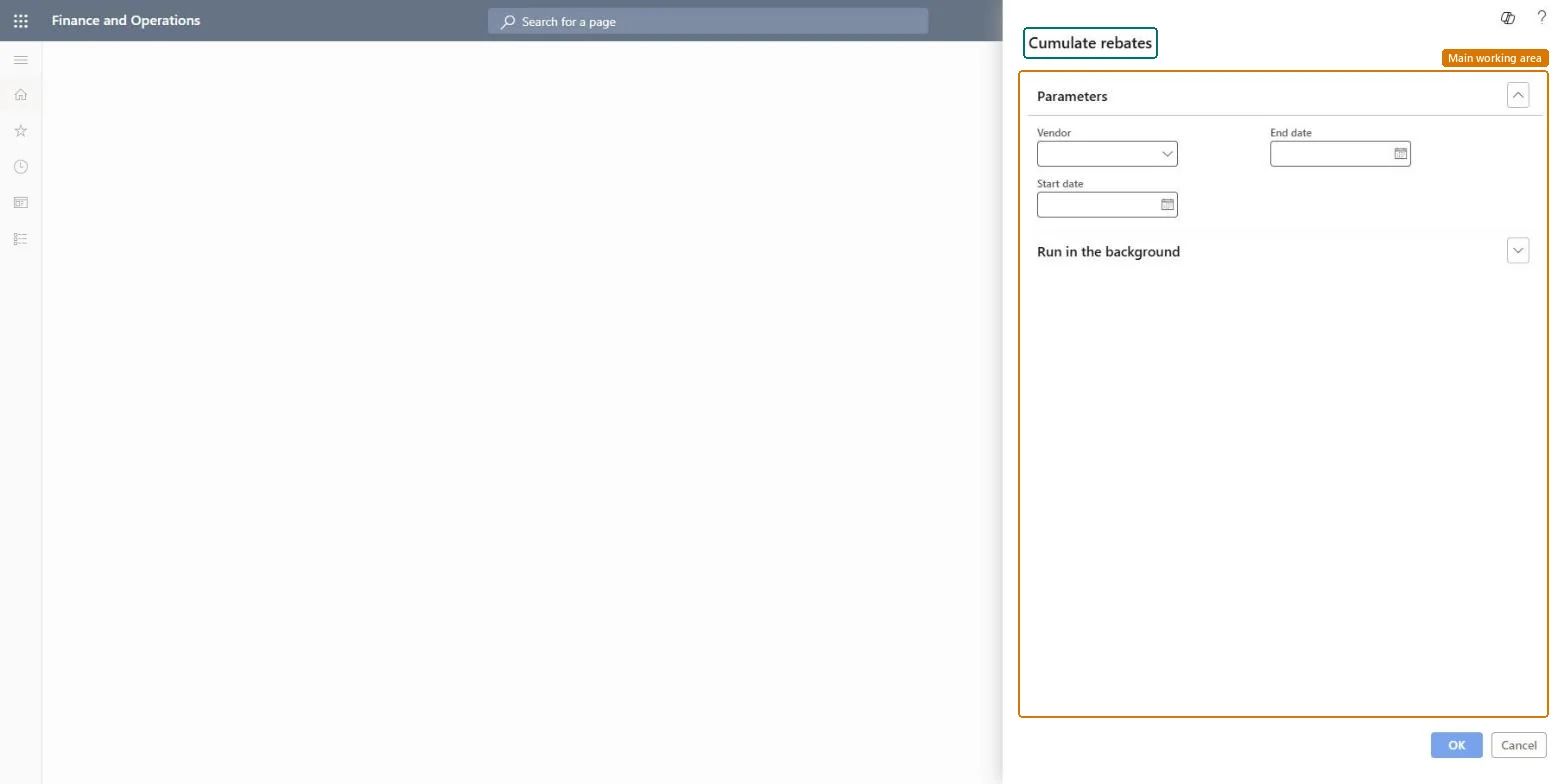
Go to Procurement and sourcing > Vendor rebates > Rebate update > Cumulate rebates.
Select the Vendor whose cumulative rebate claims you want to calculate.
Enter the Start date and End date of the period whose claims are added up, matching the Cumulate purchase by period of the agreement, for example a month or a year.
Expand Run in the background if you want it to run as a batch job.
Open Rebate claims afterwards: claims that had status To be calculated should now show Calculated and can go to approval.
Yes, before approval: Cumulating only recalculates claims; nothing is posted until a claim is approved. Microsoft Learn
If you change it later
Recalculates the cumulative rebate claims of the vendor and sets them to Calculated, ready for approval. Microsoft Learn
Technical architect
5Technical
Menu item
action:TAMVendRebateCumulateChecked in Dynamics 365
Form
DialogChecked in Dynamics 365
Roles to set it up and use it
To use itAccounts payable manager VendInvoiceAccountsPayableManagerGive people one of these roles. On this system, 1 role can run this page.Checked in Dynamics 365