Accounts payable manager, Purchasing agent, Purchasing Agent - Public Sector and 2 more roles
Business process
Register as vendor on the portal in Dynamics 365 Supply Chain Management
Menu item
VendProspectiveVendorRegistrationConfig
Main table
VendRequestProfile
Setup steps
1 on this page
Show what matters for
PAGE GUIDEWhat the page does and how to use it8 sections. Choose a role to highlight what matters to you.
Everyone
1What it is and why
What it is
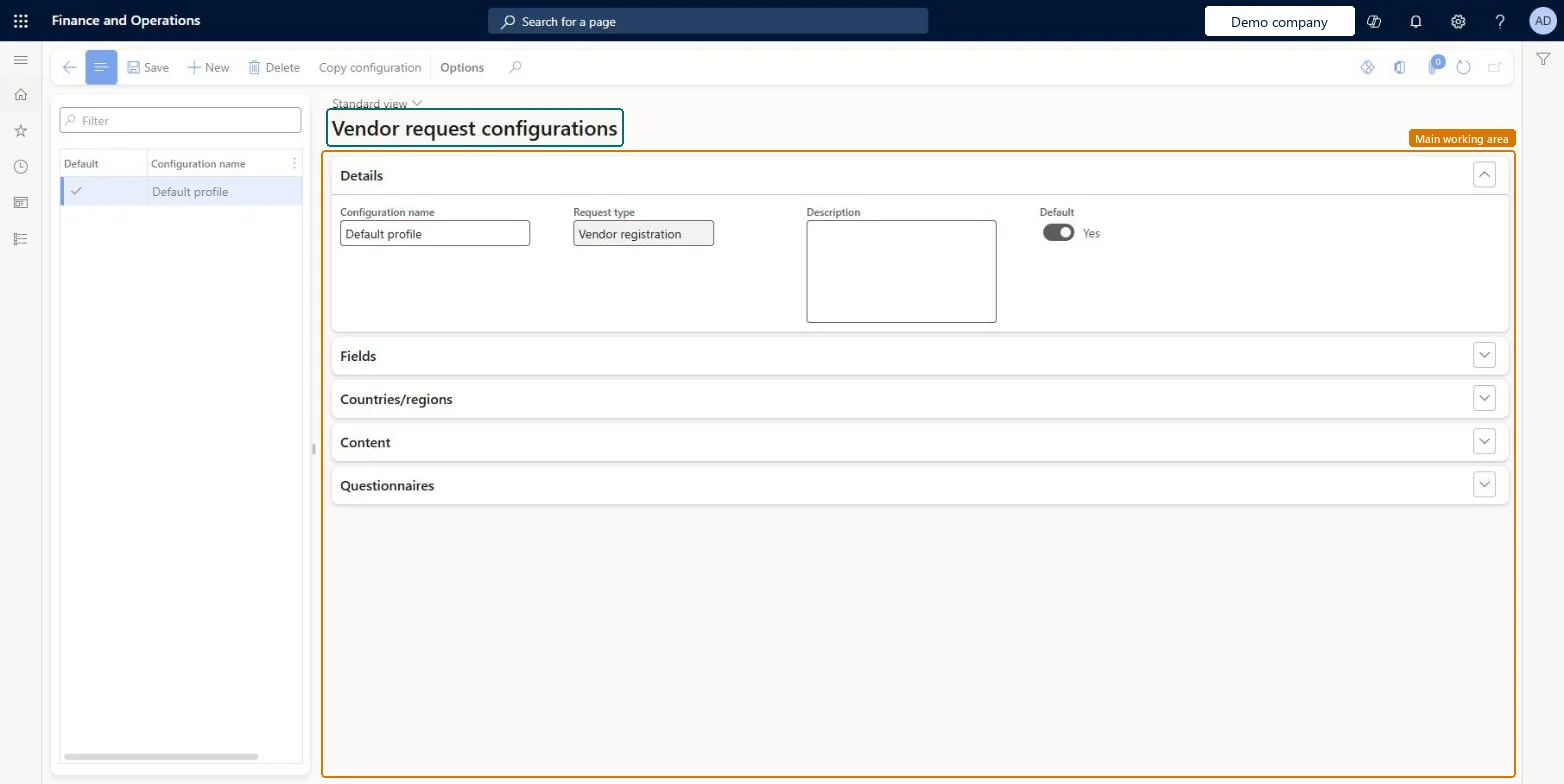
A setup page where you create profiles that decide which fields are visible or required in the prospective vendor registration wizard.
What you do here
Use this page to tailor the vendor registration wizard, including its text, acknowledgments and questionnaires, by country/region.
Example
For example, the wizard first asks which country/region the vendor does business in and then applies the configuration for that country/region, or the default one.
The page in Dynamics 365. page title tab to open what to set or check
About the examples: Examples and screenshots in this guide use BEAT, a demo company in a Dynamics 365 test environment. Use your own company's codes and values instead of copying them.
Step by step, with screenshots
Set up Vendor request configurations1 screen
Use this page to tailor the vendor registration wizard, including its text, acknowledgments and questionnaires, by country/region.
Screen 1
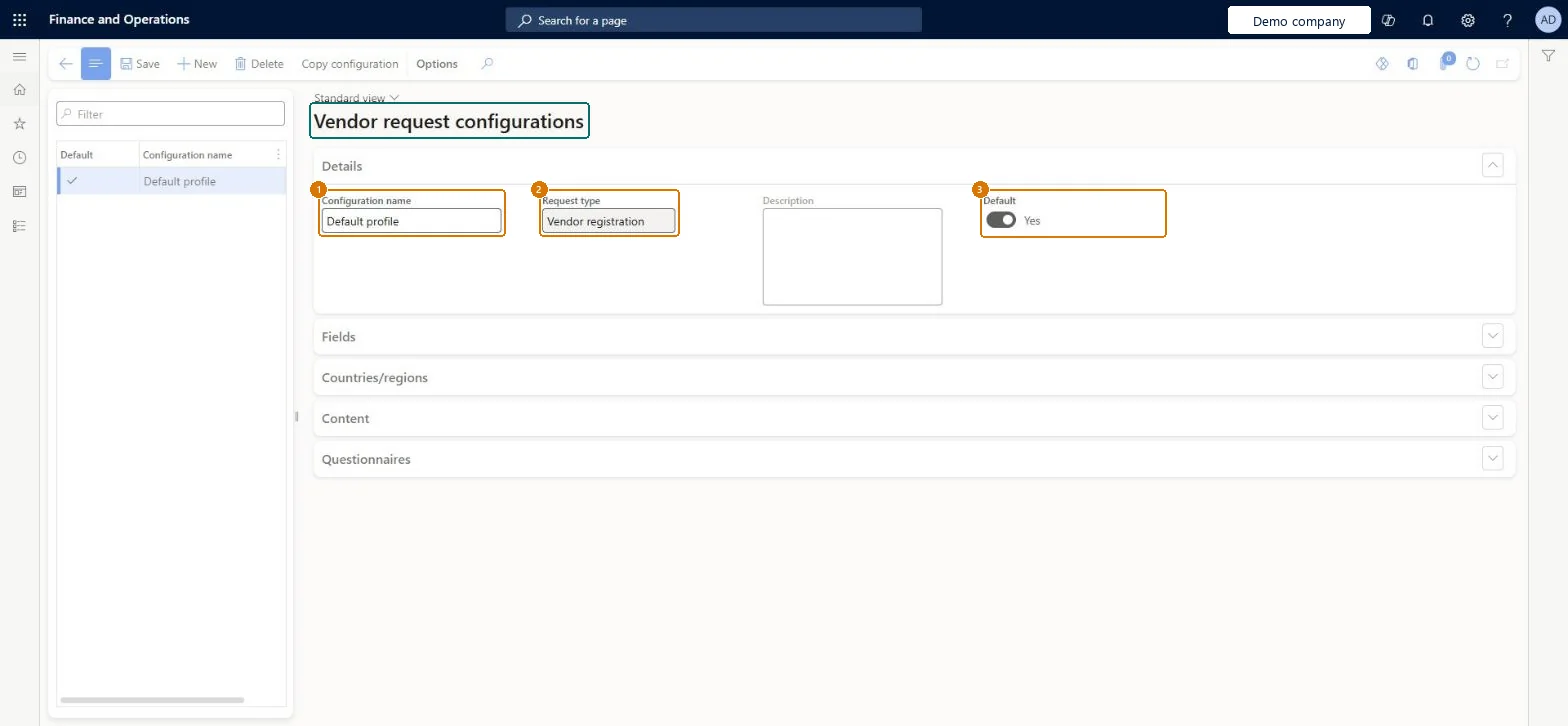
Review the vendor registration profile
Go to Procurement and sourcing > Setup > Vendors > Vendor request configurations
Select the configuration in the list
Check its request type and that it is the default
Use the Fields, Countries/regions, Content and Questionnaires FastTabs to shape the registration wizard
1Configuration name
Default profile
2Request type
Vendor registration
3Default
Yes
Show the full screen page title tab to open what to set or check
Steps from Microsoft
Go to Procurement and sourcing > Setup > Vendors > Vendor request configurations.
Select New, enter a name for the configuration and save it.
On the Country/regions tab, select the country/region the configuration applies to.
On the Fields tab, set each field to Hidden, Displayed or Required.
On the Content tab, enter any text, acknowledgment, confirmation message or questionnaires for the wizard.
Keep the default configuration as the fallback and add a country/region configuration only where the wizard must ask for different fields, terms or questionnairesThe wizard picks the configuration by the country/region the vendor does business in and falls back to the default when none matches; the default can't be tied to countries/regions.
Leaving key fields as Displayed instead of Required, so vendors can finish the wizard without the data procurement needs to approve them.
Reversible: Configurations can be edited at any time; requests already submitted keep what the vendor entered. Microsoft Learn
If you change it later
You can't select countries/regions for the default configuration; it applies wherever no specific configuration exists. Microsoft Learn
Technical architect
6Technical
Menu item
VendProspectiveVendorRegistrationConfigChecked in Dynamics 365
Form
VendProspectiveVendorRegistrationConfigChecked in Dynamics 365
Table
VendRequestProfileShown as “Vendor configuration profile” in Record infoKey field: MetadataGroup, Name, ProfileType, IsDefaultChecked in Dynamics 365
Who can open it
PrivilegesMaintain configuration for vendor profile page VendRequestVendorProfileConfigMaintainView configuration for vendor profile page VendRequestVendorProfileConfigViewDutiesEnable purchasing process ProcPurchasingProcessEnableInquire into purchasing policies ProcPurchasingProcessInquire5 security rolesAuditor AuditPolicyManagerPurchasing manager TradePurchasingManagerAccounts payable manager VendInvoiceAccountsPayableManagerPurchasing agent VendPurchasingAgentPurchasing Agent - Public Sector VendPurchasingAgent_PSNChecked in Dynamics 365
Roles to set it up and use it
To set it up or change itPurchasing manager TradePurchasingManagerAccounts payable manager VendInvoiceAccountsPayableManagerTo use itPurchasing agent VendPurchasingAgentPurchasing Agent - Public Sector VendPurchasingAgent_PSNAuditor AuditPolicyManagerGive people one of these roles. On this system, 5 roles can open this page.Checked in Dynamics 365
Actions on the page
Options: Personalize, Page options, Edit, ShareChecked in Dynamics 365
Checked in a working Dynamics 365 system, version 10.0.49: the menu item, form, table and security, the page, the demo records and the values in the screenshots.