BeyondERP.Newsletter
Menu

Setup page · Procurement and sourcing

Purchase requisition permissions

A setup page where you allow a worker (the preparer) to create purchase requisitions on behalf of other workers (requesters).

Used by
Accounts payable manager, Purchasing agent, Purchasing Agent - Public Sector and 2 more roles
Business process
Procure goods and services
Menu item
PurchReqAuthorization
Main table
HcmWorker
Data entity
HcmWorkerEntity
Setup steps
1 on this page
Show what matters for
PAGE GUIDEWhat the page does and how to use it8 sections. Choose a role to highlight what matters to you.
Everyone

1What it is and why

What it isA setup page where you allow a worker (the preparer) to create purchase requisitions on behalf of other workers (requesters).
What you do hereUse this page to grant preparers permission to order for other workers, and to let requesters order in other legal entities or operating units.
ExampleFor example, a preparer can be allowed to order for one specific worker, or for that worker and everyone who reports to them.
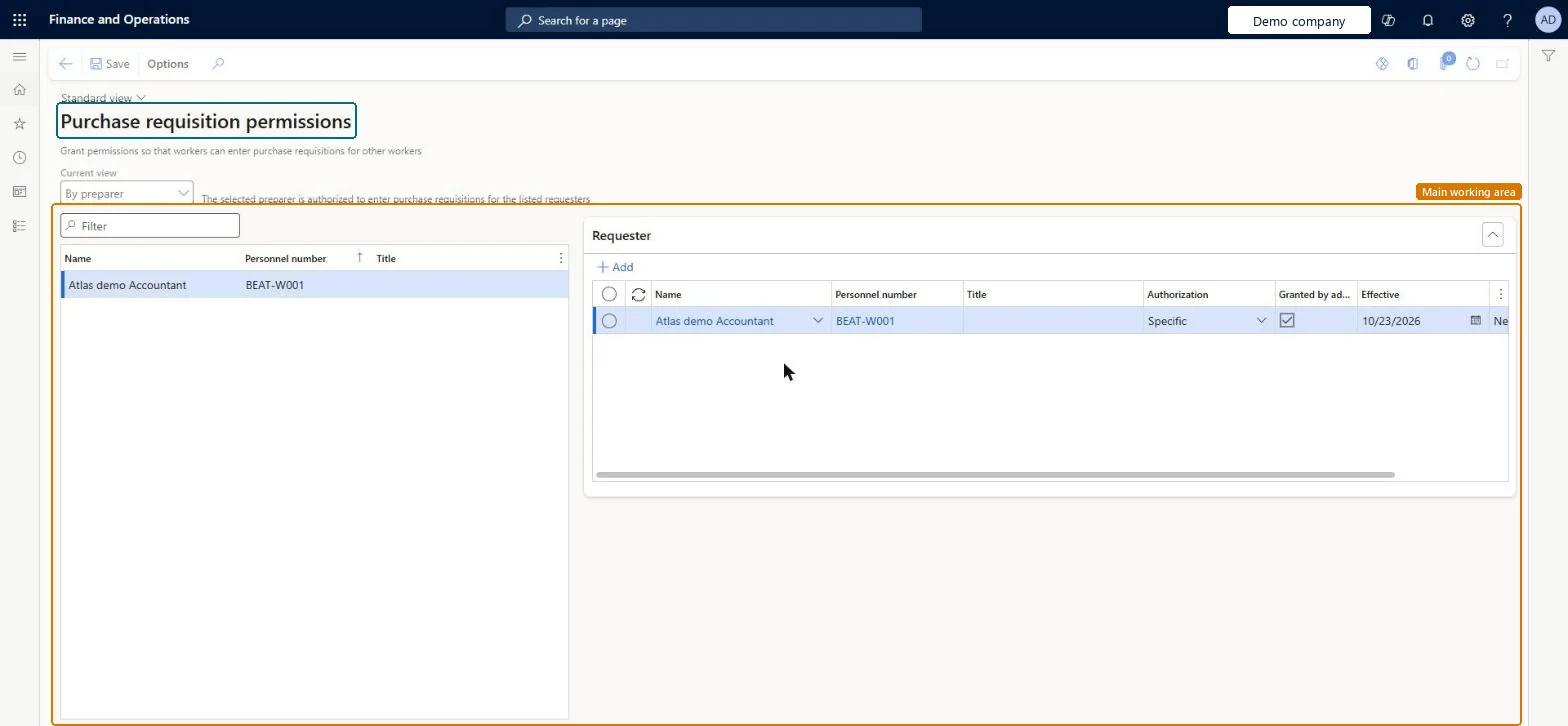
Purchase requisition permissions page in Dynamics 365
The page in Dynamics 365. page title tab to open what to set or check
Functional consultant · Solution architect

2Where it fits

Business processProcure goods and services
Menu pathProcurement and sourcing › Setup › Policies › Purchase requisition permissions
Used next byAll purchase requisitions Microsoft Learn
End user · Functional consultant

3How to do it

About the examples: Examples and screenshots in this guide use BEAT, a demo company in a Dynamics 365 test environment. Use your own company's codes and values instead of copying them.

Setup steps on this page

Set up Purchase requisition permissions

Use this page to grant preparers permission to order for other workers, and to let requesters order in other legal entities or operating units.

Steps from Microsoft

  1. Go to Procurement and sourcing > Setup > Policies > Purchase requisition permissions.
  2. Make sure the Current view field is set to By preparer.
  3. Select the preparer, and then select Add.
  4. Find and select the worker to add as a requester.
  5. In the Authorization field, select Specific or Reporting.
  6. Enter the Effective and Expiration dates.

Source: Microsoft Learn

Fields on the page

FieldWhat it meansTable column
Current viewSwitches between listing by preparer and by requester.Microsoft Learn
AuthorizationSpecific lets the preparer order for the selected worker; Reporting also covers everyone who reports to that worker.Microsoft Learn SpecificReporting
EffectiveThe date the permission starts.Microsoft Learn ValidFrom
ExpirationThe date the permission ends.Microsoft Learn ValidTo

Test checklist

  1. With Current view set to By preparer, select a preparer and add a requester with Authorization Specific and today's Effective date.
  2. Sign in as the preparer and create a purchase requisition on behalf of the requester.
  3. Check the catalog shown is the one from the requester's purchasing policy.
  4. Switch Current view to By requester and check the preparer is listed for the requester.

Source: Microsoft Learn

Functional consultant

4Setup decisions

Setup stepRecommended value and whyDecision, common mistake and test
Set up Purchase requisition permissionsAuthorization Specific for named requesters, Reporting only where the preparer should order for everyone who reports to the requester, always with Effective and Expiration datesSpecific limits the preparer to the selected worker, while Reporting extends it to all workers who report to that worker; dated permissions end without manual clean-up.Granting Reporting by default. The preparer can then create requisitions for a whole reporting line, and the requester's legal entity and operating unit decide which catalog and policy rules apply.
Solution architect

5Design impact

Can it be undoneReversible: Remove the requester line or set an Expiration date; requisitions already created keep their requester. Microsoft Learn
Technical architect

6Technical

Menu itemPurchReqAuthorization Checked in Dynamics 365
FormPurchReqAuthorization Checked in Dynamics 365
TableHcmWorkerShown as “Worker” in Record infoKey field: Person, Person_NameChecked in Dynamics 365
Data entitiesHcmWorkerEntityWorker Microsoft data model
Who can open itPrivilegesMaintain purchase requisition process PurchReqPurchasingProcessEnableInquire into purchase requisition process PurchReqPurchasingProcessInquireDutiesEnable purchasing process ProcPurchasingProcessEnableInquire into purchasing policies ProcPurchasingProcessInquire
5 security rolesAuditor AuditPolicyManagerPurchasing manager TradePurchasingManagerAccounts payable manager VendInvoiceAccountsPayableManagerPurchasing agent VendPurchasingAgentPurchasing Agent - Public Sector VendPurchasingAgent_PSN
Checked in Dynamics 365
Roles to set it up and use itTo set it up or change itPurchasing manager TradePurchasingManagerAccounts payable manager VendInvoiceAccountsPayableManagerTo use itPurchasing agent VendPurchasingAgentPurchasing Agent - Public Sector VendPurchasingAgent_PSNAuditor AuditPolicyManagerGive people one of these roles. On this system, 5 roles can open this page.Checked in Dynamics 365
Actions on the pageOptions: Personalize, Page options, Edit, ShareChecked in Dynamics 365
Developer

7Developer

Open it by URLhttps://<your-environment>/?mi=PurchReqAuthorization
Integrate withHcmWorkerEntity data entity Microsoft data model
Data migrationHcmWorkerEntity (Worker): shared by all companies.Microsoft Learn
Everyone

8Sources