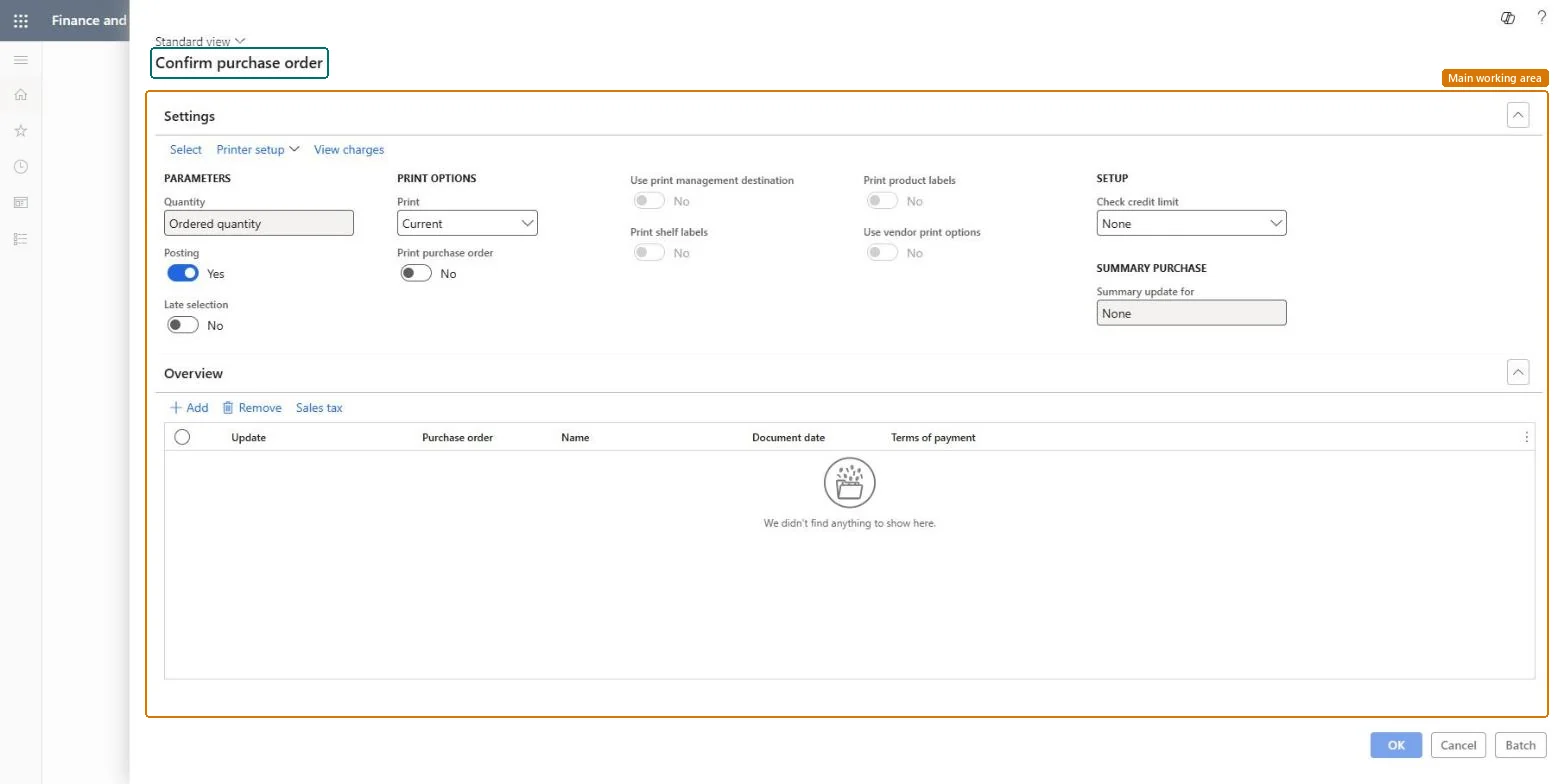
About the examples: Examples and screenshots in this guide use BEAT, a demo company in a Dynamics 365 test environment. Use your own company's codes and values instead of copying them.
When to run it
When to run it
When approved purchase orders must be confirmed in bulk, for example at the end of each day or before supplier cutoff times.
How often
On a recurring schedule that fits your order volume and vendor lead times; in busy systems not more often than every 10 minutes.
Batch settings
Run it as a recurring batch job with Late selection set to Yes and vendors on hold excluded in the query.
What the output shows
Purchase orders set to Confirmed, each with a purchase order confirmation journal, printed or emailed as set up. An order that stays Approved usually failed a credit management or budget check, falls under change management, or belongs to a vendor on hold.
Go to Procurement and sourcing > Purchase orders > Purchase order confirmation > Confirm purchase orders.
On the Settings FastTab, set Print to Current to send each confirmation as soon as its order is confirmed, or After to confirm all orders first. With After, one order that fails can stop the confirmations of the whole run.
Set Print purchase order to Yes to print or send the confirmation journal. Set Use print management destination to Yes only if you want the standard print management setup; the job then always behaves as After.
Set Late selection to Yes so each recurring run picks up the most recent purchase orders.
Select Select and add a range where Vendor hold is No on the Vendors table (joined through VendTable : InvoiceVendor), because the job fails on vendors that are on hold.
Select Batch, set the Recurrence and set Batch processing to Yes.
Review the results in Accounts payable > Purchase orders > Purchase order confirmations; the Confirmations page of an order only shows the staging records of the current run.
Current sends each confirmation as soon as its order is confirmed; After confirms all the orders first and then sends the confirmations.Microsoft Learn
Print purchase order
Prints or sends the purchase order confirmation after each order is confirmed.Microsoft Learn
Use print management destination
Uses the standard print management destination instead of the printer setup on this page.Microsoft Learn
Late selection
Picks up the most recent purchase orders each time the batch job runs.Microsoft Learn
Test checklist
Purchase order confirmations shows a journal for each order the run picked up.
Orders of vendors on hold were left out and the job didn't fail.
Confirmation emails or prints reached the destination you set.
No: A confirmed purchase order can't be deleted. You can only cancel quantities that aren't received or invoiced, or change the order through Request change and confirm it again. Microsoft Learn
If you change it later
Sets the selected purchase orders to Confirmed, creates confirmation journals and accounting distributions, and runs order and budget checks where enabled. Microsoft Learn
Technical architect
5Technical
Menu item
action:PurchFormLetter_PurchaseOrderChecked in Dynamics 365
Form
PurchEditLinesChecked in Dynamics 365
Roles to set it up and use it
To use itPurchasing agent VendPurchasingAgentPurchasing Agent - Public Sector VendPurchasingAgent_PSNBuying agent TradeBuyingAgentRetail service RetailServiceProject assistant ProjProjectClerkGive people one of these roles. On this system, 10 roles can run this page.Checked in Dynamics 365