BeyondERP.Newsletter
Menu

Page · Procurement and sourcing

Trade agreement journals

A journal page where you create, maintain and post trade agreements, the vendor price and discount agreements used on purchases.

Business process
Source and contract goods and services
Menu item
PriceDiscAdmTable_Purch
Main table
PriceDiscAdmTable
Data entity
TradeAgreementJournalHeaderEntity
Show what matters for
PAGE GUIDEWhat the page does and how to use it8 sections. Choose a role to highlight what matters to you.
Everyone

1What it is and why

What it isA journal page where you create, maintain and post trade agreements, the vendor price and discount agreements used on purchases.
What you do hereUse this journal to enter new or changed purchase prices and discounts in a journal, validate them and post them.
ExampleFor example, you can prepare price changes in a journal and post them later, after the journal has been approved.
Trade agreement journals page in Dynamics 365
The page in Dynamics 365. page title tab to open what to set or check
Functional consultant · Solution architect

2Where it fits

Business processSource and contract goods and services
Menu pathProcurement and sourcing › Prices and discounts › Trade agreement journals
Set up firstActivate price/discount Microsoft Learn
Used next byAll purchase orders Microsoft Learn
Related pagesVendor price/discount groups Microsoft Learn Purchase agreements Microsoft Learn
End user · Functional consultant

3How to do it

About the examples: Examples and screenshots in this guide use BEAT, a demo company in a Dynamics 365 test environment. Use your own company's codes and values instead of copying them.

Steps from Microsoft

  1. Go to Procurement and sourcing > Prices and discounts > Trade agreement journals.
  2. Select New and select a journal name.
  3. Select Lines to open the journal lines.
  4. In the Relation field, select Price (purch.).
  5. Set the Party code type and Account selection for the vendor, vendor group or all vendors.
  6. Set the Product code type and Item relation for the product.
  7. Enter the From quantity and the Amount in currency.
  8. On the Details tab, enter the From date.
  9. Select Validate > Validate all lines, and then post the journal.

Source: Microsoft Learn

Fields on the page

FieldWhat it means
RelationThe type of agreement on the line, such as a purchase price.Microsoft Learn
Party code typeWhether the line applies to one vendor, a vendor group or all vendors.Microsoft Learn
Account selectionThe vendor or vendor group the line applies to.Microsoft Learn
Item relationThe product the price or discount applies to.Microsoft Learn
Amount in currencyThe agreed price for the line.Microsoft Learn
From dateThe date from which the agreement is valid.Microsoft Learn
Functional consultant

4Setup decisions

Number sequences

ReferenceShared or per companyNote
Price/discount journal numberPer companyNew records on this page take their Price/discount journal number from the PriceDiscJournalNum reference; BEAT uses number sequence Sale_51. Checked in Dynamics 365
Solution architect

5Design impact

Shared or per companyPer company: each legal entity has its own records. Microsoft data model
If you change it laterPrices and discounts from a purchase agreement override the trade agreement prices and discounts. Microsoft Learn
Technical architect

6Technical

Menu itemPriceDiscAdmTable_Purch Checked in Dynamics 365
FormPriceDiscAdmTable Checked in Dynamics 365
TablePriceDiscAdmTableShown as “Trade agreement journal table” in Record infoKey field: JournalNumChecked in Dynamics 365
Data entitiesTradeAgreementJournalHeaderEntityTrade agreement journal headers Microsoft data model TradeOpenTradeAgreementJournalHeaderV2EntityTrade agreement journal table V2 Microsoft data model
Roles to set it up and use itTo set it up or change itPurchasing agent VendPurchasingAgentRental manager RentalManagerRental coordinator agent RentalCoordinatorAgentRetail service RetailServiceRental sales manager RentalSalesManagerTo use itPurchasing manager TradePurchasingManagerAccountant LedgerAccountantAccounting manager LedgerAccountingManagerRental purchasing manager RentalPurchasingManagerChief executive officer CompanyChiefExecutiveOfficerGive people one of these roles. On this system, 14 roles can open this page.Checked in Dynamics 365
Actions on the pageOptions: Personalize, Page options, ShareChecked in Dynamics 365
Developer

7Developer

Open it by URLhttps://<your-environment>/?mi=PriceDiscAdmTable_Purch
Integrate withTradeAgreementJournalHeaderEntity data entity Microsoft data model
Data migrationTradeAgreementJournalHeaderEntity (Trade agreement journal headers): loaded for each company.TradeOpenTradeAgreementJournalHeaderV2Entity (Trade agreement journal table V2): loaded for each company.Microsoft Learn
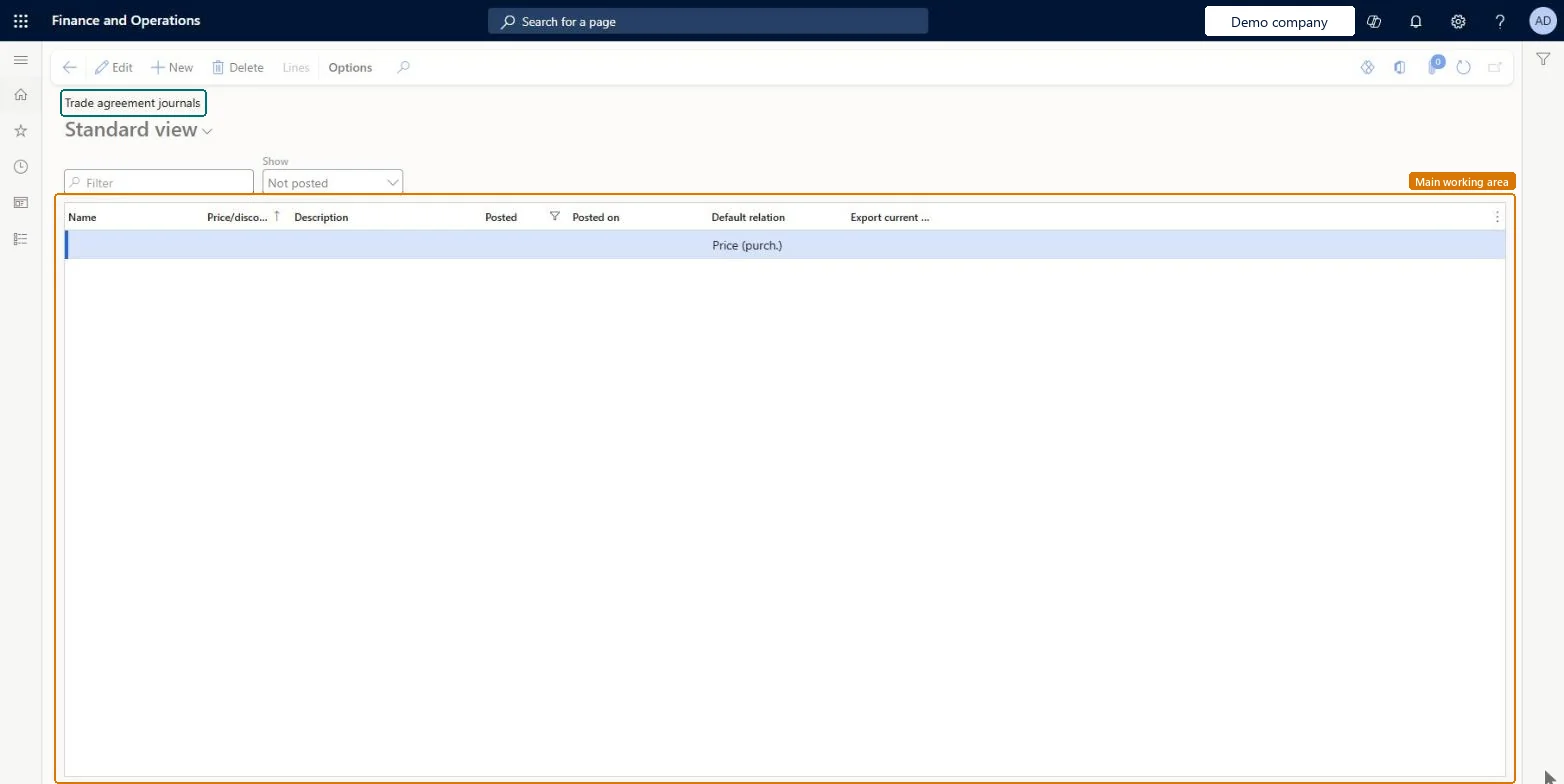
Table definitionPriceDiscAdmTable columns and relations Microsoft data model
Everyone

8Sources