About the examples: Examples and screenshots in this guide use BEAT, a demo company in a Dynamics 365 test environment. Use your own company's codes and values instead of copying them.
When to run it
When to run it
When buyers need to know which vendors are approved for a procurement category, for example before sourcing.
How often
On demand, before sourcing or when category vendors change.
What the output shows
The vendors authorized for the selected procurement category in the legal entity, with account, name and status. A vendor with a status other than approved shouldn't be used for that category.
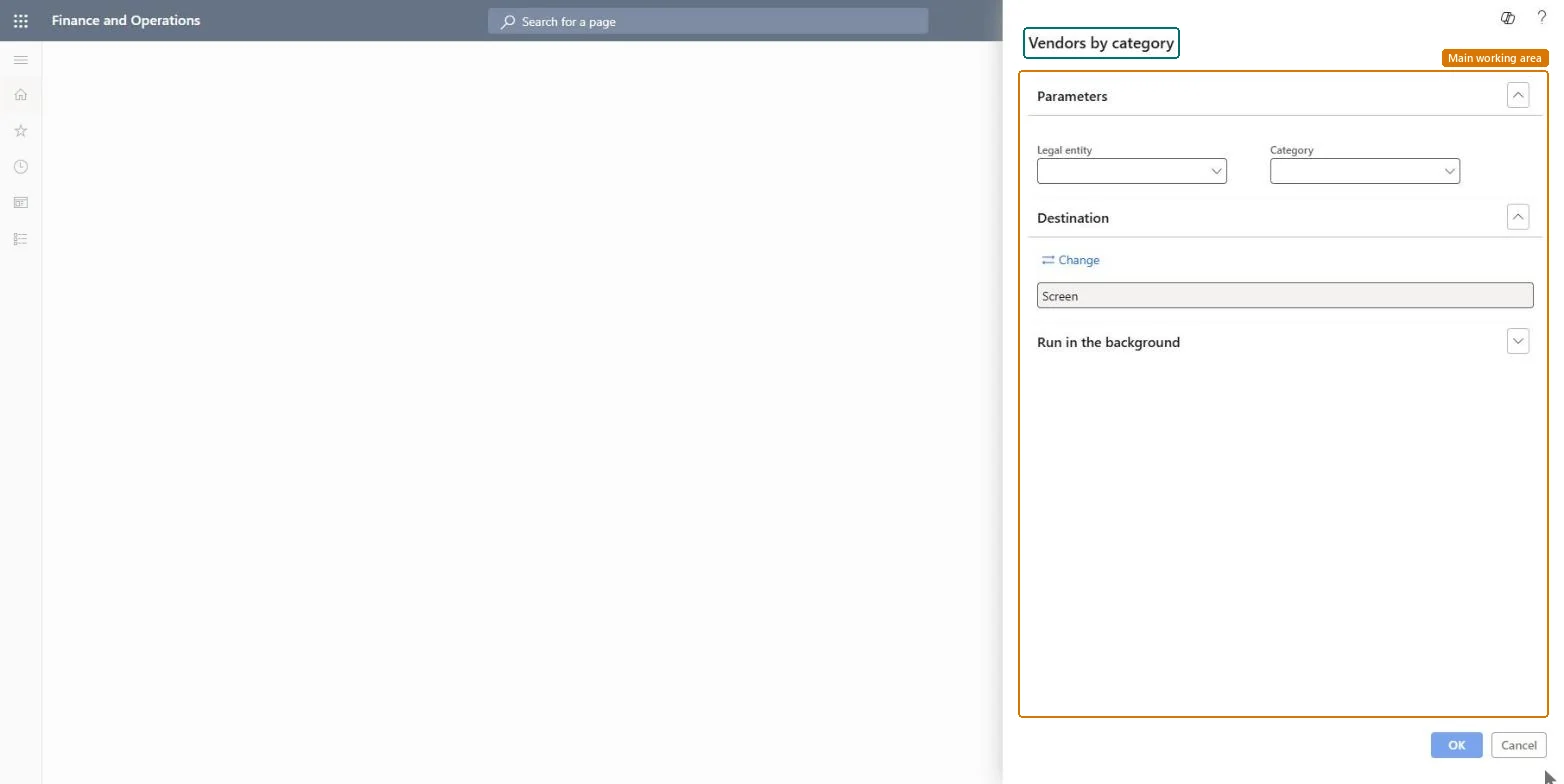
Go to Procurement and sourcing > Inquiries and reports > Procurement category reports > Vendors by category.
Select the Legal entity, so only vendors authorized to do business with that legal entity are shown.
Select the Category whose approved vendors you want to see.
Read the vendor account, name and status of each vendor. If a vendor you buy from is missing, add it to the procurement category before buyers select it on requisitions.
Shows only vendors authorized to do business with this legal entity.Microsoft Learn
Category
Shows only vendors authorized for this procurement category.Microsoft Learn
Solution architect
4Design impact
Can it be undone
Nothing to undo: The report only lists vendors per category; nothing is changed. Microsoft Learn
Technical architect
5Technical
Menu item
output:ProcCategoryVendorChecked in Dynamics 365
Form
SysOperationTemplateFormChecked in Dynamics 365
Roles to set it up and use it
To use itPurchasing manager TradePurchasingManagerAccounts payable manager VendInvoiceAccountsPayableManagerPurchasing agent VendPurchasingAgentPurchasing Agent - Public Sector VendPurchasingAgent_PSNAccountant LedgerAccountantGive people one of these roles. On this system, 12 roles can run this page.Checked in Dynamics 365