PAGE GUIDEWhat the page does and how to use it7 sections. Choose a role to highlight what matters to you.
Everyone
1What it is and why
What it is
An annual export that creates the electronic Form W-2 file used to file W-2s with the Social Security Administration.
What you do here
Use this page to create the electronic Form W-2 file for a tax year, including the submitter contact details and, for a resubmission, the wage file identifier.
Example
For example, if the Social Security Administration rejects a file, rerun the export with Resubmit selected and the WFID from the SSA notice.
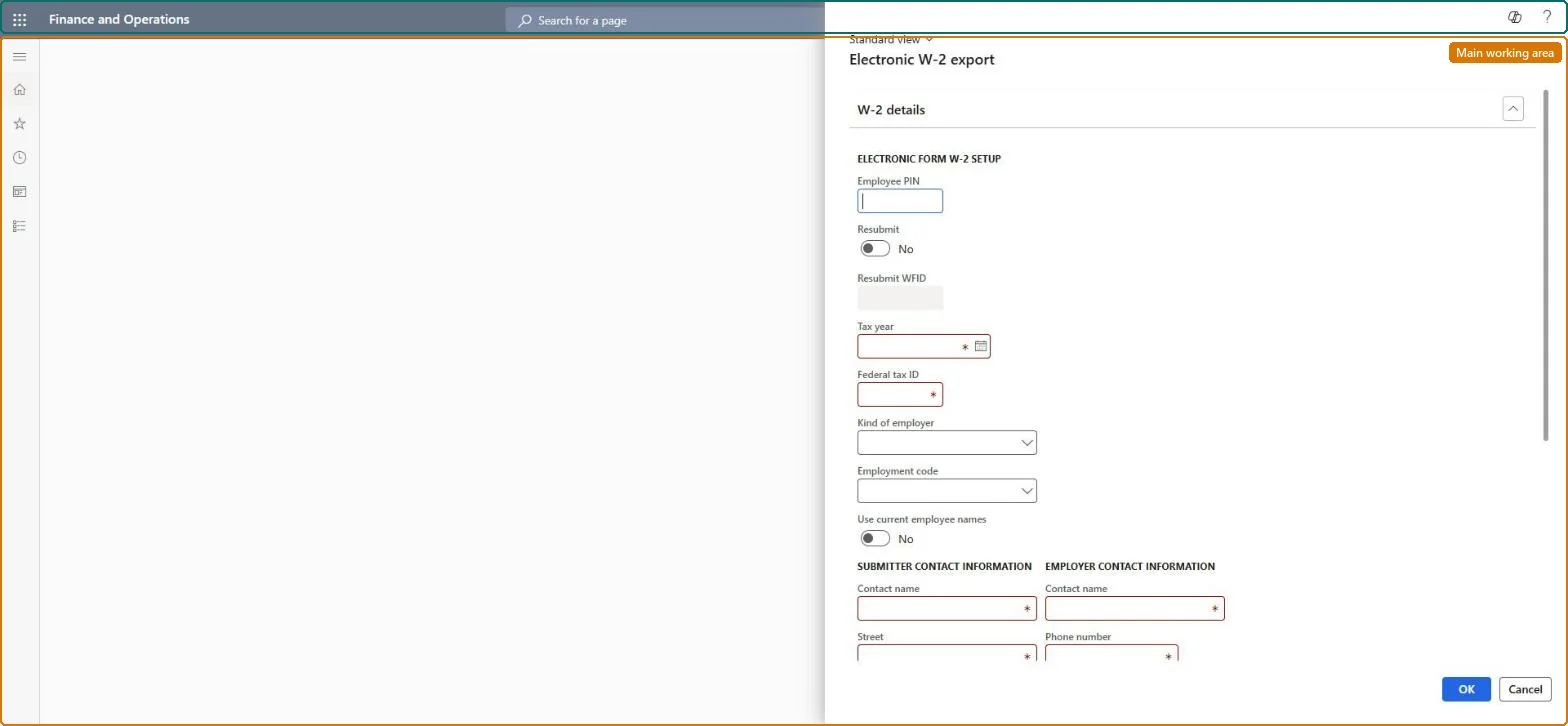
The page in Dynamics 365. page title tab to open what to set or check
About the examples: Examples and screenshots in this guide use BEAT, a demo company in a Dynamics 365 test environment. Use your own company's codes and values instead of copying them.
When to run it
When to run it
At year end, after Form W-2 reconciliation balances, when you file W-2s electronically with the Social Security Administration; again for a resubmission.
How often
Annually, plus a resubmission when the Social Security Administration asks for one.
Batch settings
Run it interactively, because it needs the PIN and contact details and writes a file to the location you enter.
What the output shows
An electronic Form W-2 file for the tax year at the file name you entered, with the submitter and employer details. If the Social Security Administration rejects it, check the Employee PIN, Federal tax ID and, for a resubmission, the Resubmit WFID.
Go to Payroll > Tax processing > Annual reports > Electronic W-2 export.
In W-2 details, enter the eight-character Employee PIN of the employee who attests to the file. Select Resubmit only if you sent this file before, and then enter the Resubmit WFID from the Social Security Administration notice.
Enter the Tax year and Federal tax ID, and select the Kind of employer and Employment code of the submitting organization.
Set Use current employee names as needed, and fill in the submitter contact fields, such as Contact name, Street and Phone number, so the Social Security Administration can reach you.
In File name, enter the location and name of the file, select OK, and open the file to make sure it was created before you upload it.
The employment code of the organization submitting the file.Microsoft Learn
Contact name
The employee the Social Security Administration can contact about the file.Microsoft Learn
File name
The location and name of the electronic Form W-2 file.Microsoft Learn
Solution architect
4Design impact
Can it be undone
Nothing to undo: The export only writes a file and changes no payroll data. If the file was wrong, create it again; if it was already filed, run it with Resubmit and the WFID. Microsoft Learn
Technical architect
5Technical
Menu item
PayrollW2FileChecked in Dynamics 365
Form
PayrollW2ElectronicDialogChecked in Dynamics 365
Roles to set it up and use it
To use itPayroll administrator HcmPayrollAdministratorPayroll manager HcmPayrollManagerGive people one of these roles. On this system, 2 roles can run this page.Checked in Dynamics 365