A processing page that posts the pay statements of a pay cycle and pay period to the general ledger, using the accounting distributions on each pay statement line.
PAGE GUIDEWhat the page does and how to use it5 sections. Choose a role to highlight what matters to you.
Everyone
1What it is and why
What it is
A processing page that posts the pay statements of a pay cycle and pay period to the general ledger, using the accounting distributions on each pay statement line.
What you do here
Use this page to post reviewed pay statements for a pay period to the general ledger before generating the vendor invoices for that period.
Example
For example, check the Pay statements to recalculate list before posting, because pay statements that need recalculation are skipped.
The page in Dynamics 365. page title tab to open what to set or check
About the examples: Examples and screenshots in this guide use BEAT, a demo company in a Dynamics 365 test environment. Use your own company's codes and values instead of copying them.
When to run it
When to run it
After you review the pay statements of a pay period, and before you generate the vendor invoices for that period.
How often
Once per pay period for each pay cycle.
Batch settings
Run it in the background for large pay cycles; the run is all or nothing, so read the log if no statement shows Posted.
What the output shows
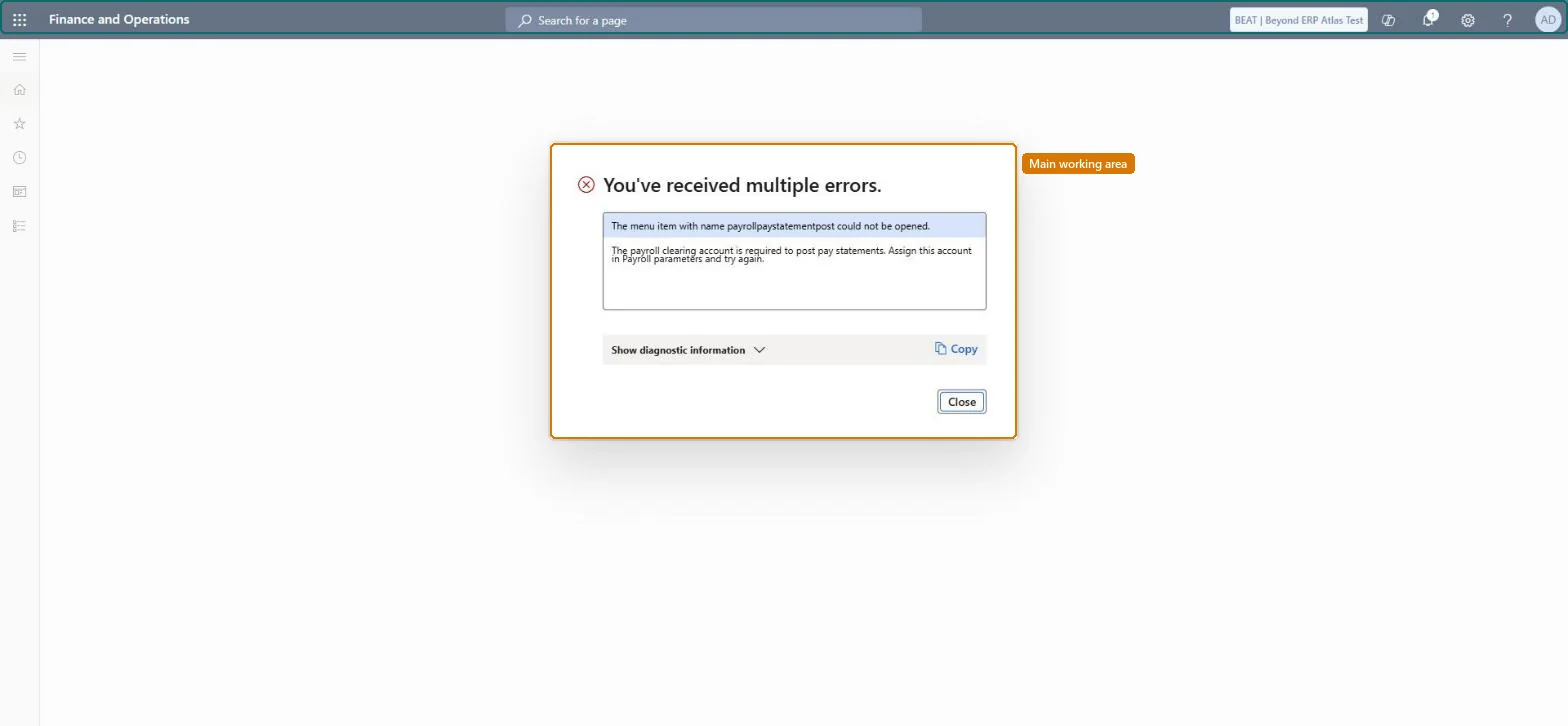
General ledger transactions for each pay statement line, using the accounting distributions and transaction posting definitions, and Posted in each pay statement header. If no statements are posted, one statement or line in the run could not be posted, often because of a missing posting definition or payroll clearing account.
No: Posted pay statements can't be deleted. Reverse a pay statement to correct its ledger entries. Microsoft Learn
If you change it later
Posting is all or nothing: if any line of a pay statement can't be posted, none of its lines are posted, and if one pay statement in the run can't be posted, none of the pay statements are posted. Microsoft Learn