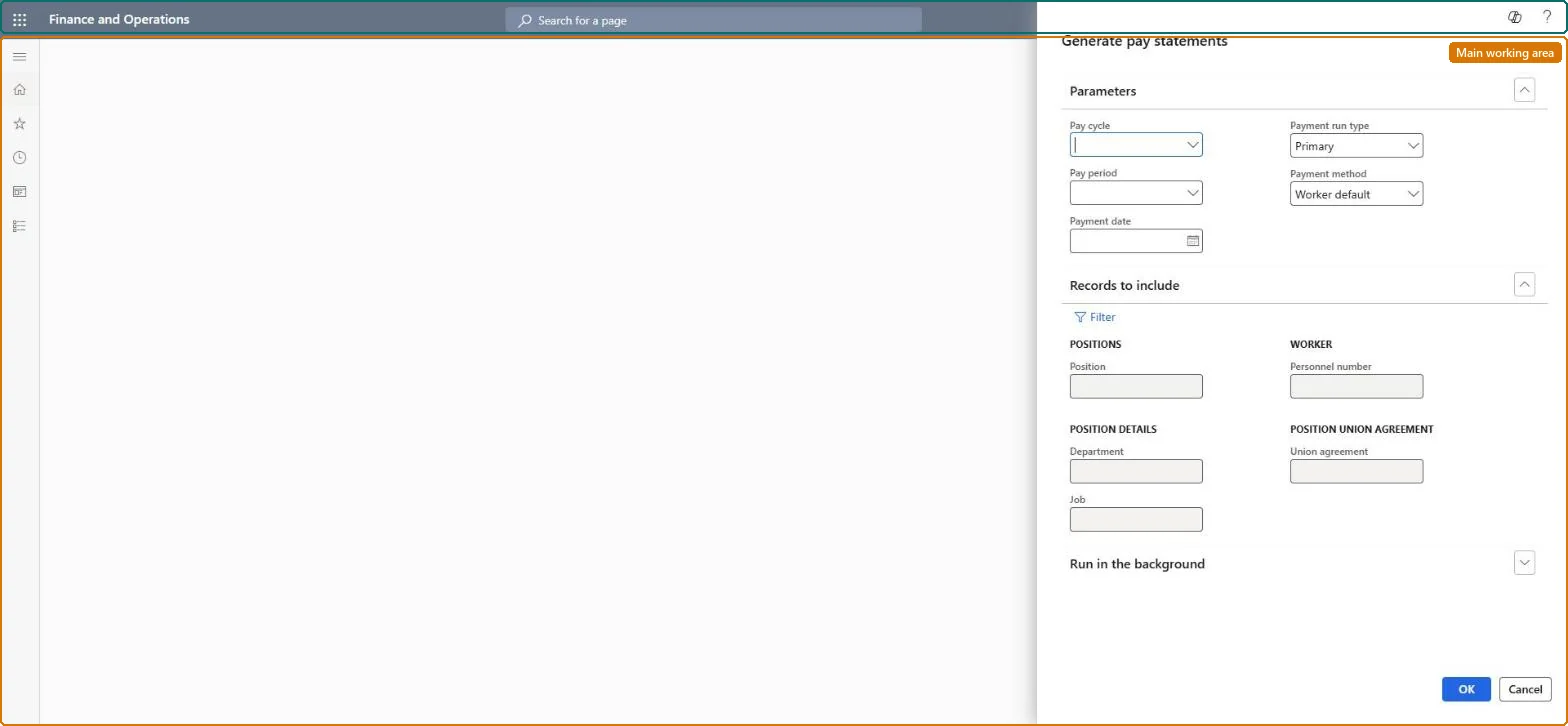
A processing page that creates pay statements for a pay cycle, pay period and payment run type, calculating benefit and tax deductions, employer contributions, benefit accruals and net pay.
PAGE GUIDEWhat the page does and how to use it7 sections. Choose a role to highlight what matters to you.
Everyone
1What it is and why
What it is
A processing page that creates pay statements for a pay cycle, pay period and payment run type, calculating benefit and tax deductions, employer contributions, benefit accruals and net pay.
What you do here
Use this page to turn the released earnings for a pay cycle and pay period into pay statements. All released earnings that match the cycle, period and payment run type you select are collected automatically.
Example
For example, after the earnings for a pay period have been generated and released, run this page (preferably in batch) for that pay cycle and pay period to produce the pay statements.
The page in Dynamics 365. page title tab to open what to set or check
About the examples: Examples and screenshots in this guide use BEAT, a demo company in a Dynamics 365 test environment. Use your own company's codes and values instead of copying them.
When to run it
When to run it
After the earnings for the pay cycle and period are generated and released, and before you submit or post pay statements.
How often
Once per pay period for each pay cycle, plus extra Manual runs when payments were made outside payroll.
Batch settings
Microsoft recommends batch processing for generating pay statements; run it in the background for the whole pay cycle.
What the output shows
One pay statement per worker with earnings, benefit and tax lines and net pay. A missing earning usually means the line wasn't released, belongs to another cycle or period, or its earning code isn't set up for the payment run type you chose.
Go to Payroll > Pay statement processing > Generate pay statements.
Select the Pay cycle that holds the released earnings, then the Pay period. The first open period of that cycle is the default.
In Payment run type, keep Primary for a regular pay run. Choose Manual only to record payments made outside payroll, and then select Disable accounting if nothing should be recorded or posted to the general ledger.
Select OK. All released earnings that match the cycle, period and payment run type are collected, and benefit and tax deductions, employer contributions, accruals and net pay are calculated.
Open the log on My batch jobs for errors, then review the pay statements and compare them with the released earnings.
Yes, before posting or payment: Delete pay statements that are not posted, submitted or paid; the earnings lines stay and can go on a new pay statement. After posting, submitting or payment, reverse the pay statement instead. Microsoft Learn
If you change it later
The payment run type you choose decides which released earnings are picked up: an earning whose earning code isn't set up for that run type is left off the pay statement. Microsoft Learn
Technical architect
5Technical
Menu item
PayrollPayStatementGenerationChecked in Dynamics 365
Form
DialogChecked in Dynamics 365
Roles to set it up and use it
To use itPayroll administrator HcmPayrollAdministratorGive people one of these roles. On this system, 1 role can run this page.Checked in Dynamics 365