About the examples: Examples and screenshots in this guide use BEAT, a demo company in a Dynamics 365 test environment. Use your own company's codes and values instead of copying them.
When to run it
When to run it
After pay statements are generated for a pay run, to confirm the benefit deductions and contributions before you submit and post them.
How often
Every pay period, and as required.
What the output shows
The benefit deductions and employer contributions calculated by payroll for the pay cycle and range of periods, per benefit, in summary or with each transaction. A wrong amount usually points to the worker's benefit enrollment, the plan rate or an arrearage carried from an earlier pay statement.
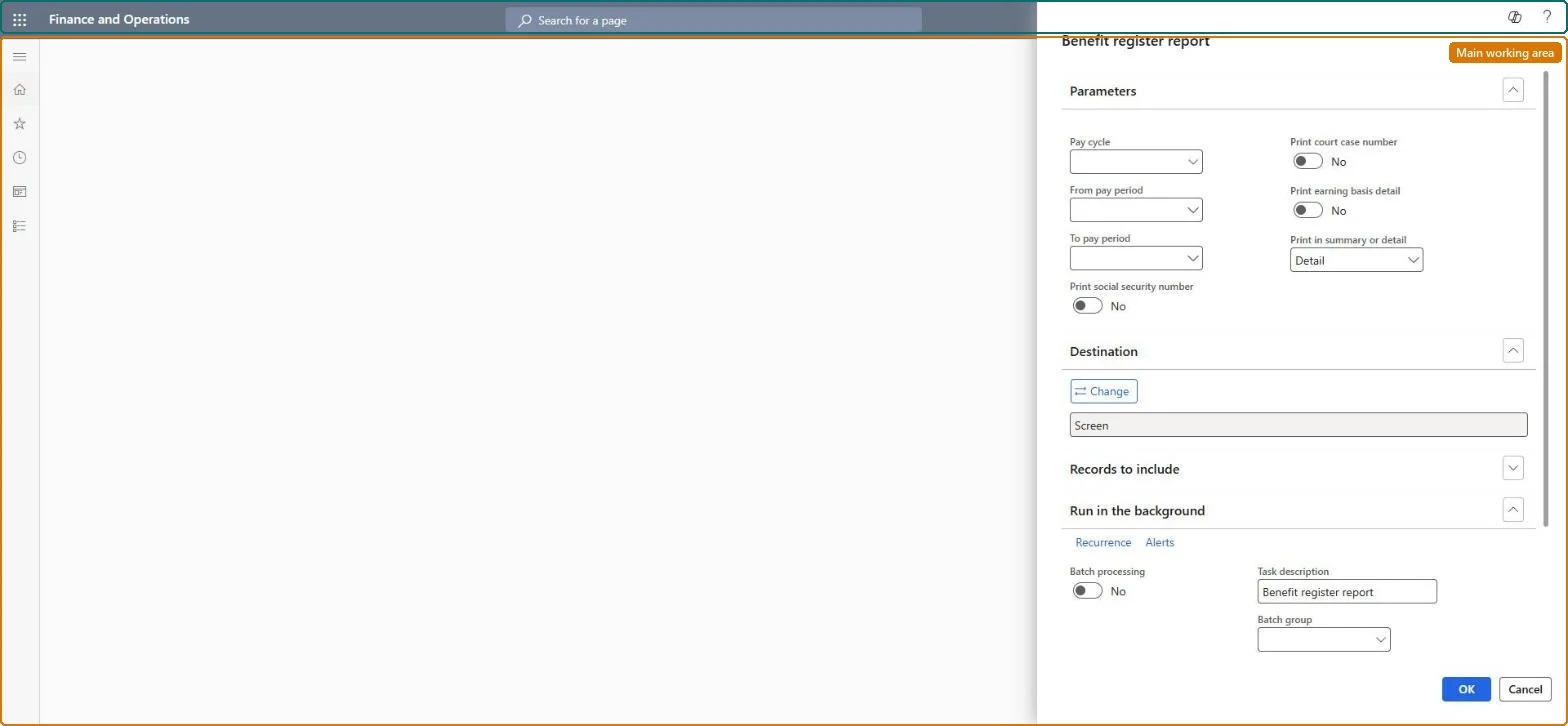
Go to Payroll > Inquiries and reports > Benefit register report.
In Parameters, select the Pay cycle, From pay period and To pay period to review.
Select Print in summary or detail: Detail lists each benefit transaction, Summary leaves the transactions out.
Set Print court case number to show case numbers for garnishments and other mandatory deductions handled as benefits, and Print earning basis detail to see the earnings behind each benefit.
Under Records to include, filter on Benefit or Batch number to review one benefit or one pay statement run, then print and compare the deductions and contributions with the plan rates.
Nothing to undo: The benefit register only reads calculated benefits; it changes nothing. Microsoft Learn
Technical architect
5Technical
Menu item
PayrollBenefitRegisterChecked in Dynamics 365
Form
SysOperationTemplateFormChecked in Dynamics 365
Roles to set it up and use it
To use itPayroll administrator HcmPayrollAdministratorPayroll manager HcmPayrollManagerGive people one of these roles. On this system, 2 roles can run this page.Checked in Dynamics 365