PAGE GUIDEWhat the page does and how to use it8 sections. Choose a role to highlight what matters to you.
Everyone
1What it is and why
What it is
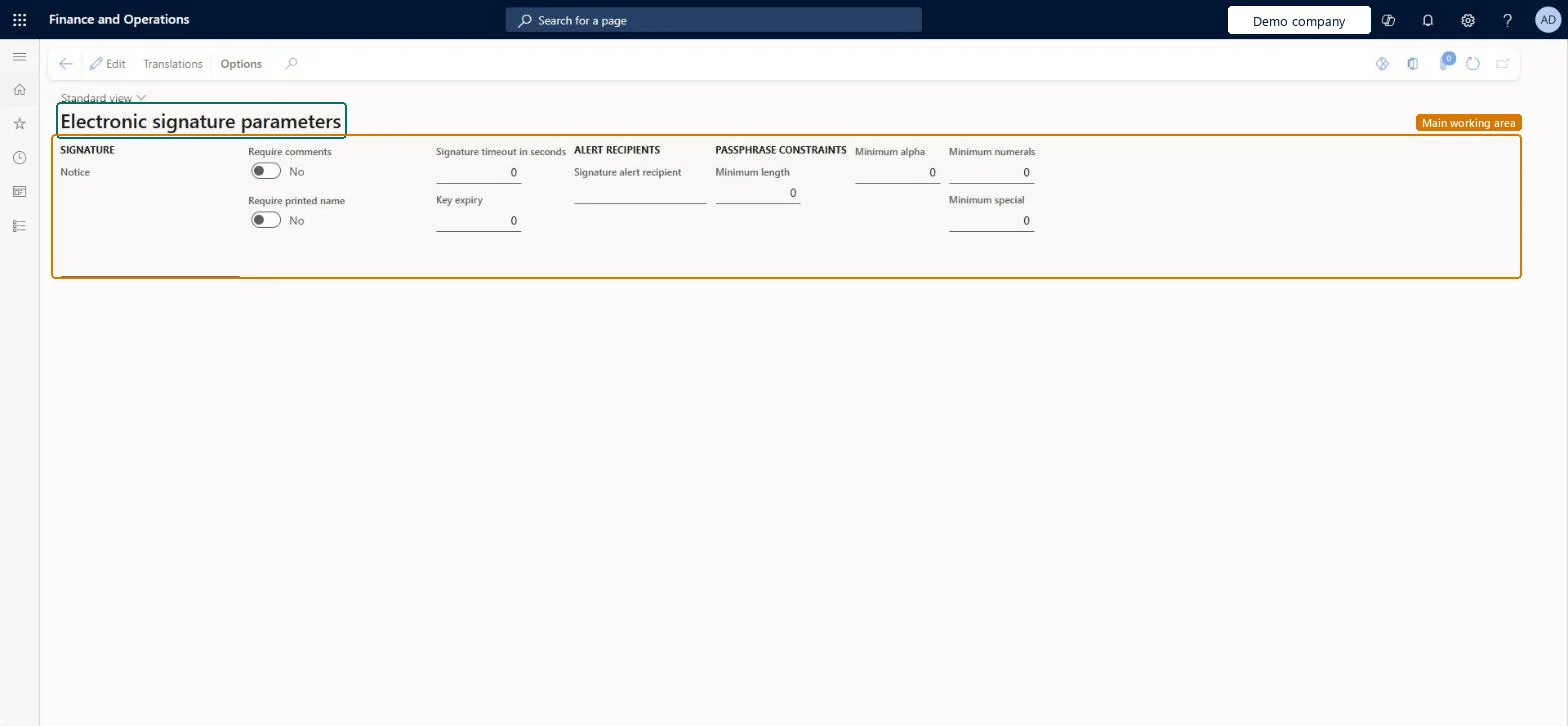
A setup page where you set the general rules for electronic signatures, such as the notice signers see, the signing timeout and the passphrase rules.
What you do here
Use this page to control how signing works for everyone, including required comments, key expiry and who gets an alert when a signature fails validation.
Example
For example, if the passphrase rules here ask for only six characters but the Windows policy requires more, the password is rejected when the signer's certificate is created.
The page in Dynamics 365. page title tab to open what to set or check
About the examples: Examples and screenshots in this guide use BEAT, a demo company in a Dynamics 365 test environment. Use your own company's codes and values instead of copying them.
Step by step, with screenshots
Set up Electronic signature parameters1 screen
Use this page to control how signing works for everyone, including required comments, key expiry and who gets an alert when a signature fails validation.
Screen 1
Check the electronic signature parameters
Go to Organization administration > Setup > Electronic signature > Electronic signature parameters
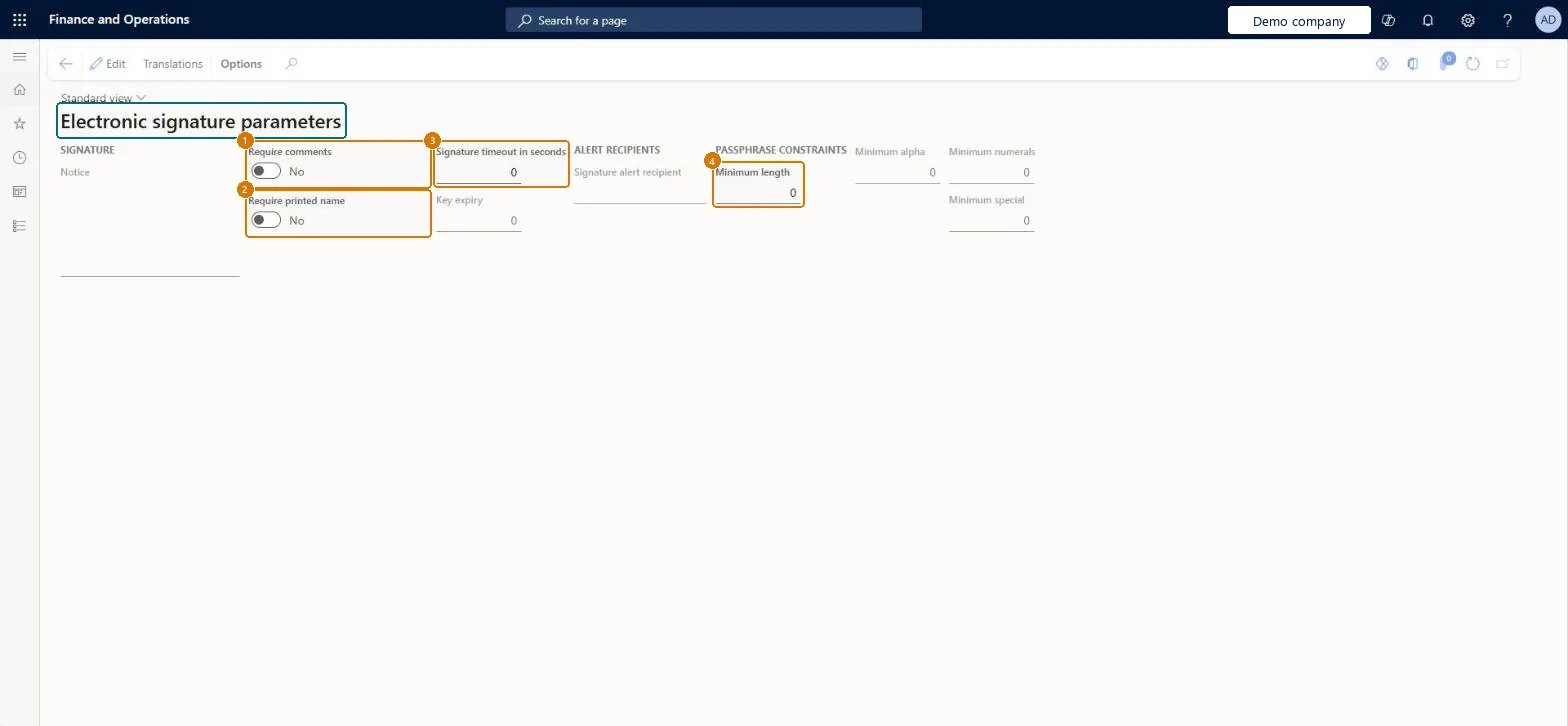
Check whether a signer must enter comments or a printed name
Check the signature timeout and the passphrase rules
Select Edit only to change them
1Require comments
No
2Require printed name
No
3Signature timeout in seconds
0
4Minimum length
0
Show the full screen page title tab to open what to set or check
Steps from Microsoft
Go to Organization administration > Setup > Electronic signature > Electronic signature parameters.
Select Edit.
In the Notice field, enter the text that signers see on the Sign document page. Use Translations to add other languages.
Set Require comments to Yes if every signer must enter a comment.
In the Signature timeout field, enter the number of seconds allowed for signing.
In the Key expiry field, enter how many days a digital key stays valid.
In the Signature alert recipient field, select the user who is alerted when validation fails.
Set the passphrase rules in Minimum length, Minimum alpha, Minimum numerals and Minimum special.
Minimum length of at least 8 characters, a signer Notice that states the legal meaning of signing, and a Signature alert recipient who monitors tampering alertsMicrosoft recommends a passphrase of at least eight characters. The alert recipient is emailed when signature validation shows signs of tampering.
Setting passphrase rules weaker than the Windows password policy. The rules can be stricter but not weaker; a weaker passphrase is rejected when the certificate is generated.Test: Passphrase rules are enforced at certificate request
Reversible: Change the parameters at any time. Signatures already given stay in the signature log. Microsoft Learn
If you change it later
The passphrase rules work together with the Windows password policy. They can be stricter than that policy, but never weaker. Microsoft Learn
Technical architect
6Technical
Menu item
SIGParametersChecked in Dynamics 365
Form
SIGParametersChecked in Dynamics 365
Table
SIGParametersShown as “Electronic signature parameters” in Record infoChecked in Dynamics 365
Who can open it
PrivilegesMaintain electronic signature parameters SIGParametersMaintainView electronic signature parameters SIGParametersViewDutiesMaintain system settings SysServerSettingsMaintain1 security roleInformation technology manager SysServerITManagerChecked in Dynamics 365
Roles to set it up and use it
To set it up or change itInformation technology manager SysServerITManagerGive people one of these roles. On this system, 1 role can open this page.Checked in Dynamics 365
Actions on the page
Options: Personalize, Page options, ShareChecked in Dynamics 365
Checked in a working Dynamics 365 system, version 10.0.49: the menu item, form, table and security, the page, the demo records and the values in the screenshots.