PAGE GUIDEWhat the page does and how to use it8 sections. Choose a role to highlight what matters to you.
Everyone
1What it is and why
What it is
A setup page where you set the dates when each number sequence group applies, so that documents and vouchers are numbered in date order.
What you do here
It is used so that, when a document is posted, the system picks the number sequence group whose period covers the posting date.
Example
For example, a company in a country that requires invoices and their vouchers to be numbered in chronological order sets up one number sequence group for each period.
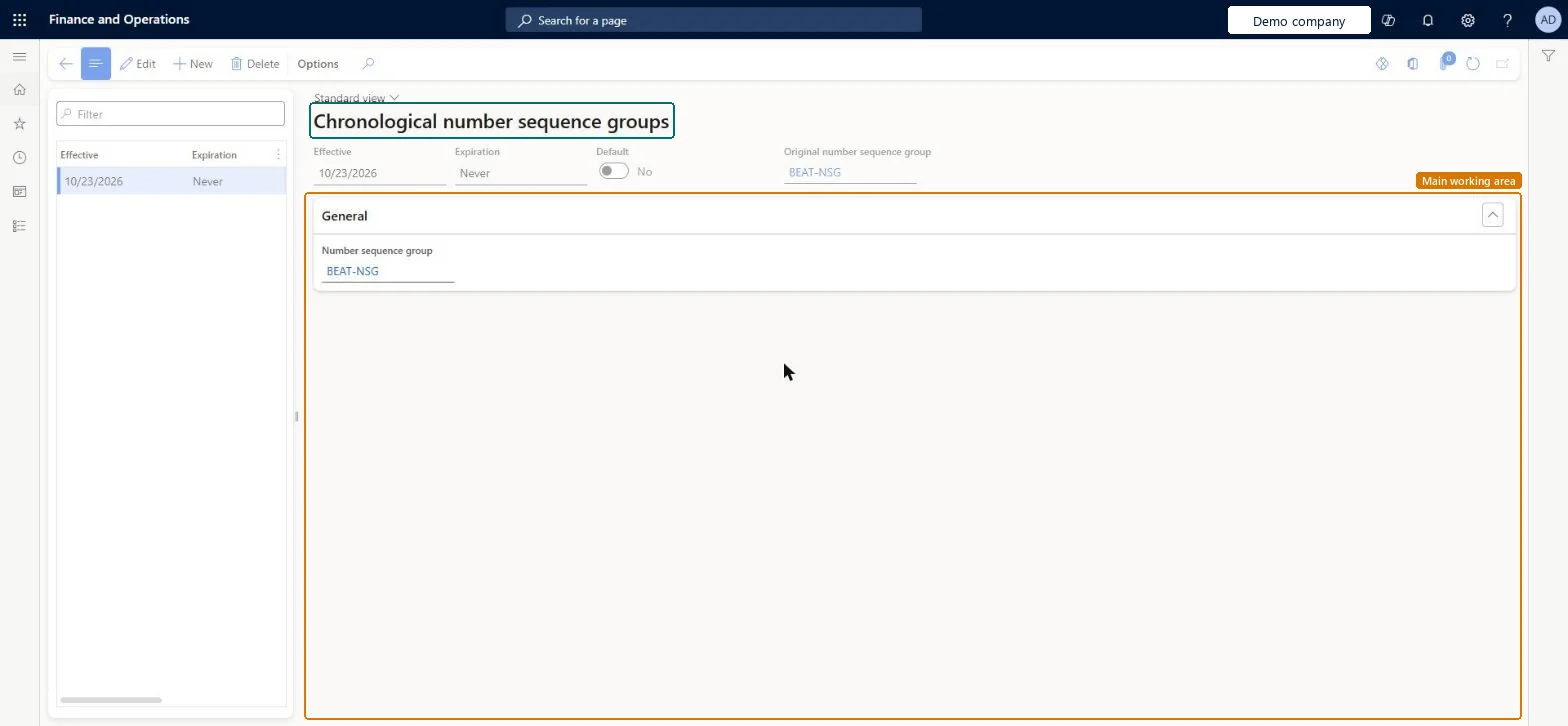
The page in Dynamics 365. page title tab to open what to set or check
About the examples: Examples and screenshots in this guide use BEAT, a demo company in a Dynamics 365 test environment. Use your own company's codes and values instead of copying them.
Setup steps on this page
Set up Chronological number sequence groups
It is used so that, when a document is posted, the system picks the number sequence group whose period covers the posting date.
Steps from Microsoft
In the Feature management workspace, turn on the Chronological numbering feature.
On the Number sequences page, create a number sequence for each period, with a company and a period prefix.
In Accounts receivable parameters (and in Accounts payable and Project management and accounting), create a number sequence group for each period.
Go to Organization administration > Number sequences > Chronological number sequence groups.
Add a line and enter the Effective and Expiration dates.
Select the Number sequence group to use in that period.
Fill in Original number sequence group, or turn on Default to use only the dates.
One number sequence group per period, each pointing to a company-scoped sequence whose segments identify the period, with Effective and Expiration dates that cover every posting dateWhen a document posts, the system picks the number sequence group from the posting date, so the periods must be covered without gaps and each period's sequence must sort after the previous one.
Expecting chronological numbering where a country or region already has its own numbering logic. In that case the local logic overrides the Chronological numbering feature.
Hard to reverse: You can edit the effective periods, but documents already posted keep the number from the group that applied on their posting date. Fixing a gap after posting can break the chronological order that the law requires. Microsoft Learn
If you change it later
Where a country or region already has its own document numbering logic, that logic overrides chronological numbering. Microsoft Learn
Technical architect
6Technical
Menu item
ChronologicalNumberSequenceGroupSetupChecked in Dynamics 365
Form
ChronologicalNumberSequenceGroupSetupChecked in Dynamics 365
Table
ChronologicalNumberSequenceGroupSetupShown as “Chronological number sequence groups” in Record infoChecked in Dynamics 365
Roles to set it up and use it
To set it up or change itInformation technology manager SysServerITManagerTo use itSystem user SystemUserTestEssentialsRole Retail store IT RetailStoreITRetail service RetailServiceGive people one of these roles. On this system, 5 roles can open this page.Checked in Dynamics 365