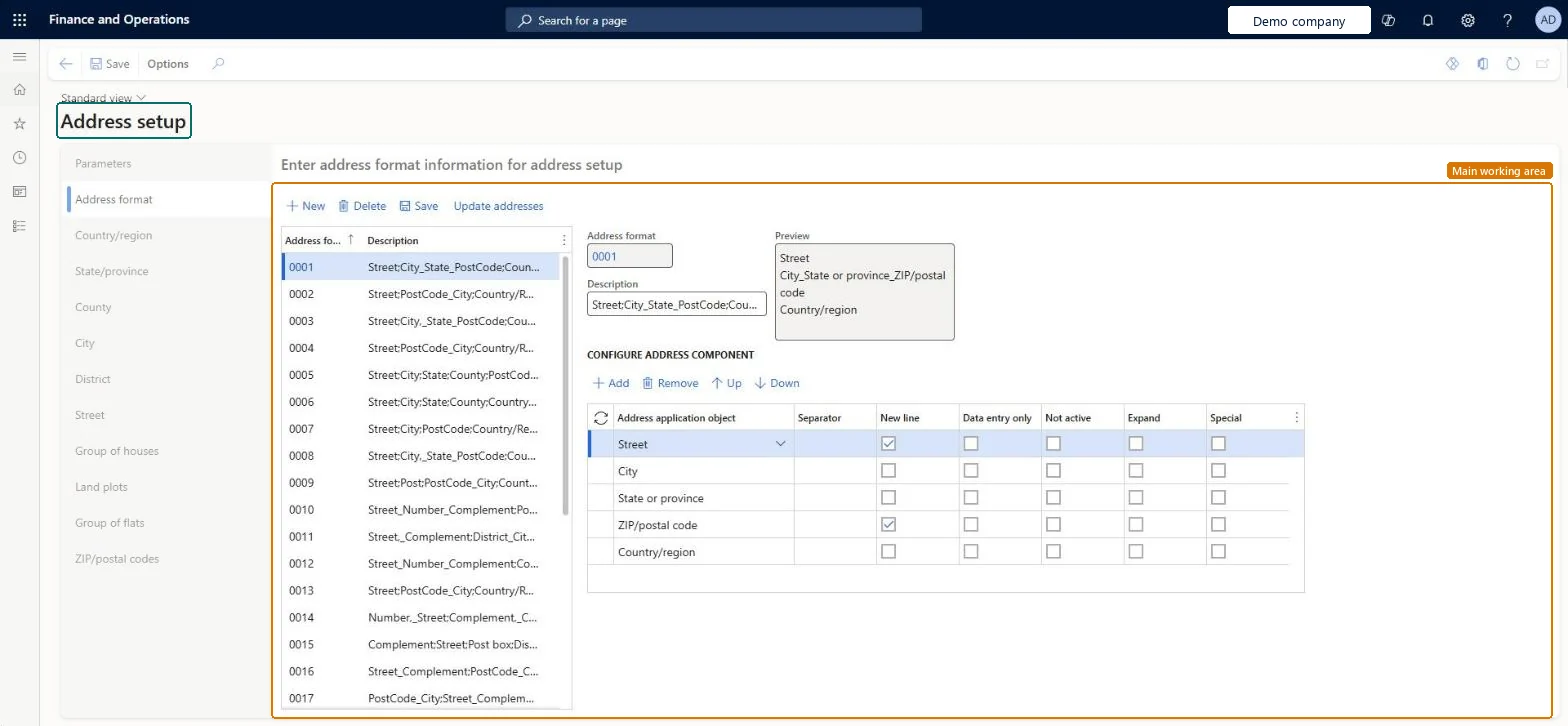
A setup page for the postal address formats your organization needs, along with countries/regions, states, counties, cities, districts and ZIP/postal codes.
PAGE GUIDEWhat the page does and how to use it8 sections. Choose a role to highlight what matters to you.
Everyone
1What it is and why
What it is
A setup page for the postal address formats your organization needs, along with countries/regions, states, counties, cities, districts and ZIP/postal codes.
What you do here
Use this page to set how addresses are laid out for each country or region and which address values are checked when new addresses are created.
Example
For example, you can add an address format NO for Norway and set the order of its address parts and separators.
The page in Dynamics 365. page title tab to open what to set or check
About the examples: Examples and screenshots in this guide use BEAT, a demo company in a Dynamics 365 test environment. Use your own company's codes and values instead of copying them.
Step by step, with screenshots
Set up Address setup1 screen
Use this page to set how addresses are laid out for each country or region and which address values are checked when new addresses are created.
Screen 1
Check an address format
Go to Organization administration > Global address book > Addresses > Address setup
Open the Address format tab
Select the address format
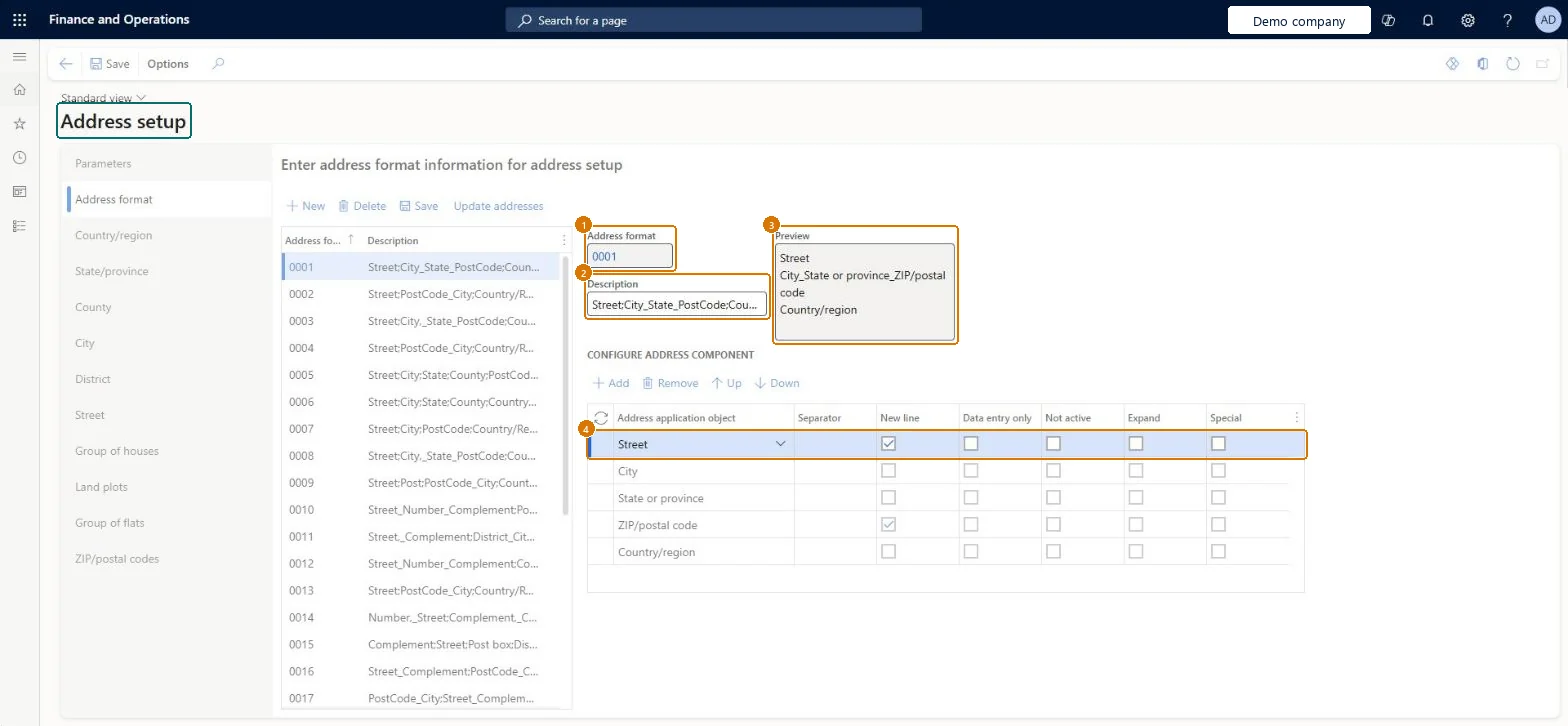
Review its components, which starts a new line, and the preview
1Address format
0001
2Description
Street;City_State_PostCode;Country/Region
3Preview
Street / City_State or province_ZIP/postal code / Country/region
Address application object
Street (new line)
Show the full screen page title tab to open what to set or check
Steps from Microsoft
Go to Organization administration > Global address book > Addresses > Address setup.
On the Address format tab, select New.
Enter the address format name and a description.
In the lower pane, select New to add an address component.
In the Address application object field, select the address part, such as Street.
In the Separator field, enter the character that follows it.
Select New line, Data entry only, Not active, Expand or Special as needed.
On the Country/region tab, select the address format for each country or region.
Turn on validation for ZIP/postal code, City or District only for values you have fully loaded on this page; leave the others as free text.When validation is on, a new address must use a value that already exists in the address setup; when it's off the field is free text.
Turning on City or ZIP/postal code validation before the codes are loaded: users can't create new addresses with values that aren't set up yet.
Reversible: Address formats and validation options can be changed; validation is checked when new addresses are created in the global address book. Microsoft Learn
If you change it later
When validation is turned on for ZIP/postal code, District or City, new addresses must use values already set up on this page. Microsoft Learn
Technical architect
6Technical
Menu item
LogisticsAddressFormatChecked in Dynamics 365
Form
LogisticsAddressSetupChecked in Dynamics 365
Table
LogisticsAddressFormatHeadingShown as “Address format” in Record infoKey field: AddrFormat, NameChecked in Dynamics 365
PrivilegesMaintain postal address formats LogisticsAddressFormatMaintainView address formats for the postal address LogisticsAddressFormatViewDutiesInquire into address policies LogisticsAddressPolicyInquireEnable address process LogisticsAddressProcessEnableInquire into address reference data LogisticsAddressReferenceDataInquire1 security roleInformation technology manager SysServerITManagerChecked in Dynamics 365
Roles to set it up and use it
To set it up or change itInformation technology manager SysServerITManagerGive people one of these roles. On this system, 1 role can open this page.Checked in Dynamics 365
LogisticsAddressFormatEntity (Address format): shared by all companies, in Microsoft's default template 010 - System Setup.Load order: Microsoft's default template 010 - System Setup loads Address format at execution unit 1, level 10, sequence 10. Lower levels load first, and entities at the same level load in sequence order.Microsoft Learn
Checked in a working Dynamics 365 system, version 10.0.49: the menu item, form, table and security, the page, the demo records and the values in the screenshots.