About the examples: Examples and screenshots in this guide use BEAT, a demo company in a Dynamics 365 test environment. Use your own company's codes and values instead of copying them.
How to use it
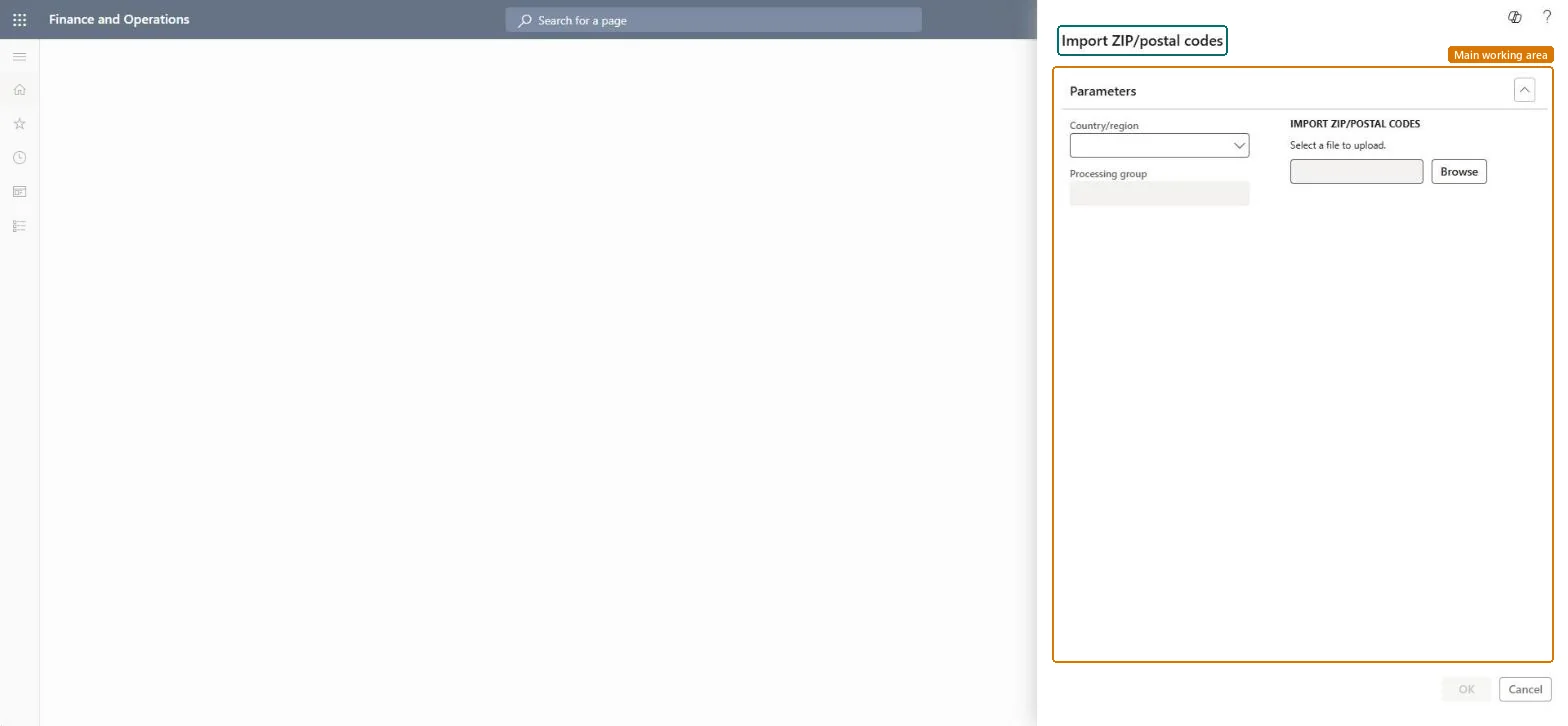
Go to Organization administration > Global address book > Addresses > Import ZIP/postal codes.
Choose the Country/region.
Select Browse and choose the file to upload.
Select OK to run it.
Source: Checked in Dynamics 365
Test checklist
Get the official file for the country/region (Belgium, Netherlands and Sweden use an upload file; others use the Data management framework).
Import the file for the country/region.
On Address setup, ZIP/postal codes tab, filter on the country/region and check the codes and their format (for the Netherlands, NNNN AA).
Create an address with an imported code and check the city fills in.
Hard to reverse: An import replaces the existing ZIP/postal codes for the country/region with the new format and adds new codes; there's no undo, so the previous codes would have to be entered or imported again. Microsoft Learn
If you change it later
Importing replaces the existing ZIP/postal codes with the new format and adds any new codes. Microsoft Learn
Technical architect
5Technical
Menu item
action:AddressZipCodeImportChecked in Dynamics 365
Form
DialogChecked in Dynamics 365
Roles to set it up and use it
To use itInformation technology manager SysServerITManagerGive people one of these roles. On this system, 1 role can run this page.Checked in Dynamics 365