PAGE GUIDEWhat the page does and how to use it8 sections. Choose a role to highlight what matters to you.
Everyone
1What it is and why
What it is
A setup page with the global settings that control how the built-in demand forecasting works, for all companies.
What you do here
Use this page to set the forecast unit, the transaction types used for the baseline forecast, the forecast generation method, the forecast dimensions, and overrides for specific item allocation keys.
Example
For example, set only Sales order to Yes to forecast independent demand, or also set Production line to Yes to forecast dependent demand for critical components.
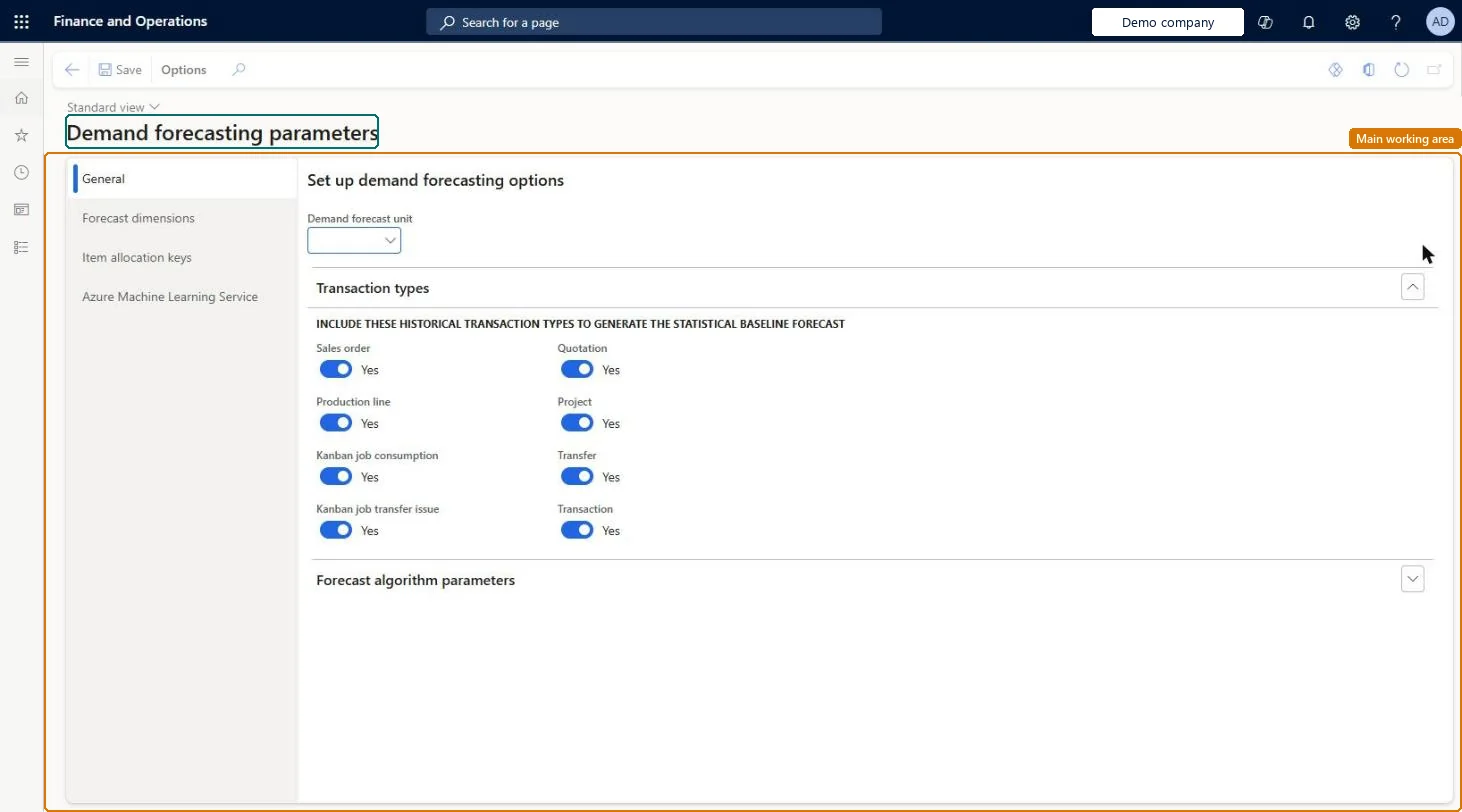
The page in Dynamics 365. page title tab to open what to set or check
About the examples: Examples and screenshots in this guide use BEAT, a demo company in a Dynamics 365 test environment. Use your own company's codes and values instead of copying them.
Setup steps on this page
Set up Demand forecasting parameters
Use this page to set the forecast unit, the transaction types used for the baseline forecast, the forecast generation method, the forecast dimensions, and overrides for specific item allocation keys.
Steps from Microsoft
Go to Master planning > Setup > Demand forecasting > Demand forecasting parameters.
On the General tab, select the Demand forecast unit.
On the Transaction types FastTab, select the transaction types to use for the baseline forecast.
In the Forecast generation strategy field, select how the baseline forecast is created.
On the Forecast dimensions tab, select the forecast dimensions.
On the Item allocation keys tab, set any overrides for specific item allocation keys.
Forecast generation strategy = Azure Machine Learning Service, with one Demand forecast unit that every forecast item can convert toLearn says to select Azure Machine Learning Service when setting up demand forecasting for the first time, because Azure Machine Learning Studio (classic) is deprecated, and requires a unit conversion for every forecast item's unit.
Adding or removing forecast dimensions after planners have adjusted the forecast: Learn warns that manual adjustments are lost.
Feature management and licence
Feature to turn on
Azure Machine Learning Service for demand forecasting (Mandatory, on by default)
Hard to reverse: Parameters can be changed, but adding or removing a forecast dimension loses manual adjustments to the baseline forecast, and the setup applies to every legal entity. Microsoft Learn
If you change it later
Adding or removing a forecast dimension discards the manual adjustments made to the forecast. Microsoft Learn
Technical architect
6Technical
Menu item
ReqDemPlanForecastParamsChecked in Dynamics 365
Form
ReqDemPlanForecastParametersChecked in Dynamics 365
Table
ReqDemPlanForecastParametersShown as “DEMAND FORECASTING PARAMETERS” in Record infoChecked in Dynamics 365
Roles to set it up and use it
To set it up or change itProduction planner ReqProductionPlannerProduction manager ProdProductionManagerGive people one of these roles. On this system, 2 roles can open this page.Checked in Dynamics 365