PAGE GUIDEWhat the page does and how to use it7 sections. Choose a role to highlight what matters to you.
Everyone
1What it is and why
What it is
A dialog that authorizes the adjusted demand forecast for use in planning, for a chosen period, companies, and forecast models.
What you do here
Use this dialog to release the adjusted baseline forecast so that master planning can use it, and to choose whether to keep the manual adjustments for the next forecast.
Example
For example, a planner authorizes only the first forecast buckets to freeze them, and leaves later periods open for more adjustment.
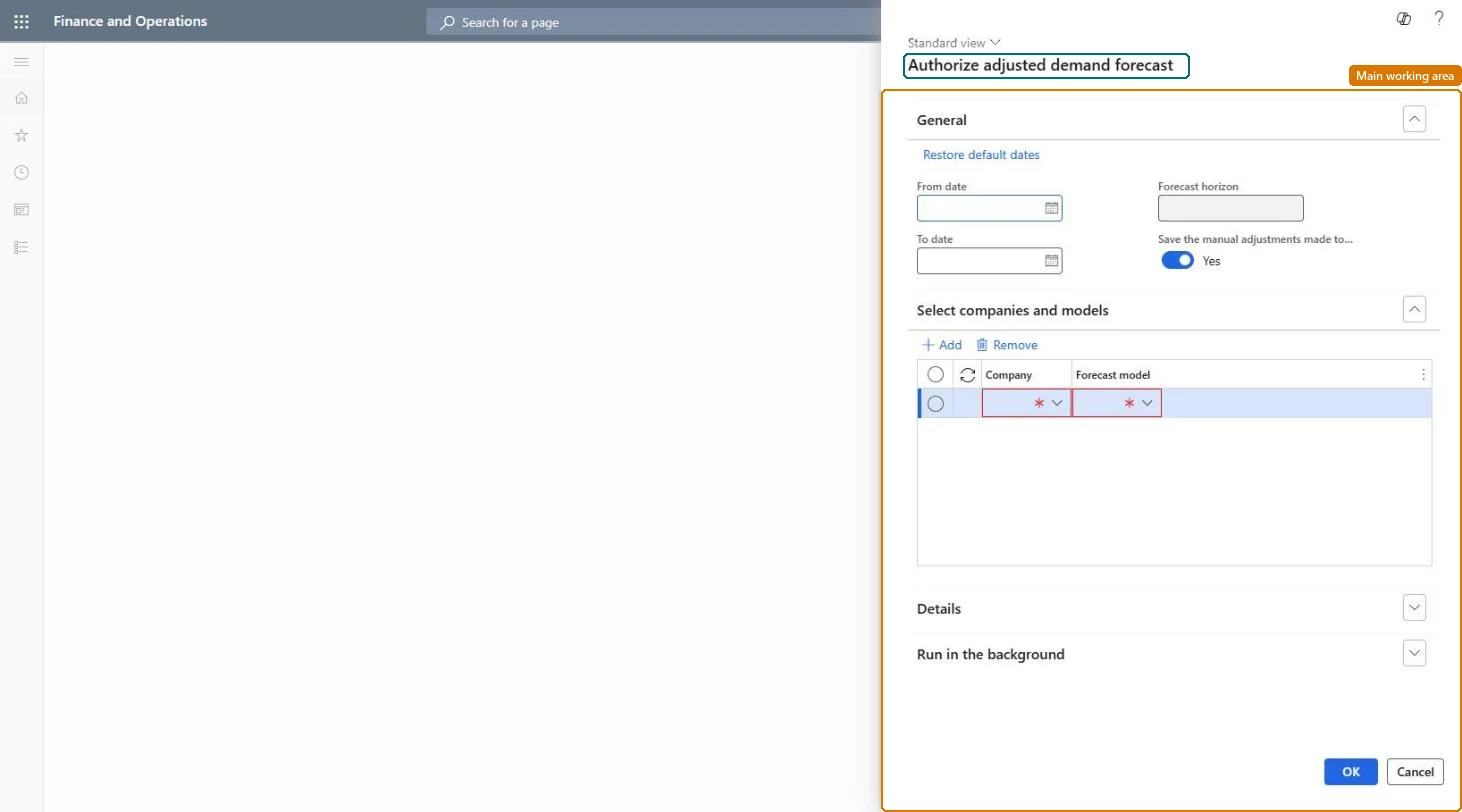
The page in Dynamics 365. page title tab to open what to set or check
About the examples: Examples and screenshots in this guide use BEAT, a demo company in a Dynamics 365 test environment. Use your own company's codes and values instead of copying them.
When to run it
When to run it
After planners have reviewed and adjusted the baseline forecast, when the forecast for a period is ready for master planning.
How often
Once per forecasting cycle, for the buckets that are ready.
Batch settings
Run it in the background when you authorize for many companies or long periods.
What the output shows
Demand forecast lines in the selected forecast model for each company and the authorized period, ready for master planning. A warning at import usually means no forecast was generated for that company.
Go to Master planning > Forecasting > Demand forecasting > Authorize adjusted demand forecast.
Under General, enter the Start date and End date of the period to authorize, or select Restore default dates. The dates are moved to match the forecast buckets, so you can leave some buckets unauthorized.
Decide on Save the manual adjustments made to the baseline demand forecast: selected keeps your adjustments for the next forecast; cleared authorizes them this time and then discards them.
Under Select companies and models, keep or change the Company and Forecast model for each company. The model defaults from the current forecast plan in the master planning parameters.
Look at the Details tab for the latest generated forecast, then after the run open the forecast model's demand forecast lines for the authorized period.
The period that the forecast is authorized for; the dates are adjusted to match the forecast buckets.Microsoft Learn
Company and forecast model
The companies to authorize for, each with a forecast model that defaults from the current forecast plan in the master planning parameters.Microsoft Learn
Save the manual adjustments made to the baseline demand forecast
Keeps the manual adjustments for later forecasts; when cleared, the adjustments are still authorized but then discarded.Microsoft Learn
Details tab
Shows details of the most recently generated forecast.Microsoft Learn
Test checklist
The forecast model shows demand forecast lines only for the authorized buckets.
Manual adjustments appear in the authorized quantities.
The next generated forecast keeps adjustments only if the save option was selected.
Partly: Authorize again to overwrite the forecast lines. Manual adjustments discarded because the save option was cleared can't be brought back. Microsoft Learn
If you change it later
If the Save the manual adjustments checkbox is cleared, manual adjustments are authorized this time but then discarded, so the next generated forecast has no manual overrides. Microsoft Learn
Technical architect
5Technical
Menu item
ReqDemPlanForecastImportChecked in Dynamics 365
Form
ReqDemPlanImportForecastDialogChecked in Dynamics 365
Roles to set it up and use it
To use itProduction planner ReqProductionPlannerProduction manager ProdProductionManagerGive people one of these roles. On this system, 2 roles can run this page.Checked in Dynamics 365