About the examples: Examples and screenshots in this guide use BEAT, a demo company in a Dynamics 365 test environment. Use your own company's codes and values instead of copying them.
How to use it
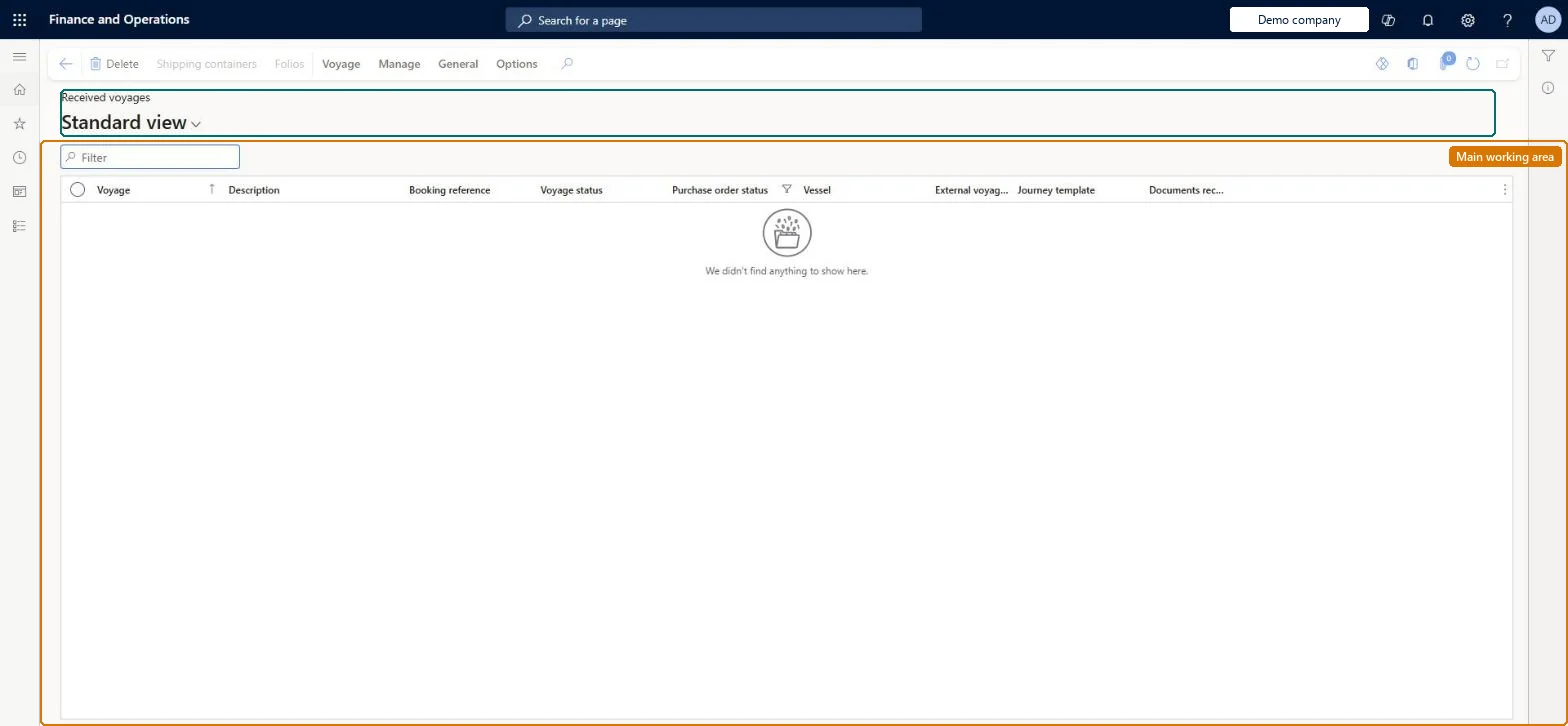
Go to Landed cost > Voyages > Received voyages.
Use the Filter box to find a voyage.
Review the Voyage, Description, Booking reference, Voyage status, Purchase order status, Vessel, External voyage ID, Journey template and Documents received columns; the list is filtered on Purchase order status.
Select a voyage and open Shipping containers or Folios on the Action Pane to see what it carries.
Use Voyage, Manage (Voyage update, Purchase order, Transfer order, Goods in transit, Functions) and General (Journals, Inquiries) on the Action Pane to work with the selected voyage.
Source: Checked in Dynamics 365
Technical architect
4Technical
Menu item
ITMTableListPageReceivedChecked in Dynamics 365
Form
ITMTableListPageChecked in Dynamics 365
Table
ITMTableShown as “VOYAGES” in Record infoKey field: ShipIdChecked in Dynamics 365
To set it up or change itLanded cost agent ITMAgentTo use itLanded cost manager ITMManagerGive people one of these roles. On this system, 2 roles can open this page.Checked in Dynamics 365
Actions on the page
Voyage: NewManage: Voyage update, Purchase order, Transfer order, Goods in transit, FunctionsGeneral: Journals, Inquiries(Action Pane without tabs): Delete, Shipping containers, FoliosChecked in Dynamics 365